|
Firmware Download |
  
|
|
Firmware Download |
|
|
NOTE!
|
The WPS allows you to update the firmware of some products using the “Firmware Download” feature, which is accessible via the “Online” menu located in the upper left corner.

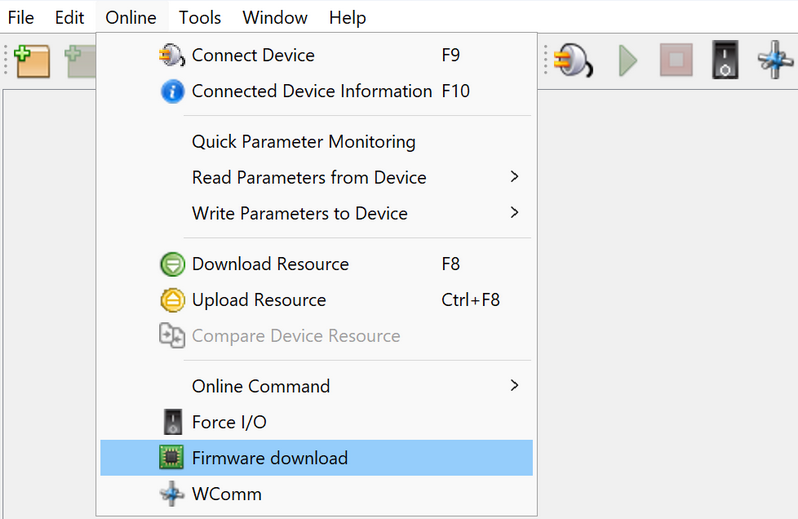
When you click on “Firmware Download,” an interaction panel will appear, allowing you to configure communication with the device.
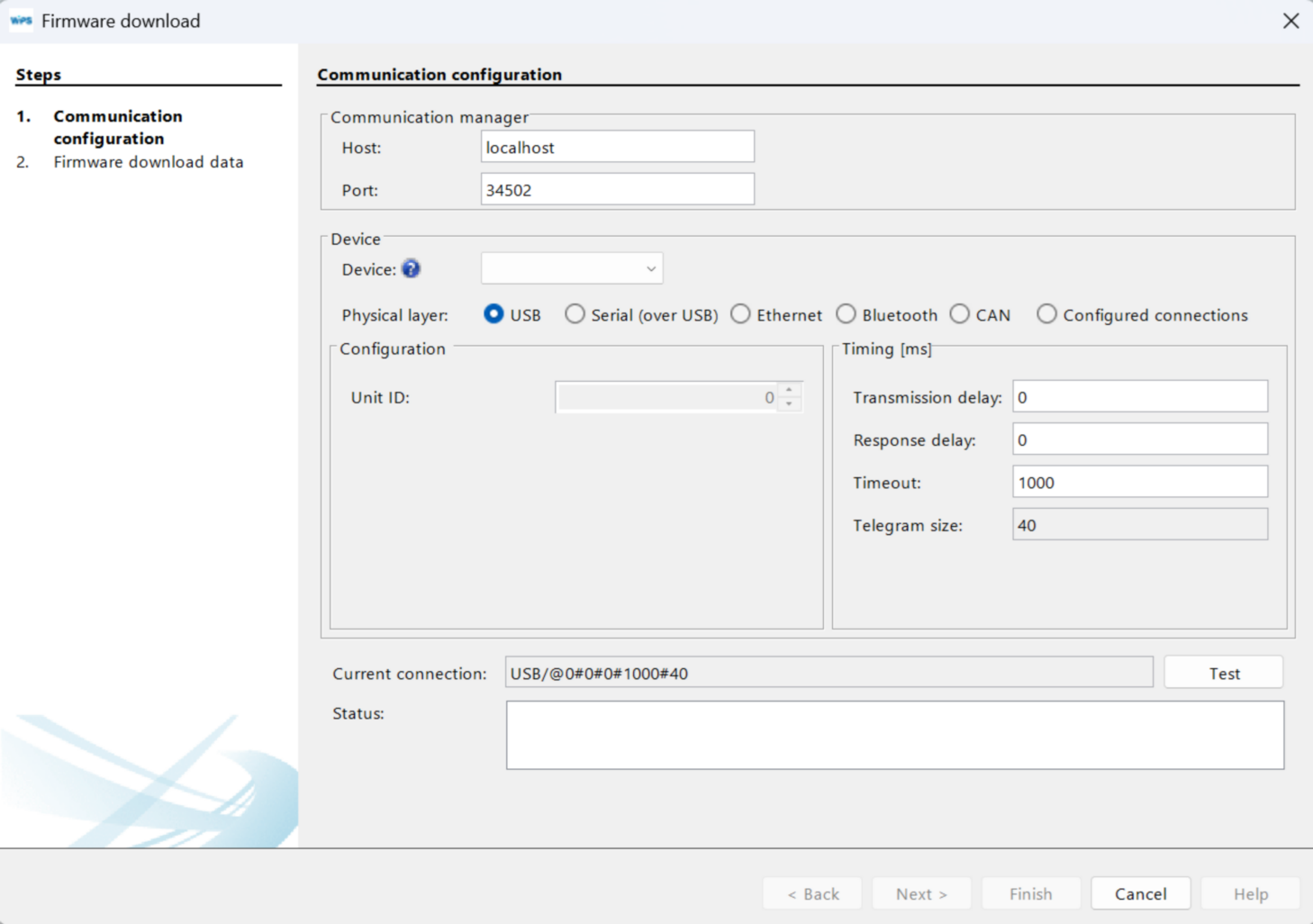
In the “Device” section, select the desired equipment in the “Default” field, configure the corresponding physical layer, and perform the corresponding Communication configuration.
Then, use the “Test” button, located next to the “Current connection” field, to verify that communication is working correctly.
The result will be displayed in the “Status” field, which should return “Device Online” for the firmware update process to proceed.
After obtaining this status, simply click the “Next” button located in the lower right corner of the interaction panel.
The update process for each device can be followed through a step-by-step guide available on the “Firmware Download” page, within the specific section for each equipment. Below, you will find a list with specific instructions for each equipment:
|
NOTE!
|
