|
Firmware Download |
  
|
|
Firmware Download |
|
This feature allows you to update the firmware on the device from WPS, and can be accessed from the Online menu.
To use it, you will need to obtain the binary file in advance from the supplier/technical support.
For more information on setup preparation, refer to the Technical Support Manual for Firmware Update via WPS, available at http://www.weg.net.
To download firmware:
1) Connect the device to the computer and ensure it is powered on. It is not necessary to have a project or resource created in WPS.
2) Configure the communication, selecting the product from the list, then the physical layer, and adjusting other settings if necessary. More information is available in Communication.
Click Test to verify if the device communicates with WPS.
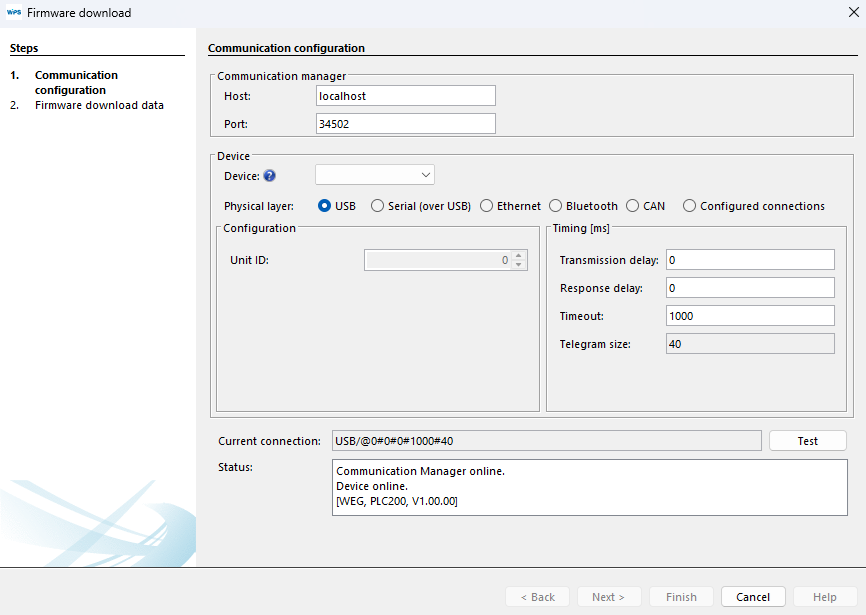
3) If there is communication between WPS and the device, the Next button will be enabled. Click Next:

4) On the next screen, click "..." and select the binary file (.bin extension) that was provided in advance.
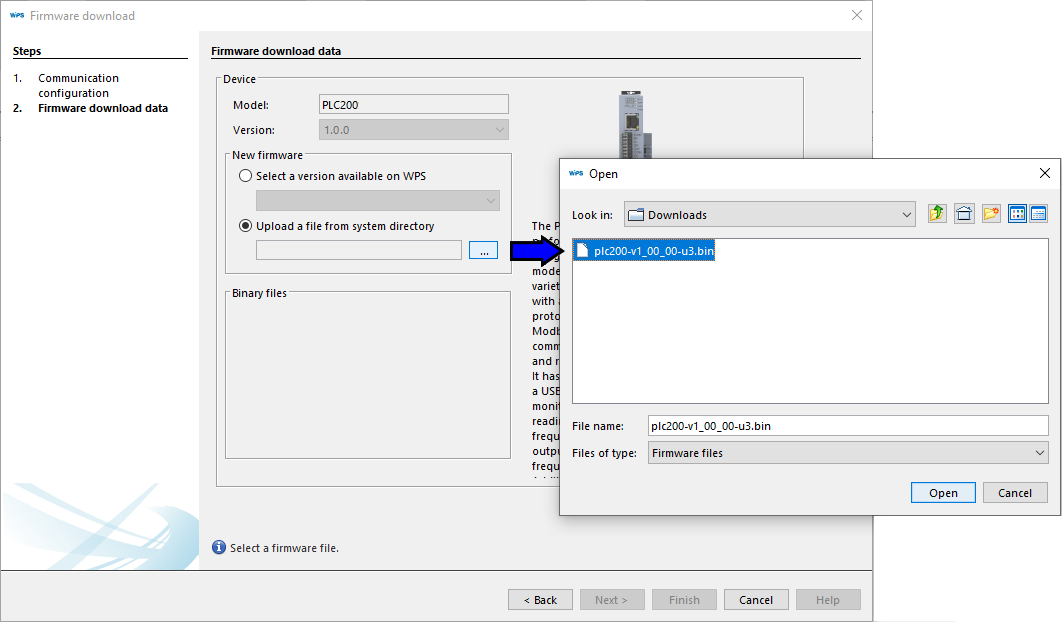
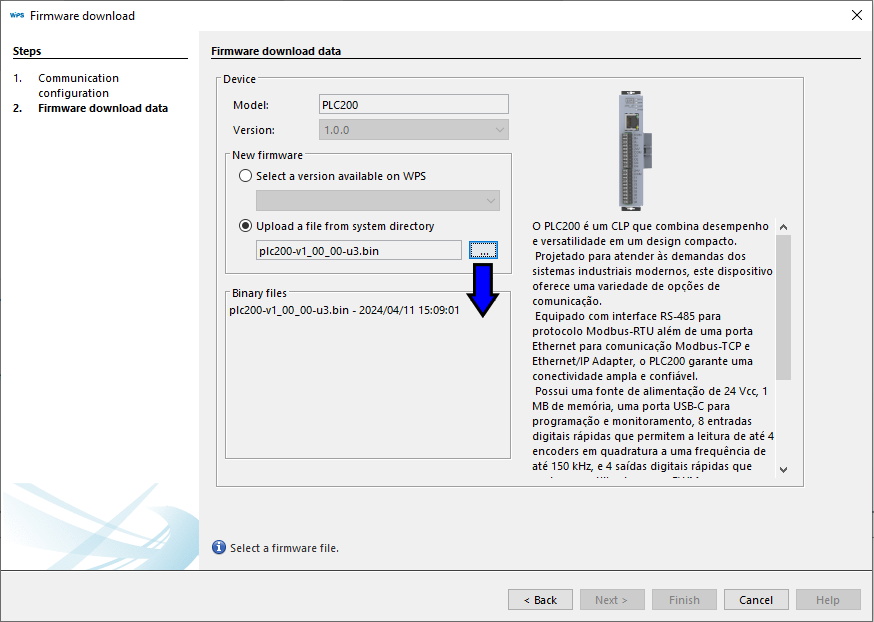
5) The binary file information will be displayed below the selected file.
Click Finish to close the wizard and start the firmware writing process.
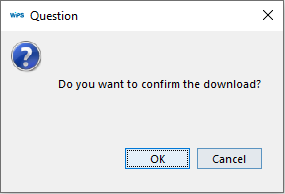
6) A confirmation message is displayed.
Click OK to confirm:
7) The firmware writing process begins. Wait for the process to complete.
The information is displayed in the Output window and the status bar:
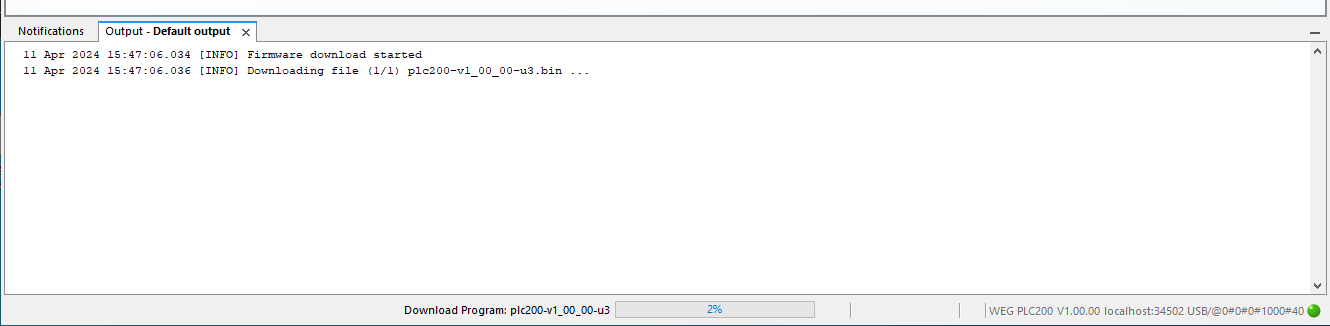
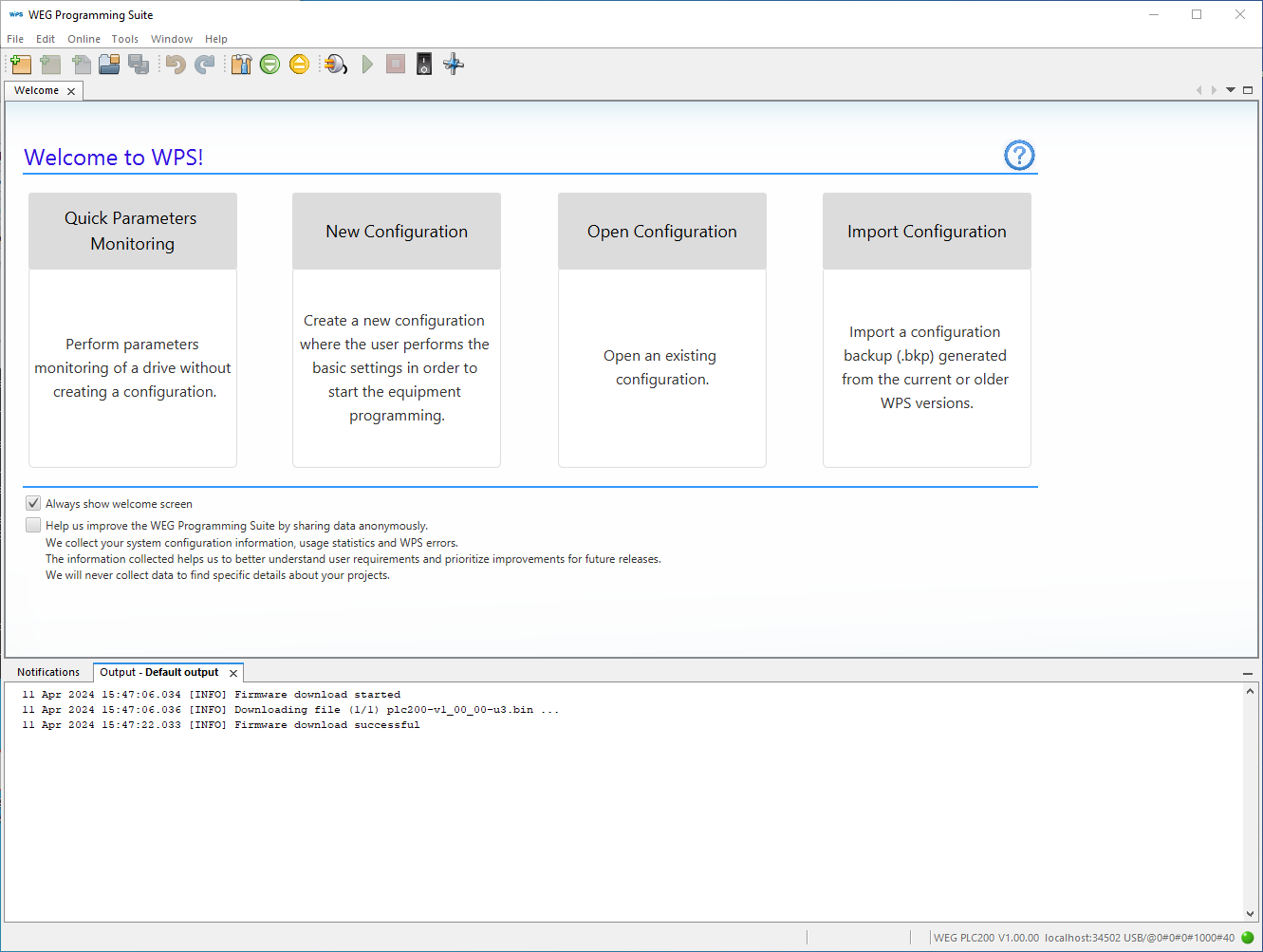
8) When the writing process is complete, a message is displayed in the Output window and the device resets.
Depending on the device, it may be necessary to configure the communication parameters to re-establish communication with WPS.
|
NOTE! The firmware update process will not be completed if the binary file is incompatible or corrupted. |
