|
Firmware Download |
  
|
|
Firmware Download |
|
This option allows to update device´s firmware trough WPS. It is available at Online menu.
It will be necessary to obtain - previously - the binary file from the supplier / technical support.
For more information on preparing the setup, see the Technical Support Manual for Firmware Update using WPS, available at http://www.weg.net.
To perform the firmware download:
1) Connect the device to the computer and make sure it is powered. It is not necessary to have a project or resource created in WPS.
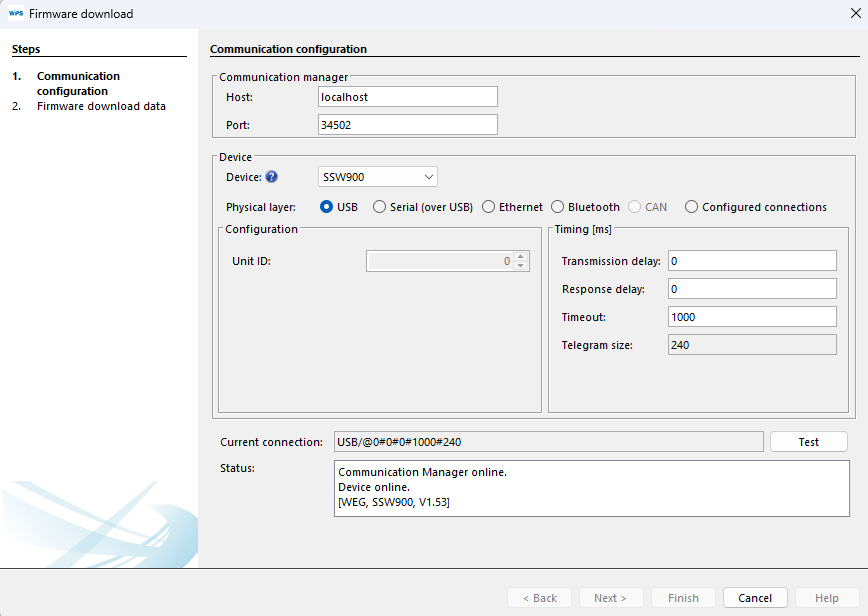
2) Configure the communication by selecting the product from the list, then the physical layer and adjusting other settings, if necessary. More information is available at Comunication.
Click Test to verify that the device communicates with the WPS.
|
NOTE! To download firmware using Ethernet as physical layer, it is recommended to set a transmission delay equal to 10 (10ms) for better performance.
|
|
NOTE!
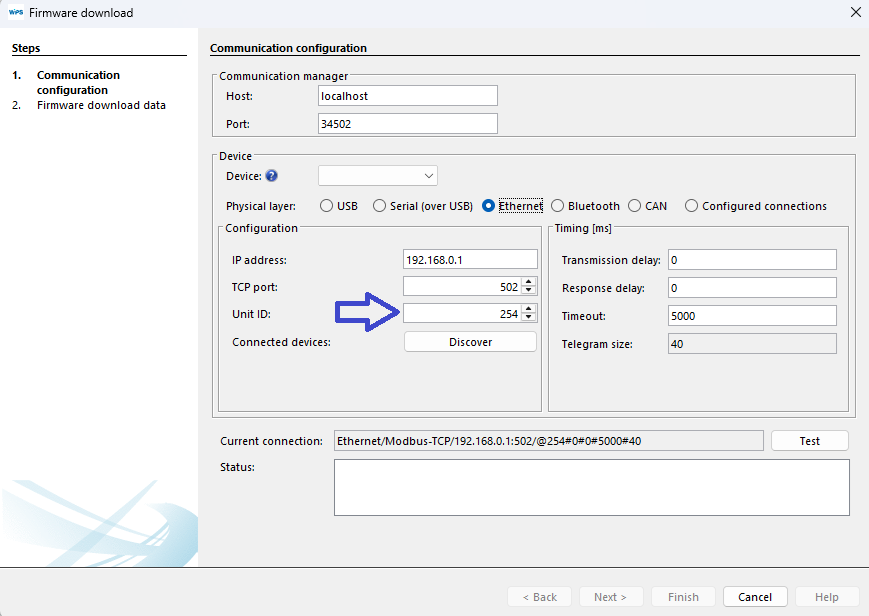
To update the firmware of the Ethernet accessory (SSW900-CETH-W), set the ID 254 in the communication settings. Refer to the product manual for setting the IP address and port in parameters P0850 to P0855 and P0865. In the following example, these parameters set the IP to 192.168.0.14 and the TCP port to 502:
|
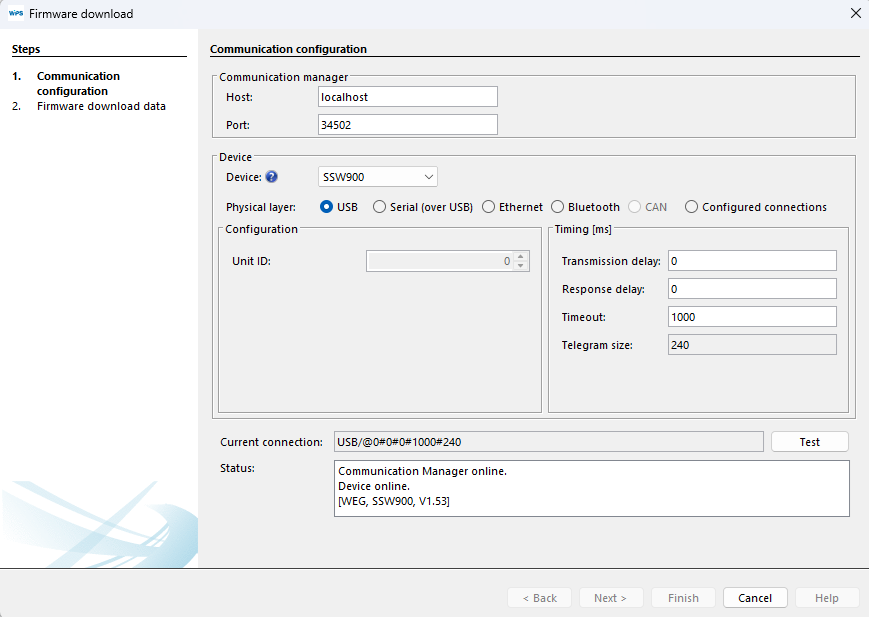
3) If there were communication between the WPS and the device, the Next button will be enabled. Click Next:

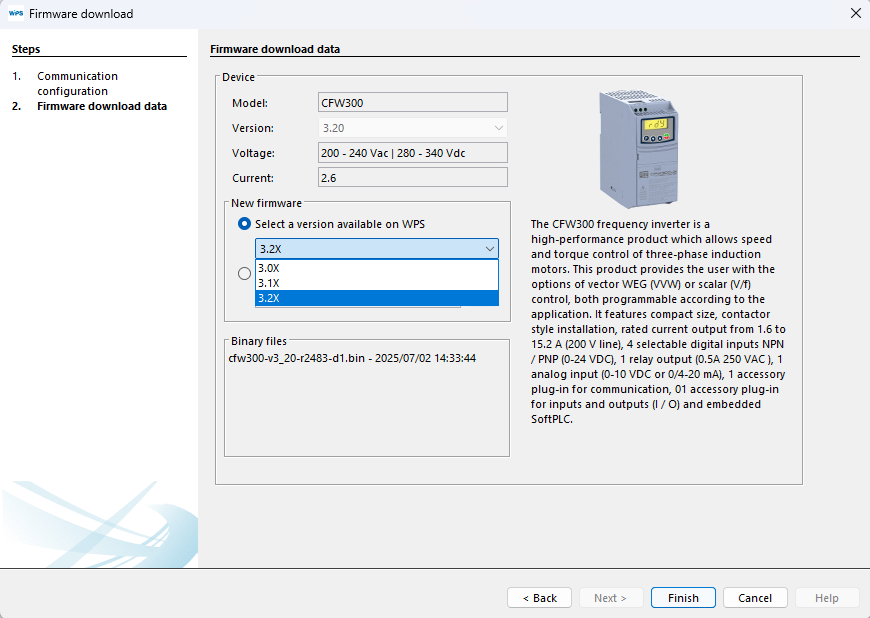
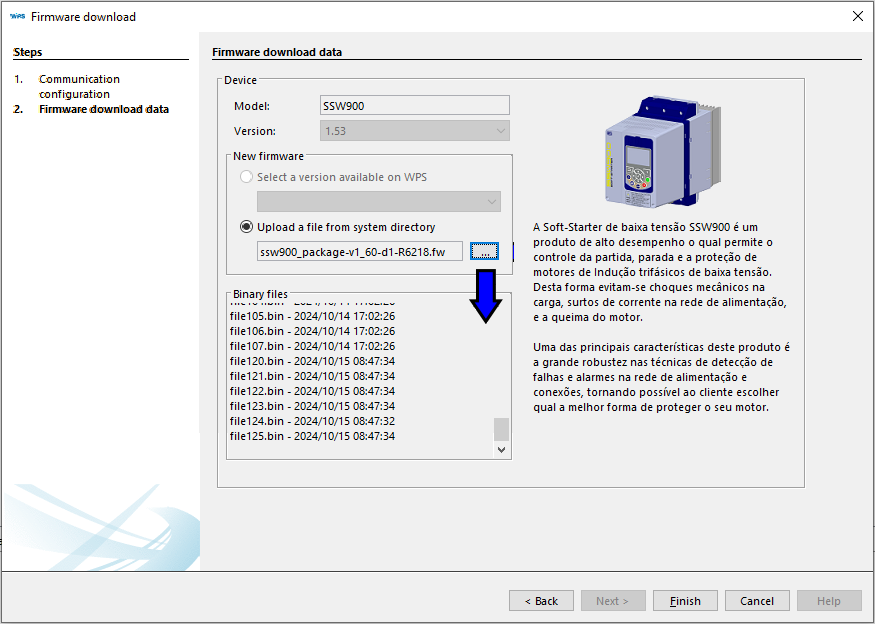
4) On the next screen, you can choose between two options:
| • | Select an available firmware version for WPS from the drop-down list: |
|
NOTE!
If the version selector is disabled, it is possible that WPS is out of date. In this case, we recommend that you update to access the latest features and fixes. |
| • | Or click on “...” and select the firmware file (.fw or .bin) provided previously: |
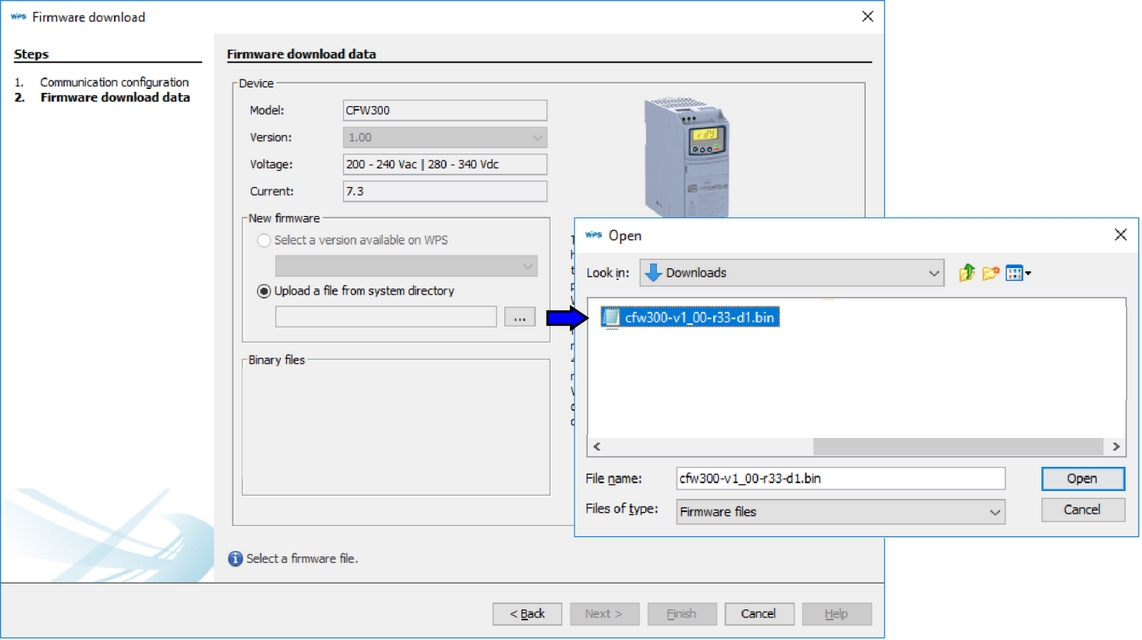
5) The binary file information will be displayed below the selected file.
Click Finish to close the wizard and start writting the firmware.
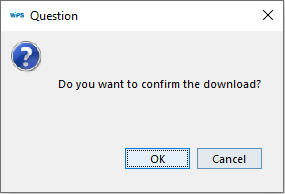
6) A confirmation message is displayed.
Click OK to confirm:
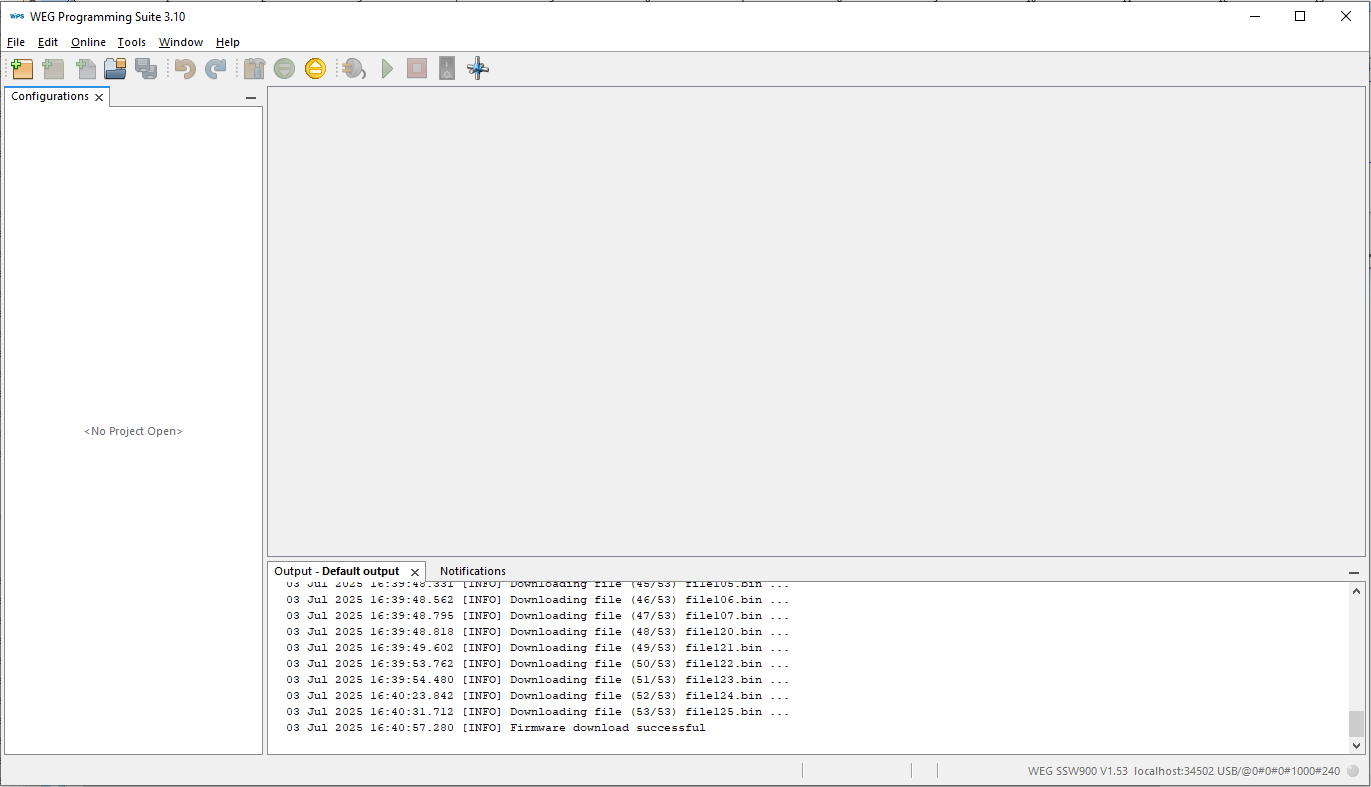
7) The firmware writting starts. Wait for the process to complete.
The information is presented in the Output window and in the status bar:

8) Upon completion of recording, a message in the Output window is displayed. Wait until the device show information in HMI to restart.
Depending on the device, it is necessary to configure the communication parameters to re-communicate with the WPS.
|
NOTE! The firmware update process will not be completed if the binary file is incompatible or if it is corrupted.
Before updating the firmware, stop running program and make sure that the device is not in operation (motor run). |
Download Failure:
If you insert an invalid file or a file valid for another device, the update process stops and an error message is displayed:
Check:
1) If you are updating the device or the device's network accessory, and using the corresponding update file;
2) If the selected Unit ID in the communication configuration matches:
- Device (SSW900 – Unit ID = 255) or;
- Device accessory (SSW900-CETH-W – Unit ID = 254).
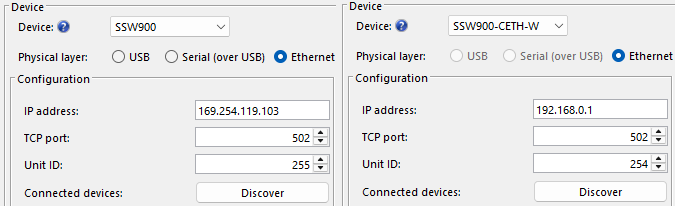
3) If the correct device was selected in the communication configuration in Preset field;
4) If the firmware update file matches the device that will be updated, then try updating again.