|
Pop-up Menu - Resource |
  
|
|
Pop-up Menu - Resource |
|
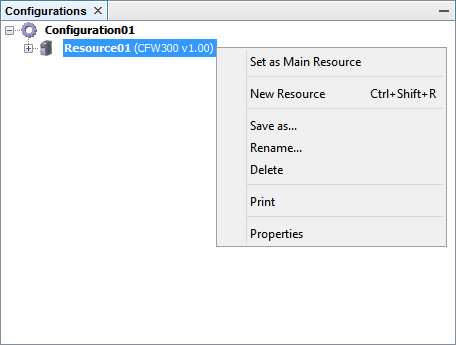
The pop-up menu of the resource provides some functions described below.
Click the link for quick access:
- - -
- - -
- - -
When a configuration has several resources, the resource in use must be defined as main resource.
In order to define a resource as main resource, click the Define as Main Resource item in the pop-up menu.
After clicking the menu item, the resource will show in bold.
|
NOTE! Remember to always set a resource you wish to work as main resource, preventing download and editing errors. |
See the section Creating New Resource for details on creating a new resource.
In order to duplicate a resource, click Save As in the pop-up menu.
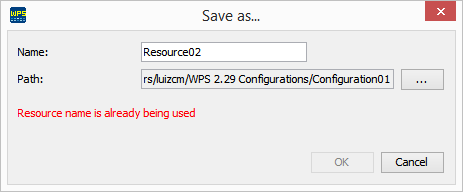
In the Name field, enter the new name of the resource and click OK.
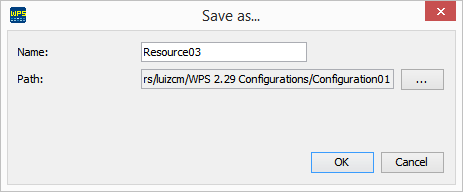
The new resource can be viewed in Configurations.
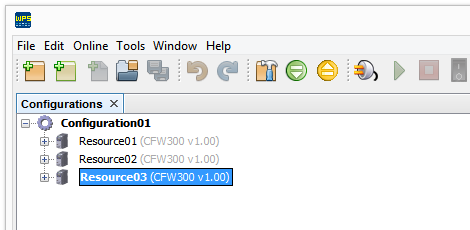
In order to rename a resource, click Rename in the pop-up menu.
Enter the new name.
| • | Click OK to accept or |
| • | Click Cancel in order to cancel the operation. |
In order to delete a resource, click Delete in the pop-up menu.
A message requests confirmation to delete the resource.
| • | Click OK to delete or |
| • | Click Cancel in order to cancel the operation. |
Select the option that you wish to print.
| • | Click OK in order to print or |
| • | Click Cancel in order to cancel the operation. |
In order to view/edit the resource properties, click the Properties menu item in the pop-up menu.
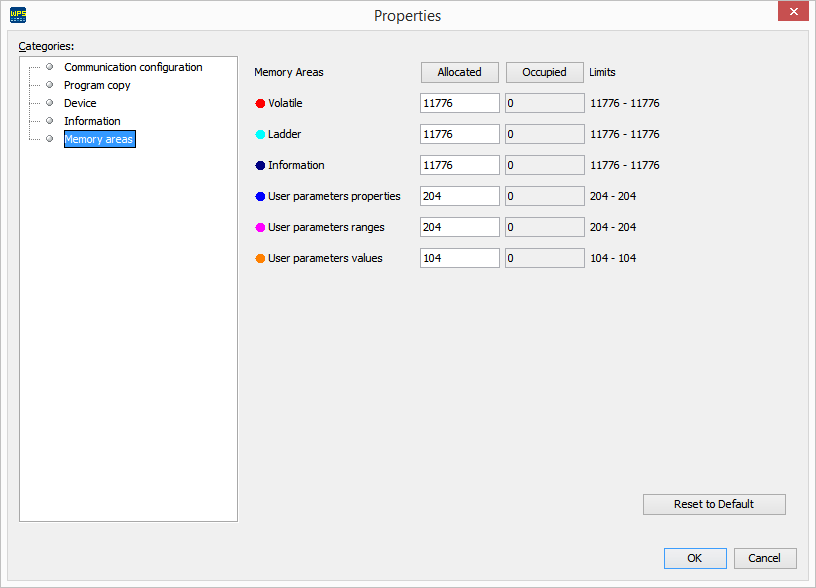
The properties window shows some categories:
| • | Communication Configuration; |
| • | Program Copy; |
| • | Equipment; |
| • | Information; |
| • | Memory Areas. |
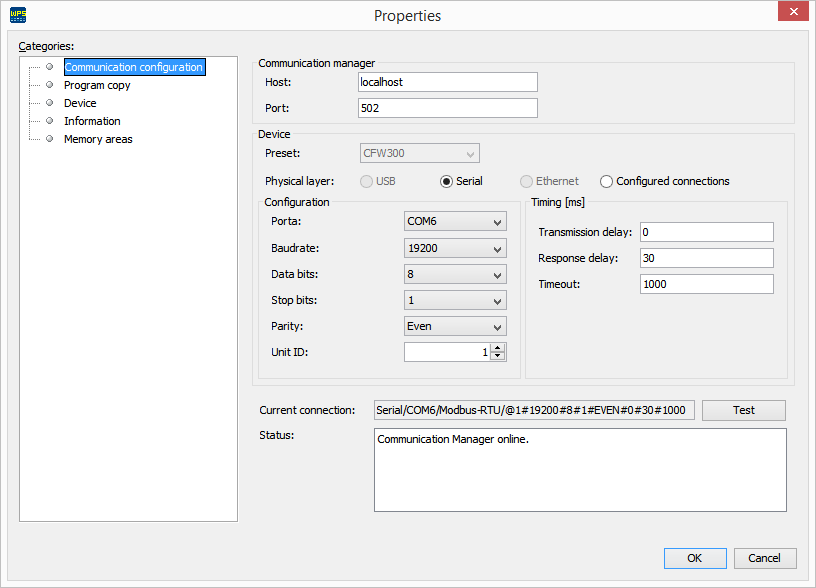
1) Communication Configuration
In Communication Configuration, you can change different communication variables:
| • | Name of the host and port of the communication manager; |
| • | Device (Equipment); |
| • | Physical layer; |
| • | Port settings; |
| • | Times; |
| • | Communication test (current connection); |
| • | Communication status. |
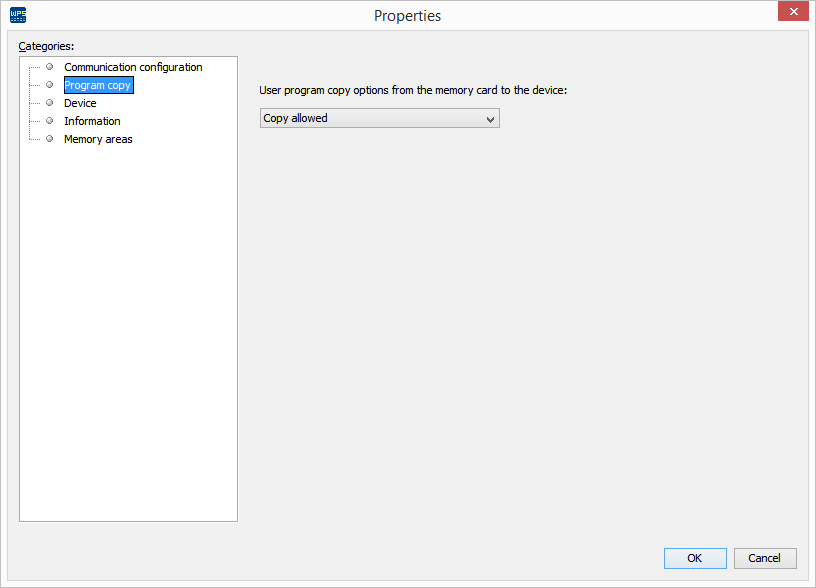
2) Program Copy
|
NOTE! This option is available only for CFW300. |
In Program Copy, a checkbox allows selecting the copy type of the user program from the memory card to the equipment:
| • | Allow copying: allows the ladder program to be copied to a flash memory module (CFW300-MMF); |
| • | Allow only one copy: allows the ladder program to be copied to a flash memory module (CFW300-MMF), which allows loading it to another equipment; however, it does not allow copying from that equipment to another flash memory module, that is, it does not allow copy of the copy; |
| • | Do not allow copying: does not allow the ladder program to be copied to a flash memory module (CFW300-MMF); |
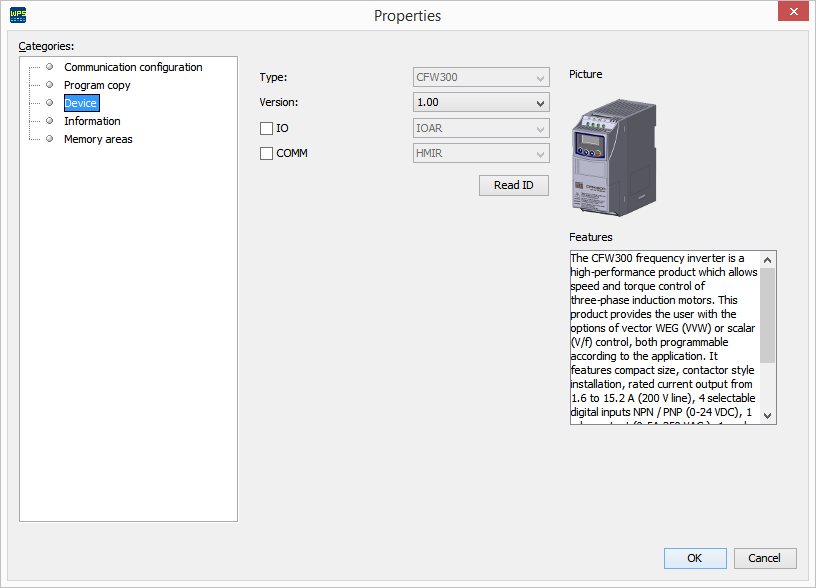
3) Device
In Device, you can:
| • | Change the firmware version; |
| • | Select/remove accessories; |
| • | Read the equipment identification, viewing the model and firmware version. |
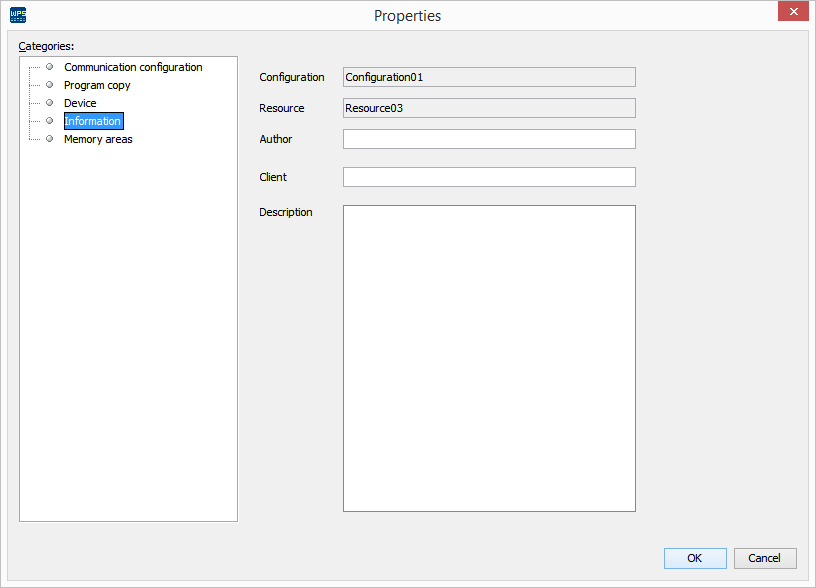
4) Information
In Information, you can view/change configuration data:
| • | Author; |
| • | Client; |
| • | Description. |
5) Memory Areas
In Memory Areas, it is possible to change the amount of memory (in bytes) allocated to each resource section.
| • | Allocated memory: the editable text boxes show information of allocated memory, enabling the user to change them; |
| • | Used memory: the non-editable text boxes show information on the memory currently used by the resource loaded on the equipment; |
| • | Limits: next to these boxes, it is displayed the range of acceptable values of allocated memory for each field. |
One click on the Allocated button shows a chart of allocated memory.
One click on the Used button shows a chart of used memory.