|
Pop-up Menu - Configuration |
  
|
|
Pop-up Menu - Configuration |
|
The configuration pop-up menu provides some functions described below.
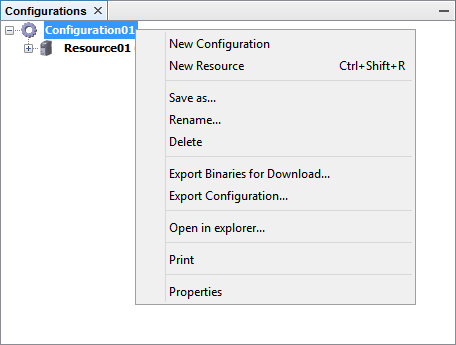
Click the link for quick access:
- - -
- - -
Export Binaries for Download...
- - -
- - -
- - -
See the section Creating New Configuration in order to create a configuration.
See the section Creating New Resource in order to create a resource.
In order to duplicate a configuration, click Save As in the pop-up menu.
In the Name field, enter the configuration new name.
| • | Click OK to accept or |
| • | Click Cancel in order to cancel the operation. |
In order to rename a configuration, click Rename in the popup menu.
Enter the new name.
| • | Click OK to accept or |
| • | Click Cancel in order to cancel the operation. |
In order to delete a configuration, click Delete in the pop-up menu.
A message requests confirmation to delete a configuration.
| • | Click OK to delete or |
| • | Click Cancel in order to cancel the operation. |
The WPS v3.1X compiler generates binary files from the source files in the resource. When these files are transferred to the machine, they are interpreted and executed.
The export binaries for download functionality encapsulates the binaries files into a .bbp file. This .bbp file can be redistributed, but the original source file can not be viewed or changed.
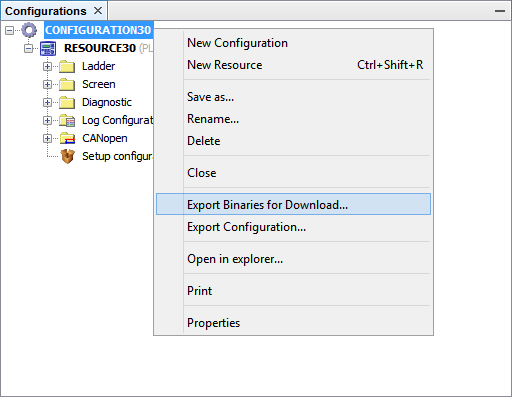
1) Export from the Configuration (Pop-up Menu)
Right-click the configuration that contains the resource to be exported, and then, in the popup menu, click Export Binaries for Download.
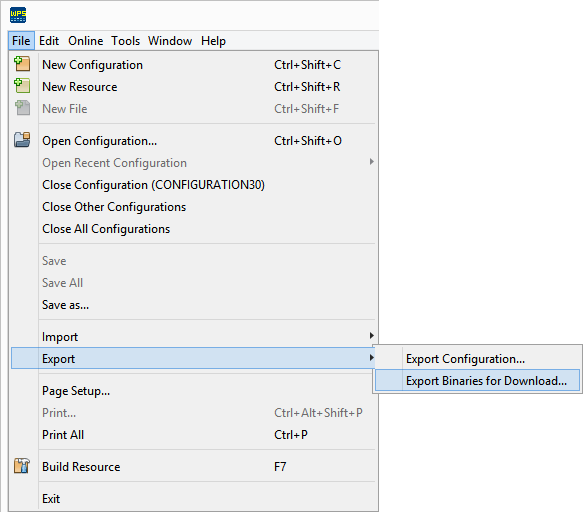
2) Export from the Menu Item
The Export Binaries for Download menu item can also be used to export.
In the File menu, click Export, and then Export Binaries for Download.
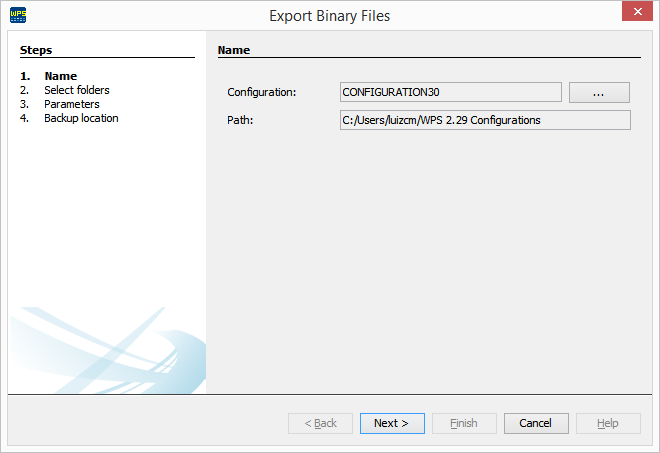
3) Configuration Selection
A window of the export wizard will open, displaying the name and path of the configuration containing the resource to be exported.
Click the ... button in order to modify those data.
Then click Next.
4) Resource Selection
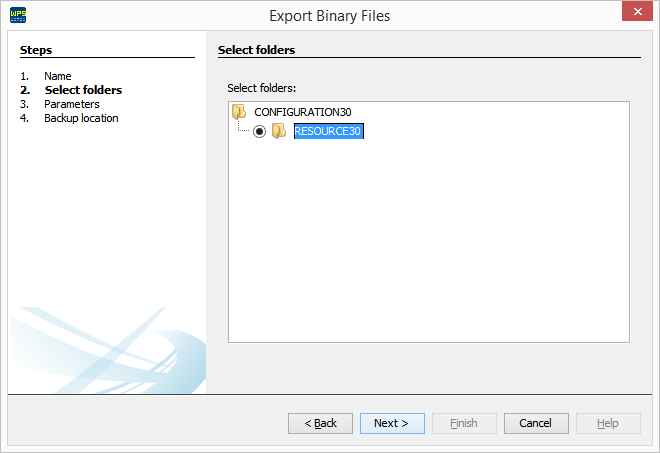
Then the resource selection screen will pop up, containing the binaries to be selected for exportation.
Select the desired resource and click Next.
5) Error Exporting
If the exported resource has not been previously compiled, an error message will pop up.
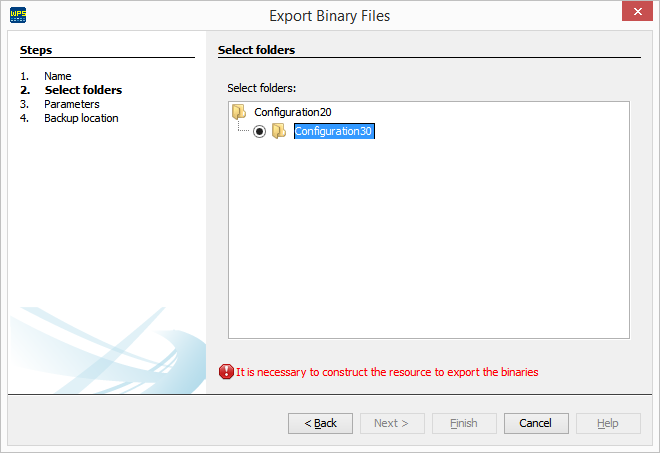
Click Cancel to exit.
Compile the resource and return to the first step of this tutorial.
|
NOTE! Always compile the desired resource before exporting its binary files. |
6) Select Options
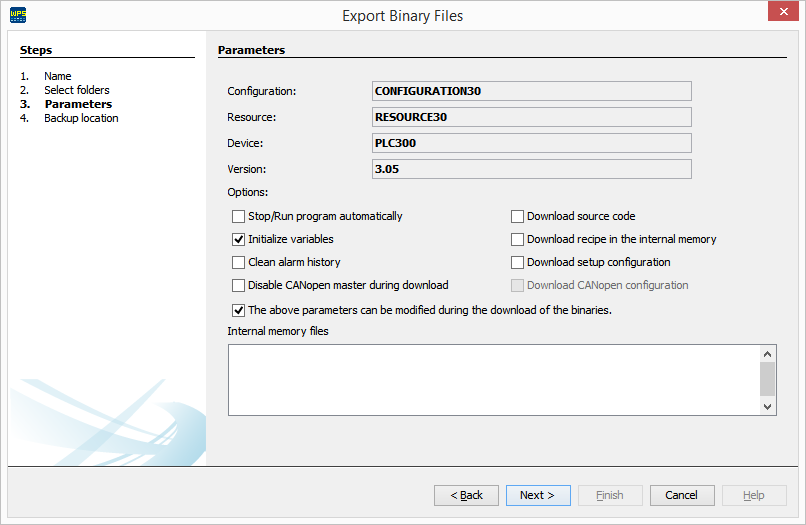
The next screen is similar to the resource download screen, enabling the configuration of several download options.
Refer to the section Download for further information.
The last checkbox defines whether those settings can be changed at the moment of the download of the binaries.
|
NOTE! Download options change depending of the resource selected. |
7) Location of the Exported File
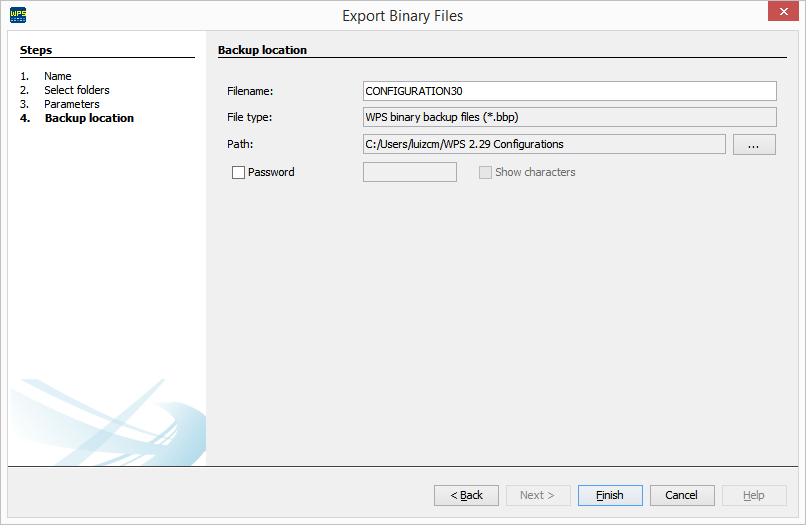
Finally, one last screen allows defining the name of the file and its location. Click the ... button in order to change those data.
This screen also allows entering a password to protect the file. If desired, check the checkbox and enter the password.
Then click Finish.
The WPS v3.1X allows the configurations to be exported to a backup file in the .bkp format.
That simplifies sending a configuration to another machine.
You should always use this procedure to prevent file corruption.
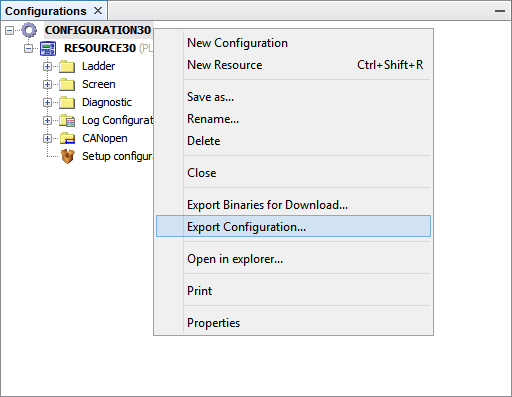
1) Export from the Configuration (Pop-up Menu)
Right-click the configuration to be exported, and then, in the pop-up menu, click Export Configuration.
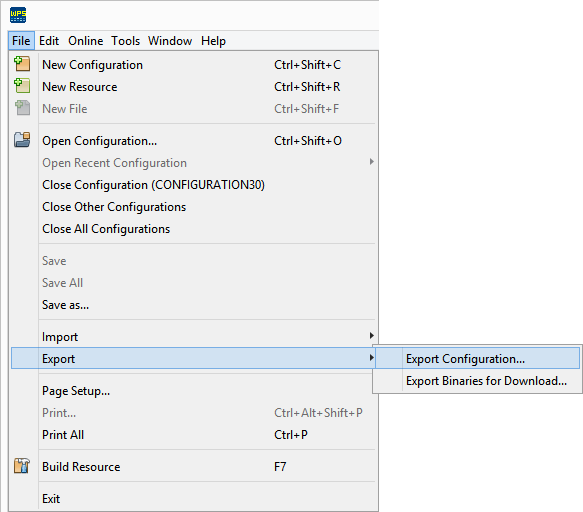
2) Export from the Menu Item
The Export Configuration menu item can also be used to export.
In the File menu, click Export, and then Export Configuration.
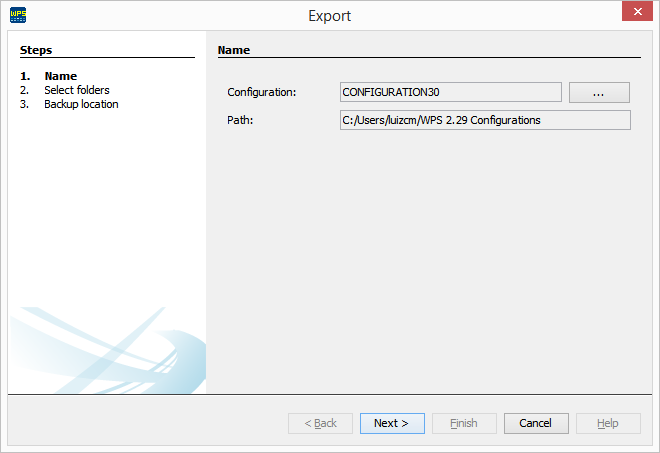
3) Configuration Selection
The export wizard will open, displaying the name and path of the configuration to be exported.
Click the ... button to modify those data.
Then click Next.
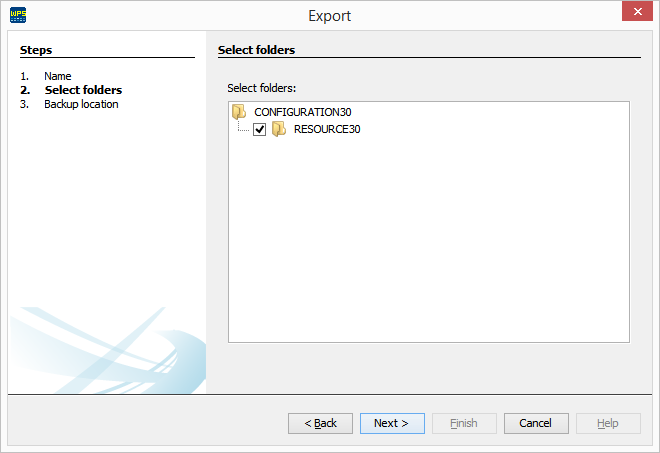
4) Resource Selection
Then a screen to select the resources to be exported to the file will pop up.
Select the resources you wish to export and click Next.
5) Select Options
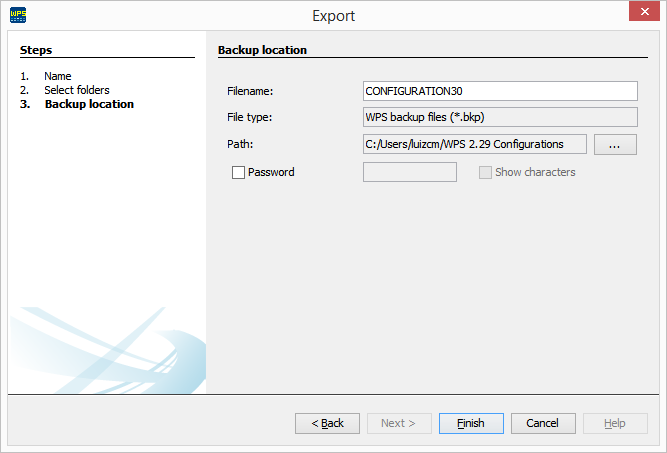
Finally, one last screen allows defining the name of the backup file and its location.
Click the ... button in order to modify those data.
This screen also allows entering a password to protect the file. If desired, check the checkbox and enter the password.
Then click Finish.
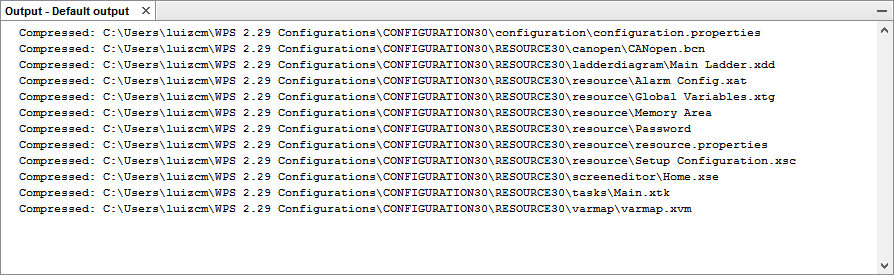
6) Wait until Finish
In the exit window, you can view messages informing generation of the exported configuration.
Open Windows Explorer in the configuration folder.
The user can view the content of the folder in Windows Explorer.
Select the option that you wish to print.
| • | Click OK in order to print or |
| • | Click Cancel in order to cancel the operation. |
Click the Properties item, and a window will pop up with the following items:
| • | Name: configuration name; |
| • | Path: configuration path; |
| • | Size: configuration size. |
