|
Copy/Paste |
  
|
|
Copy/Paste |
|
Overview
All the copy, cut and paste functions are available in the Ladder editor through the edit menu or through the corresponding keyboard shortcuts. In order to execute these operations it is necessary to have rung and/or element selected.
Copy/paste an element
Below is an example of copying and pasting an element.
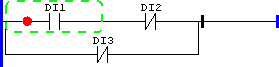
Figure 1: First, select the element and press Ctrl+C
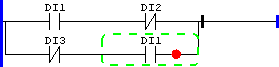
Figure 2: Then, select contact with insertion point after and press Ctrl+V
Copy/paste multiple elements
It is also possible to copy, cut and paste multiple elements selected either by the mouse or by the G key as previously mentioned. Below is an example of copying and pasting multiple elements.
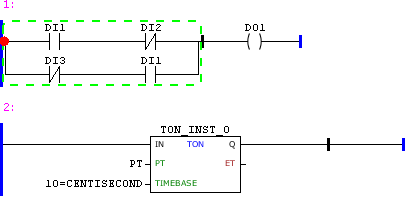
Figure 3: First, select the group and press Ctrl+C
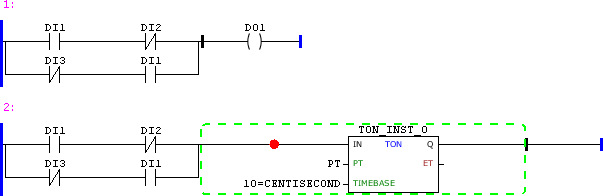
Figure 4: Then, select timer with insertion point before and press Ctrl+V
There might be cases in which it is not possible to paste and there will not be modification in the rung after the command.
Copy/paste rungs
The selection of rungs for the operations of copy, cut and paste is only performed through the mouse as shown in the figures below.
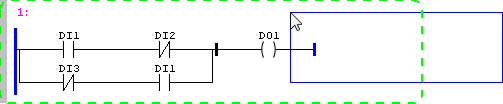
Figure 5: Through the mouse from the right side out of the rung
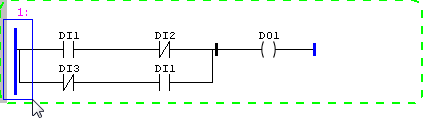
Figure 6: Through the mouse from the left side out of the rung
It is also possible to select multiple rungs for these operations.
Below is an example of copying / pasting a rung.
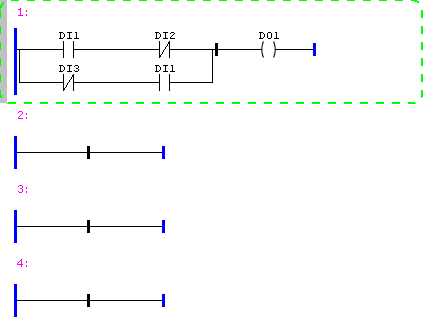
Figure 8: Rung to be copied has been selected, then pressed Ctrl+C

Figure 9: Rung above destination has been selected
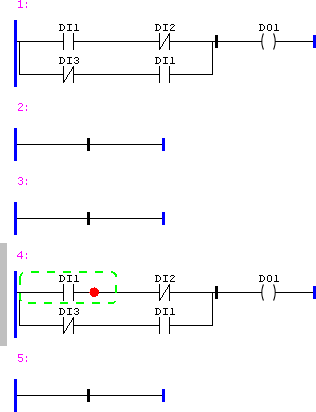
Figure 10: After pressing Ctrl+V