|
Online Monitoring |
  
|
|
Online Monitoring |
|
Overview
After the Ladder program is compiled and loaded on the device, it is possible to monitor the Ladder by pressing the Connect Device button  .
.
At this moment, the WPS v3.1X will try to establish communication with the device by testing the communication with it.
The online monitoring will graphically represent the logical state of the Ladder program. An example of online monitoring can be seen in the following figure.
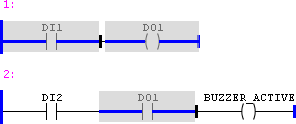
Figure 1: Example of online monitoring
For functional blocks, the values are presented as shown in the following figure:

Figure 2: Monitoring values of the functional blocks
The variables values are shown on their respective variables; the internal values of the instance are shown on the name of the respective argument.
Writing of variables
In order to write variables, just double click the variable you wish to write and a value writing box will open as shown in the following figure.
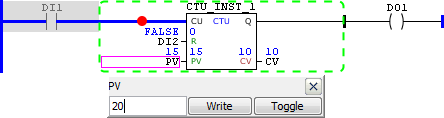
Figure 3: Writing of variables
In this box, you must enter the desired value and press the Write button in order to write the value. The Toggle button is used to toggle the value written between zero and the current value.
Monitoring of instances
In order to monitor, just double click the instance variable and a box related to instance monitoring will open as shown in the following figure.
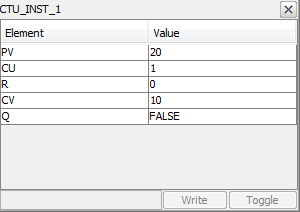
Figure 4: Monitoring of instances
In order to write on instance internal variables, just click on the corresponding line, use the value edition box and the Write and Toggle buttons as already mentioned in the previous item.
Monitoring of structures
For the variables created from structures defined in the resource, just click on the corresponding variable and a box similar to the instance monitoring one will open. See the following example.
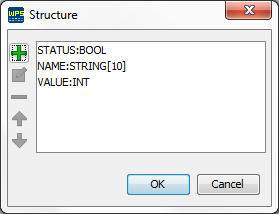
Figure 5: Structure defined in the resource
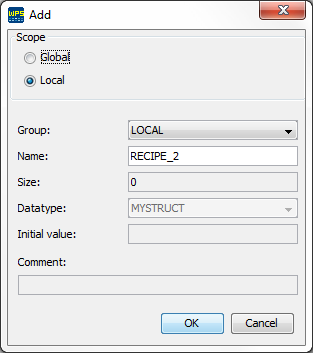
Figure 6: Variable created with data type of the structure defined in the resource
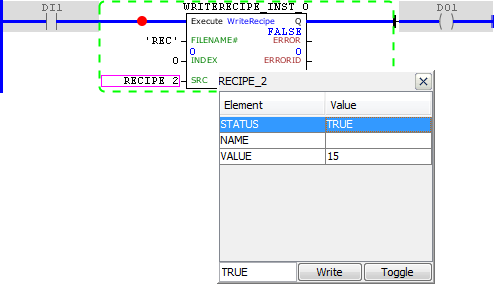
Figure 7: Monitoring of the variable used in the SDCARD_ReadRecipe block
Monitoring of arrays
For variables created with size greater than zero, it is possible to monitor all the data of their array. In order to do so, just click on the corresponding variable and a monitoring box will open. See the following example.
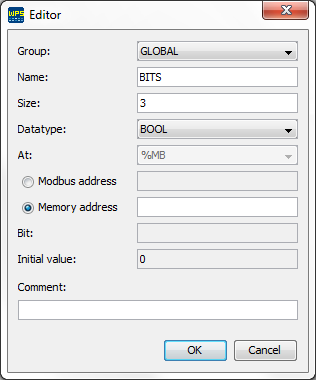
Figure 8: Variable created with size greater than zero, array
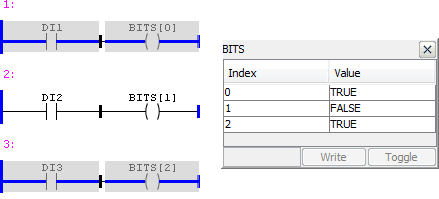
Figure 9: Monitoring of the variable used in MB_ReadRegister block