|
Import - Configuration and Binaries |
  
|
|
Import - Configuration and Binaries |
|
WPS has three import options available in the File > Import menu:
| • | Import Configuration |
| • | Import Configuration (Legacy) |
| • | Import Binaries for Download |
Import Configuration
Use the Import Configuration option to load a configuration that was previously stored in a backup file (.bkp extension) from the Export.
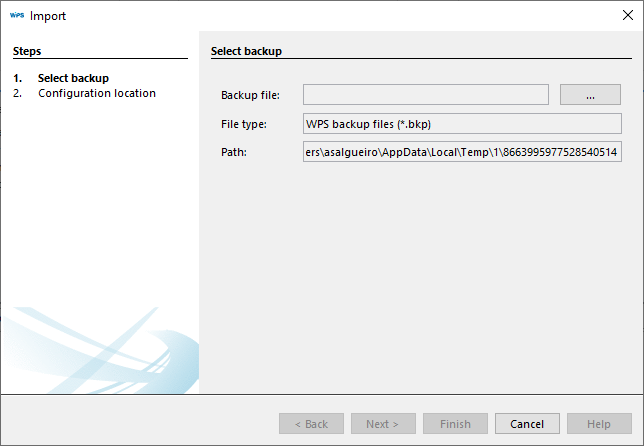
Click ... to select the backup file, and then click Next.
|
NOTE! If the file is not valid, a message will be displayed informing you that the backup file is invalid, preventing the import process from progressing. |
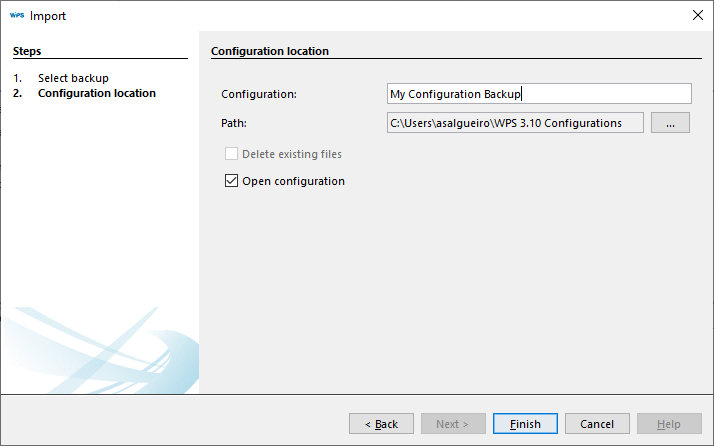
The configuration information is displayed. You can modify the configuration name.
By default, the configuration opens after this step is completed.
Click Finish.
Import Configuration (legacy)
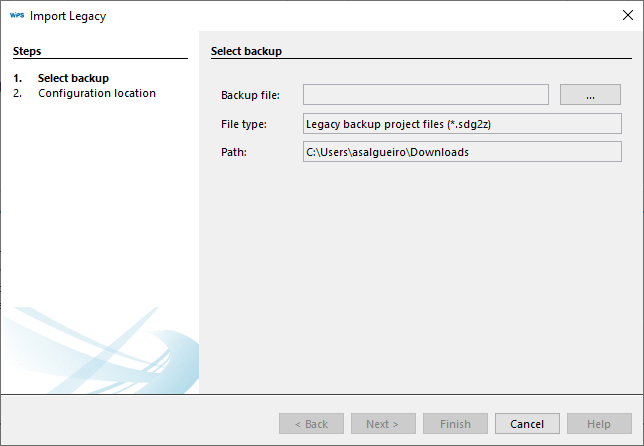
This is the same import process described for importing configuration, however, the backup file must have the .sdg2z extension.
This functionality imports a configuration that was previously generated in the legacy software SuperDrive G2.
Import Binaries for Download
Import a backup of binary files.
In the first step, it is necessary to establish communication with the equipment, selecting the device in the Predefined field and performing the Communication Test:
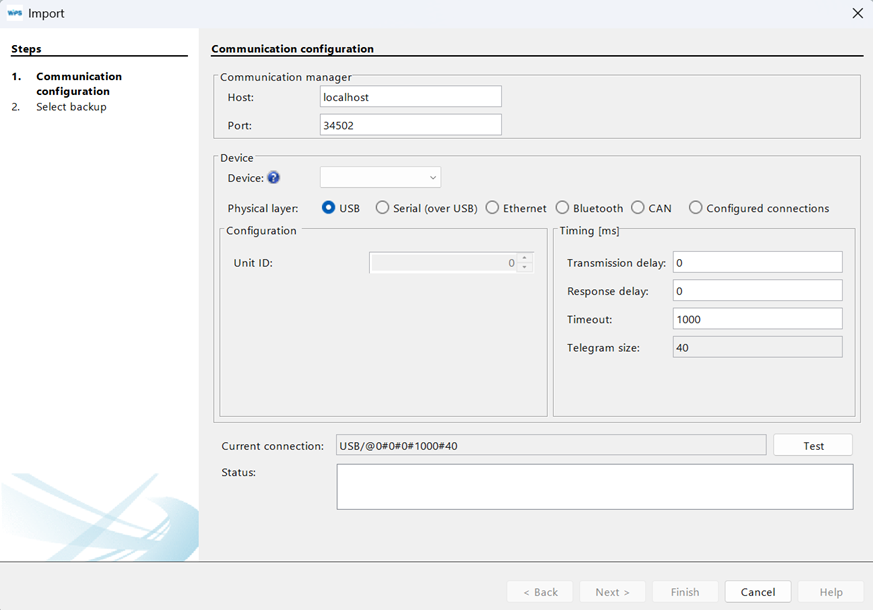
Then click Next to select the file.
Click Finish to import the data contained in the .bbp extension file..
|
NOTE! This process requires a device connected to the computer. |
