|
Export - Configuration and Binaries |
  
|
|
Export - Configuration and Binaries |
|
O WPS has three export options available in the File > Export menu:
| • | Read parameters and export |
| • | Export configuration |
| • | Export Binaries for Download |
Read parameters and export
This functionality creates a configuration, obtains a backup of parameters and logs (if available) and stores them in a backup file (extension .bkp).
It requires a device connected to the computer so that the information can be read.
The first step is to perform the configuration to establish communication with the device.
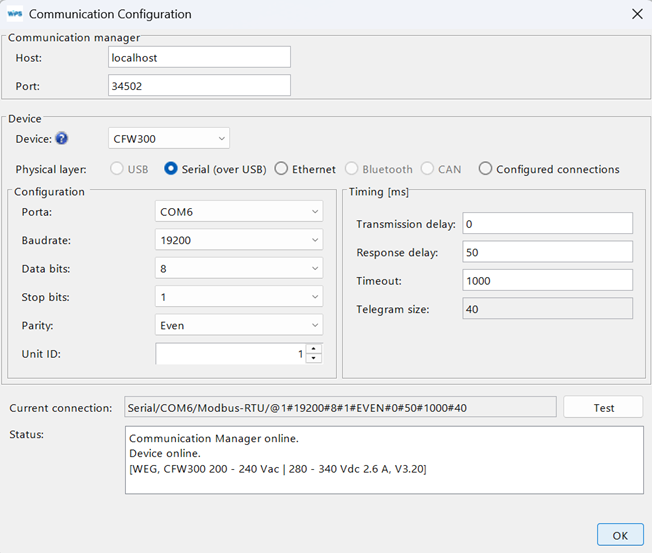
|
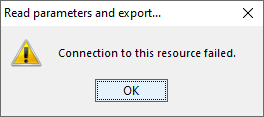
NOTE! If there is no communication with the device, a message will be displayed and the data export will be interrupted.
|
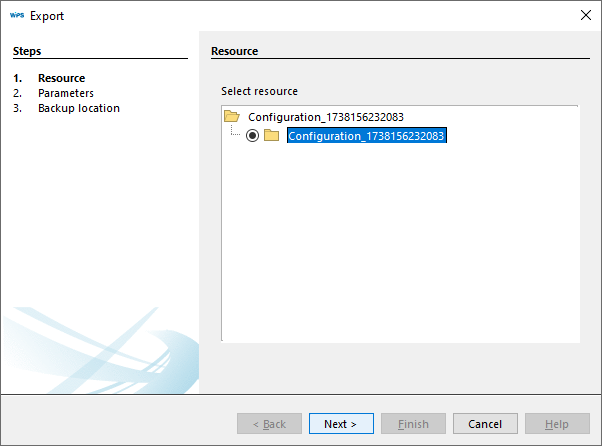
When confirming communication with the device, a window will be displayed to select the automatically created resource.
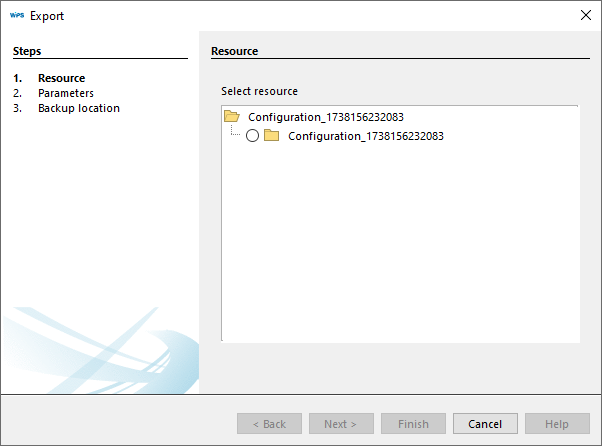
Select the feature and click Next:
Wait for data reading.
|
NOTE!
Depending on the type of communication selected, this process may take a few minutes.
|
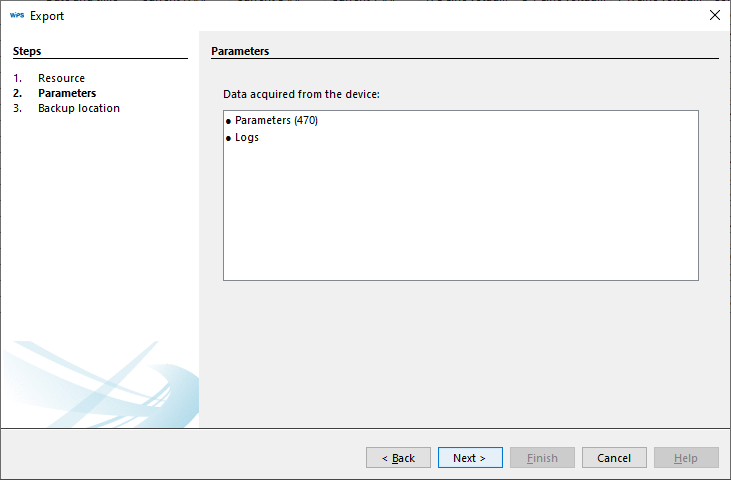
Once you have finished reading, you will be presented with a summary of the information acquired.
Click Next:
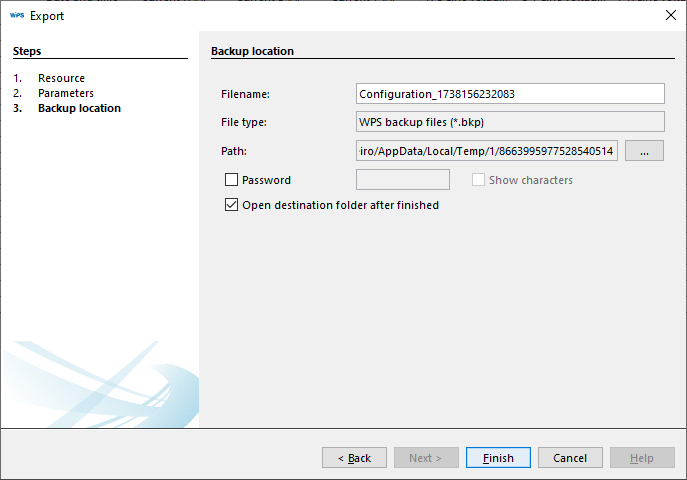
The configuration information is displayed. You can modify the configuration name. Click Finish.
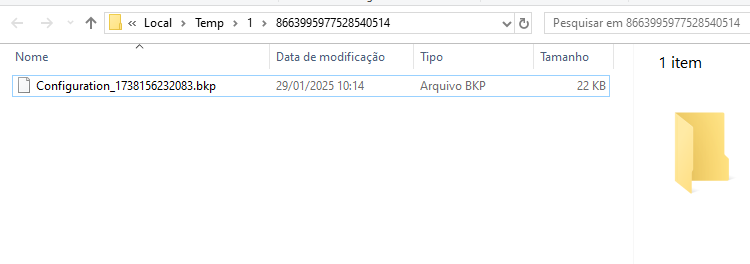
A folder containing the configuration file will open after this step is completed.
System folder containing the generated backup file:
Export configuration
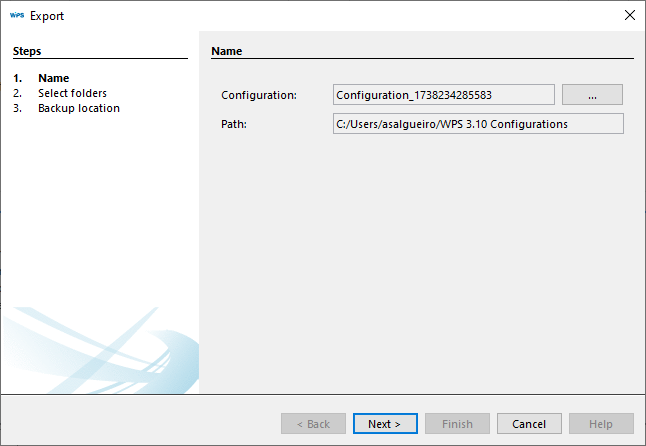
To export the configuration to a backup file (.bkp extension), click Next:
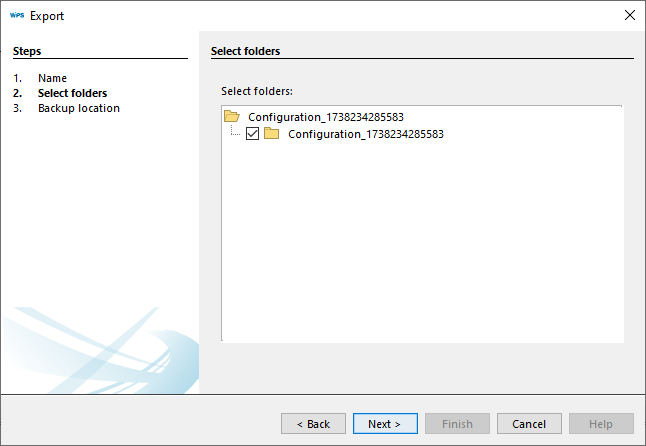
You can then select the Configuration features that will be exported. Click Next:
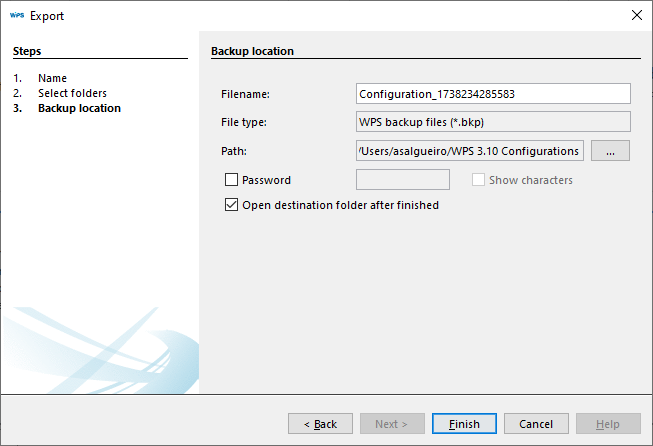
The configuration information is displayed. You can change the configuration name. Click Finish.
A folder containing the configuration file will open after this step is completed.
Export Binaries for Download
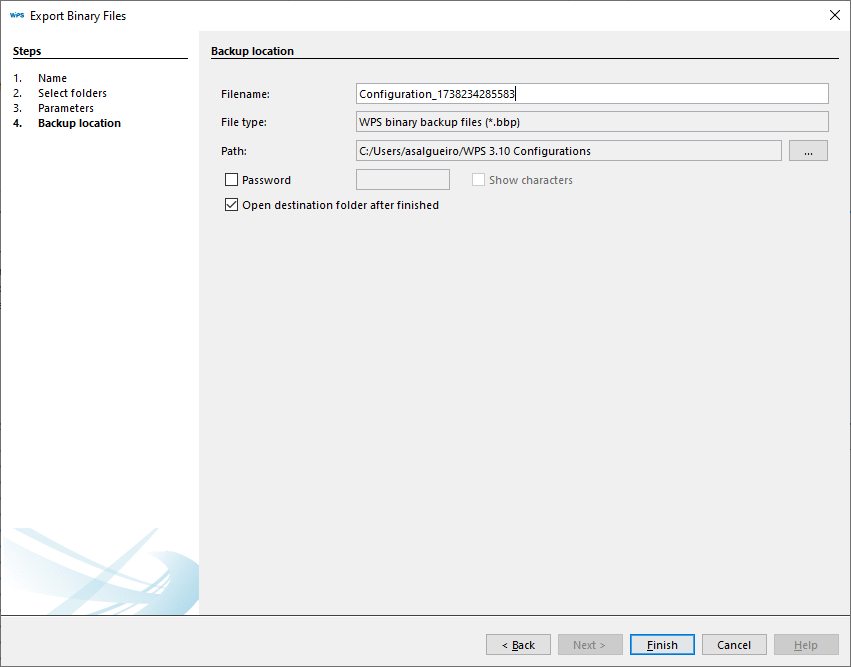
Creates a backup of binary files with the .bbp extension.
In the first step, you need to select Configuration. Click Next.
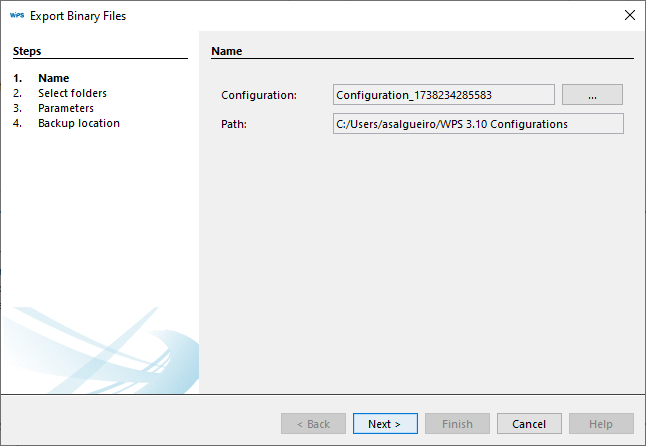
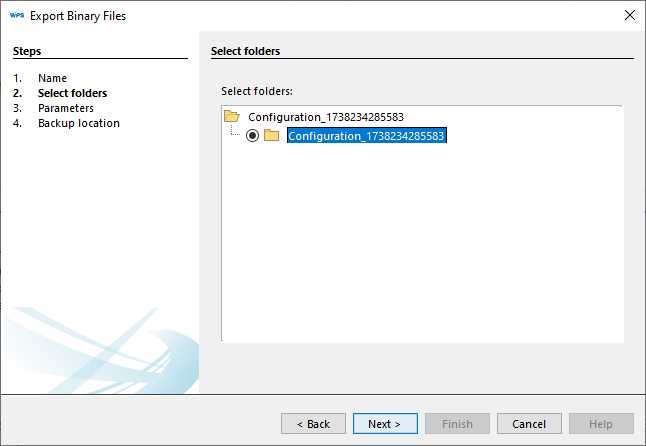
Then select the feature within the previously selected Configuration and click Next:
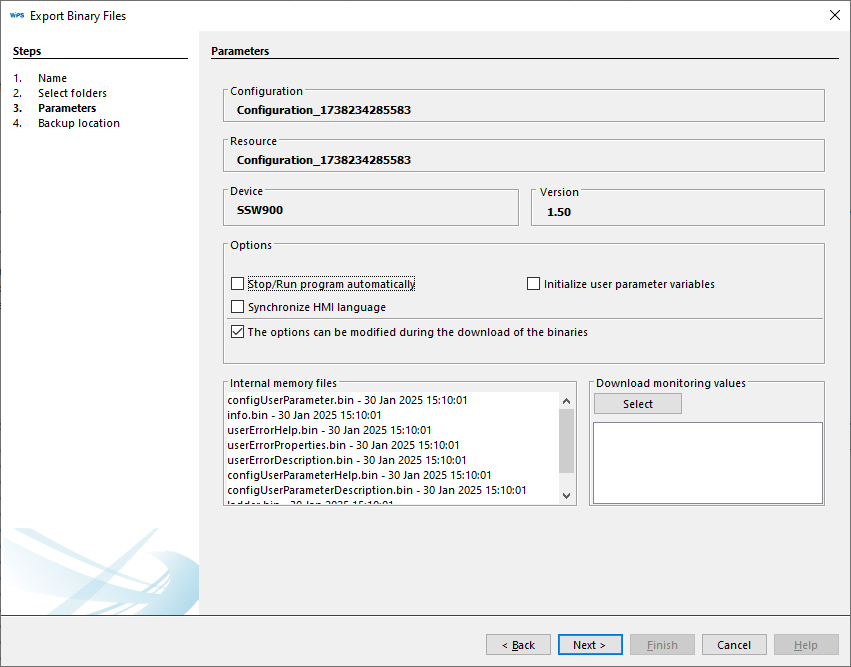
Select options if necessary and click Next:
The backup information is displayed. You can change the file name. Click Finish.
A folder containing the backup file will open after this step is completed.