|
Importing Special Versions |
  
|
|
Importing Special Versions |
|
1) Import Special Version Menu Item/Button
In the Tools menu, click Import Special Version.

2) Import Special Version Window
A window will pop up prompting you to import a database for the special version of the product to be selected.

3) Database import (XML)
Click "..." and select the XML file that was previously provided.

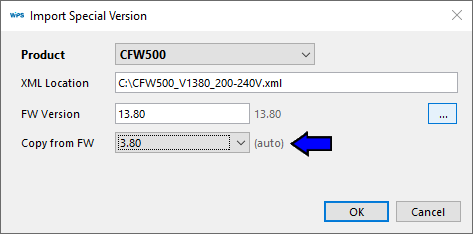
4) Special Firmware Version Adjustment
After selecting the XML file, adjust the firmware version of the database to be imported.

|
NOTE! The database import process will not be completed if the XML file is incompatible or corrupted. |
5) Selection of the base Firmware Version
Choose the firmware version informed by the database supplier to be used as a reference.
Click OK to finish the import.
6) Completion of the import process
When the import is complete, a message in the Output window is displayed.
After clicking OK, WPS will be restarted.

7) Import problems
|
NOTE! The database import process will not be completed if the XML file is incompatible or corrupted. |
While executing item 3, if the file is not compatible, an Output window will display an error message.

After clicking OK, a message will be displayed that the base was not imported.

To perform item 4, it is important to use the firmware version format compatible with the product. In case of inconsistency, an error message will be displayed.

