|
How to Check and Update WPS |
  
|
|
How to Check and Update WPS |
|
This guide explains how to:
| 1. | Check for available updates and update WPS (three possible methods). |
| 2. | Change how often WPS checks for new updates. |
| 1. | Check and update the WPS |
There are three methods for checking and update WPS.
| • | Method 1: Help menu → Check for Updates → Plugin Installer → Next → Restart. |
| • | Method 2: Tools menu → Plugins → Updates tab → Check for Updates → Update → Restart. |
| • | Method 3: Tools menu → Plugins → Available Plugins tab → Check for Newest → Install → Restart. |
Updating via the "Help" menu:
| 1. | In the top menu, click on "Help". |
| 2. | From the drop-down menu, select "Check for Updates". |
| 3. | A window titled "Plugin Installer" will appear. |
| • | If WPS is up to date, the following message will appear: "Your application is up to date! There are no updates available". |
| • | If updates are available, a list of plugins that will be updated will be displayed. |
| 4. | If updates are available, click "Next >" to start the update. |
| 5. | When finished, restart the WPS. |
Visual example:
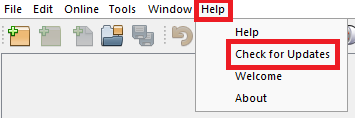
Top menu and drop-down menu with the "Help" and "Check for Updates" options highlighted respectively.
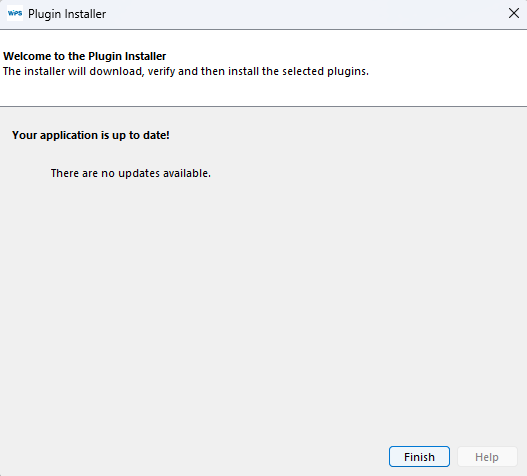
Window "Plugin Installer" with the message "Your application is up to date! There are no updates available".
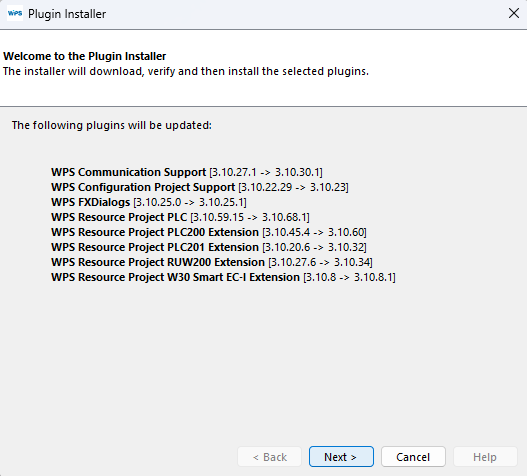
Window "Plugin Installer" showing a list of plugins available for updating.
Updating via the "Tools > Plugins > Updates" menu:
| 1. | In the top menu, click on "Tools". |
| 2. | From the drop-down menu, select "Plugins". |
| 3. | A window called "Plugins" will appear, go to "Updates" tab. |
| 4. | Click the "Check for Updates" button located in the upper left corner. |
| • | If WPS is up to date, a blank list will appear. |
| • | If updates are available, a list of plugins that will be updated will be displayed. |
| 5. | If updates are available, click "Update" in the lower left corner to start the update. |
| 6. | When finished, restart the WPS. |
Visual example:
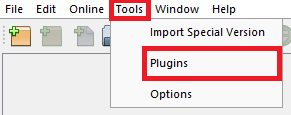
Top menu and drop-down menu with the "Tools" and "Plugins" options highlighted respectively.
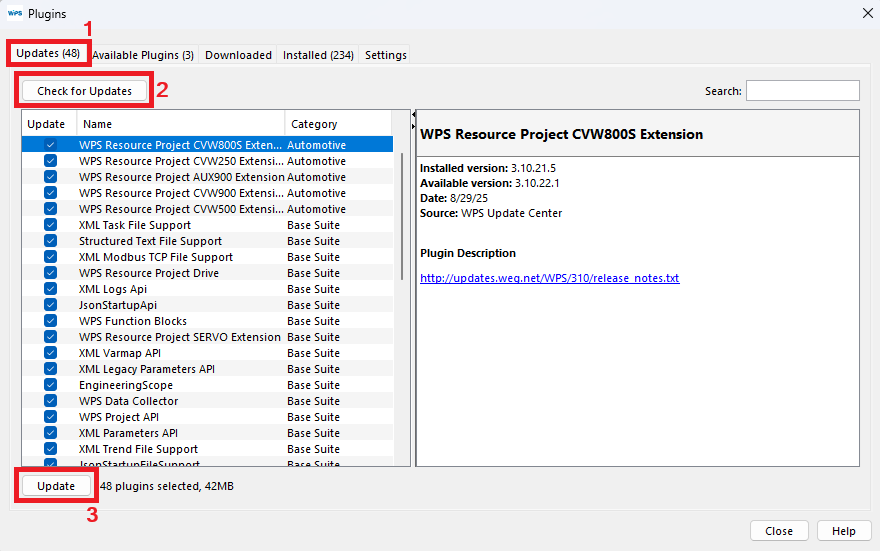
Window "Plugins" showing the tab "(1) Updates", with the button "(2) Check for Updates", followed by the list of available plugins, with the button "(3) Update" after the list.
Updating via the "Tools > Plugins > Available Plugins" menu:
In addition to keeping existing plugins up to date, it is important to check for new plugins available for installation. This ensures that you have access to all the latest features.
| 1. | In the top menu, click on "Tools". |
| 2. | From the drop-down menu, select "Plugins". |
| 3. | A window called "Plugins" will appear, go to "Available Plugins" tab. |
| 4. | Click the "Check for Newest" button located in the upper left corner. |
| 5. | If new plugins are available, a list of them will be displayed. |
| • | Tip: Always keep this list empty by installing new plugins as they become available. |
| 6. | To install, select the desired plugins and click "Install" (located in the lower left corner, after the list). |
| 7. | When finished, restart the WPS. |
Visual example:
Top menu and drop-down menu with the "Tools" and "Plugins" options highlighted respectively.
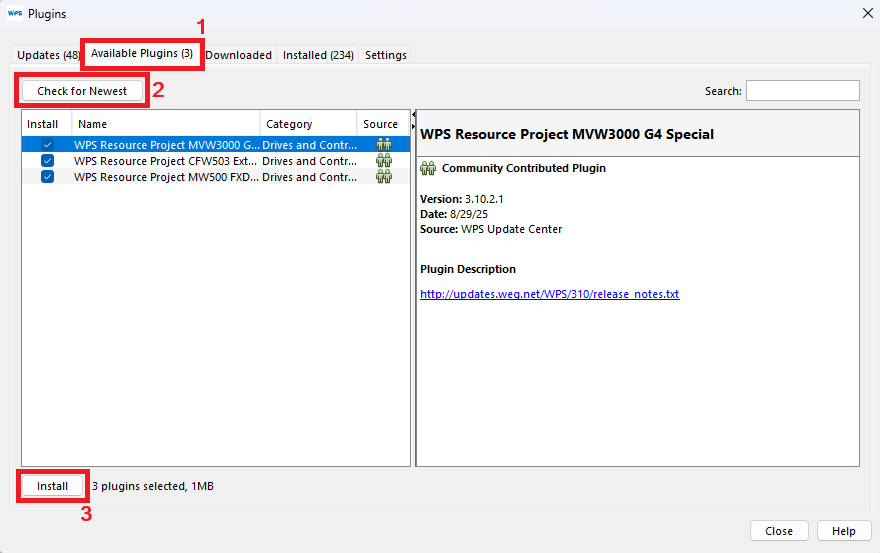
Window "Plugins" showing the tab "(1) Available Plugins", with the button "(2) Check for Newest", followed by the list of available plugins, with the button "(3) Install" after the list.
| 2. | Change the frequency of automatic checking |
The WPS allows configure how often it will automatically check for new updates.
Step by step guide:
| 1. | In the top menu, click on "Tools". |
| 2. | From the drop-down menu, select "Plugins". |
| 3. | A window called "Plugins" will appear, go to "Settings" tab. |
| 4. | Find the section "Automatically Check for Updates". |
| 5. | In the "Check Interval" field, select the desired frequency from the drop-down menu: |
| • | Every Startup |
| • | Every Day |
| • | Every Week |
| • | Every Two Weeks |
| • | Every Month |
| • | Never |
|
NOTE! It is recommended to check at least weekly to ensure that the application is always up to date. |
Visual example:
Top menu and drop-down menu with the "Tools" and "Plugins" options highlighted respectively..
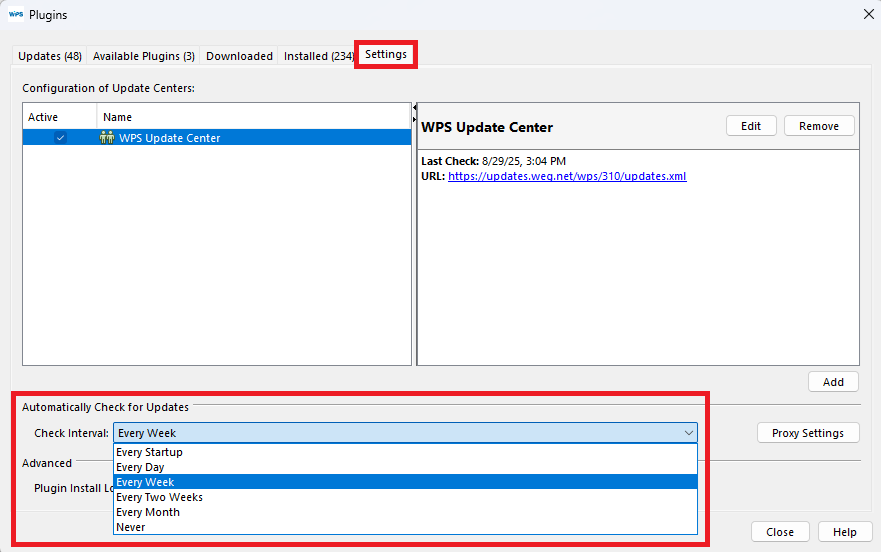
Window "Plugins" showing the tab "Settings", highlighting the section "Automatically Check for Updates", with the option selector open.
