|
Tasks |
  
|
|
Tasks |
|
Overview
The task is a very useful scheduling mechanism in real-time systems to control the execution of programs, either periodically or triggered by events.
The tasks are configured by adding task files to the Taskfolder, inside the resource. These task files are then associated with programs that execute their logic when the task becomes active. A watchdog can be configured for each task (see the Watchdog Watchdogsection). Each task has an associated system marker that can be enabled or disabled through the program.
Within a resource, there is a single task called MainMain, which cannot be deleted, in which the main program (Main Ladder) is executed.
From the task folder options menu, you can perform the following actions:
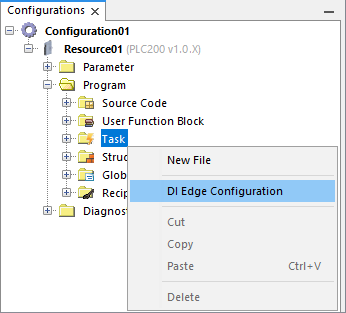
| • | Add a new task: to add a new task, you must select the option New file from the Task folder Task. |
| • | Configuration of the digital inputs (DIs) transition edge: the digital inputs have the option of triggering events through the transition of the rising, falling or rising and falling edge. These transition edges are configured through the DI settings window, which is accessed by selecting the option Configure DI transition from the Task folder Task. |
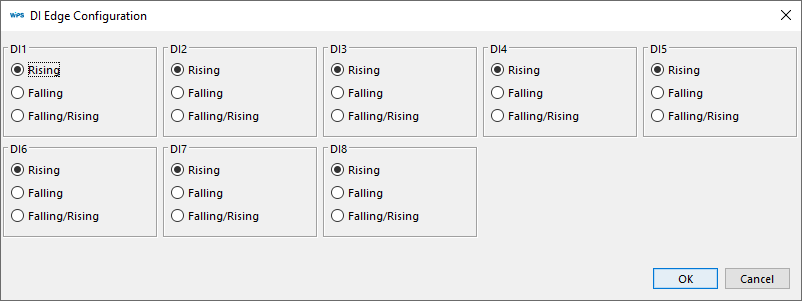
These DIs are used in external event and counting type tasks.
Through the task file options menu, you can perform the following actions:
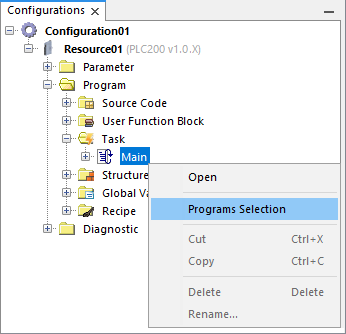
| • | Configure tasks: To configure the task, you must select the Openoption, in the task file you want to configure. For further information on how to configure the tasks, see the Task configuration section.. |
| • | Add, remove, or organize programs from the task: to add, remove or organize programs for a given task, you must select the Select programs option in the task file you want to configure. For further information on how to select programs, see in the Task settings section Task configuration section. the Program list item. |
Task Configuration
In the task configuration window, the following is configured:
| • | Priority, |
| • | Sequence of programs, |
| • | Type of task, and |
| • | Task watchdog options. |
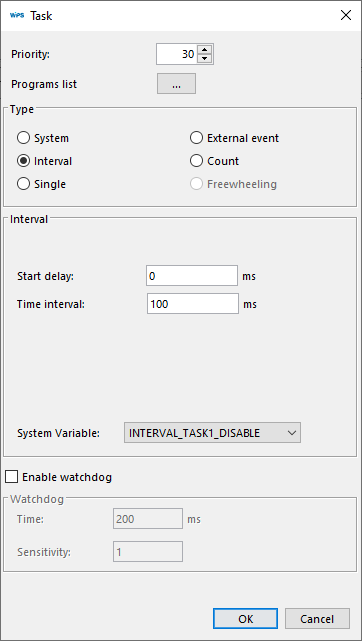
| • | Priority: configured with a number between 0 and 30 (0 - highest priority, 30 - lowest) that defines the priority at which the task will be executed. If a task with a higher priority than the currently running task is activated, it will immediately start executing. Otherwise, if a task with a lower priority than the current one is activated, it waits for the current task to finish executing before starting execution. |
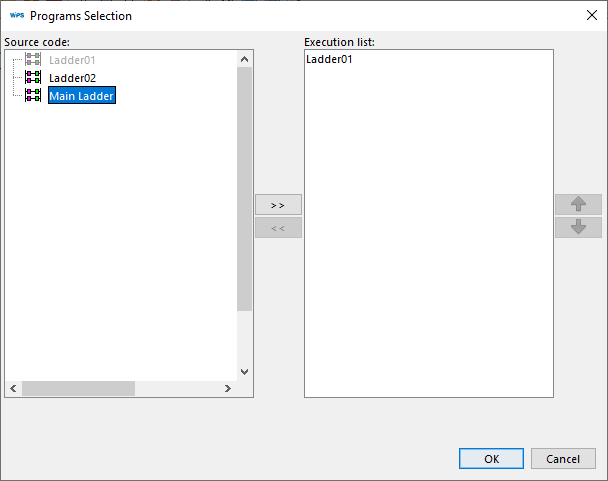
| • | Program list: The program sequence selection window is used to add, remove or change the sequence of programs associated with a given task. In the list on the left side are all the programs available in the resource, and on the right side, the programs selected for this task. The order in which the programs will be executed will be the same order defined in this list. |
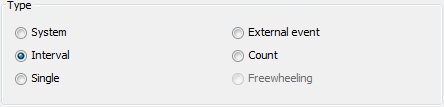
| • | Type of Task: The tasks are divided into: system, interval, single, external event, count system, interval, single, external event, count and freewheeling. freewheeling. |
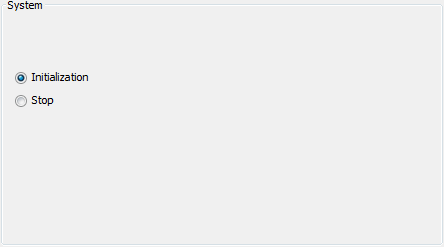
| o | System: This task can be of Start or Stop type. When the Initialization option is Initializationselected, the task will start executing as soon as the user program is executed for the first time. If the Stop option Stop is selected, the programs associated with this task start executing immediately after the user program stops. |
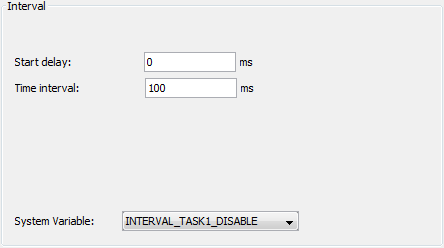
| o | Interval: The programs associated with this task are executed repeatedly, within the time interval defined in the Time intervalfield, with the delay for the first execution defined in the Initial delay field. A system variable is associated to this task which allows the task to be disabled through the program. |
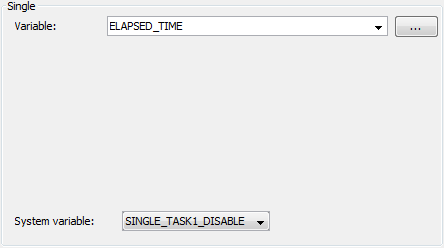
| o | Single: The programs associated with this task are executed once whenever the selected variable undergoes a positive transition, that is, from zero to some other value. A system variable is associated to this task which allows the task to be disabled through the program. |
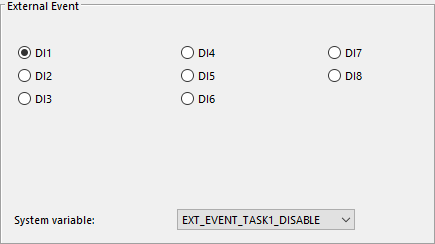
| o | External Event: The programs associated with this task are executed once whenever the selected event is activated. Digital input events have the option of selecting the transition that activates the task (see Configuration of the transition edge of digital inputs in the OverviewOverview section). A system variable is associated with this task which allows the task to be disabled through the program. |
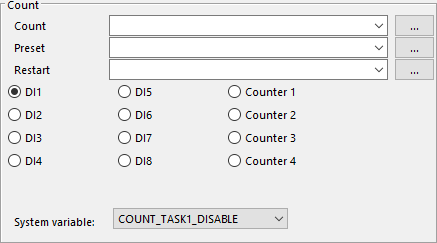
| o | Count: The programs associated with this task are executed whenever the pulse count at the selected input (Digital Input or fast counter) is greater than the value of the variable defined in the Preset field. The pulse count value is stored in the Countvariable. The pulse count value is reset when this value exceeds the value defined in the Restartfield. The variables configured in these fields can be of the DWORD and UDINT type. A system variable is associated to this task which allows the task to be disabled through the program. The maximum counting frequency for DIs depends on the system load. The "CounterX" option can be used as a fast count of up to 150 KHz, regardless of the system load. |
Important:
The DI and Counter functions cannot be used simultaneously for the same set of DIs, as the digital input works either as a DI or as a fast counter. This applies to both tasks and encoder reading blocks.
If an input (or a set) is configured as fast counter, it cannot be selected to generate counting events.
If an input (or a set) is configured as DI, the fast counter associated with this input cannot be selected.
|
NOTE! See the user manual to check the possible configurations for the product digital inputs. |
| o | Freewheeling: The programs associated with this task run cyclically. At the end of the program list execution, the program list is restarted until the user program is stopped. The main program (Main Ladder) is associated with this task, and it is not possible to remove it or associate it with another task. |
| • | Watchdog: When the watchdog option is active, the user program is stopped with an error alarm if the task execution time takes longer than the time defined in the Time field Time for a number of times greater than that defined in the Sensitivity field.. |
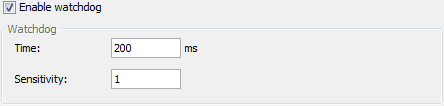
| o | Time: Maximum time to execute the task without a watchdog error. |
| o | Sensitivity field.: Number of watchdog errors allowed before generating the error alarm and stopping the user program. |
|
NOTE! The product has a hardware Watchdog that will be triggered if any task takes more than two seconds to complete, even if the Watchdog option is disabled. In this case, the product will restart in a safe state, with the application in STOP. |
Compatibility
Equipment |
Version |
PLC200 |
1.00 or above |
