|
User Parameters |
  
|
|
User Parameters |
|
In order to open the configuration screen of the user parameters, just click on the User Parameters option on the Parameter node of the project tree or click on the icon indicated on the tool bar of the parameter file.
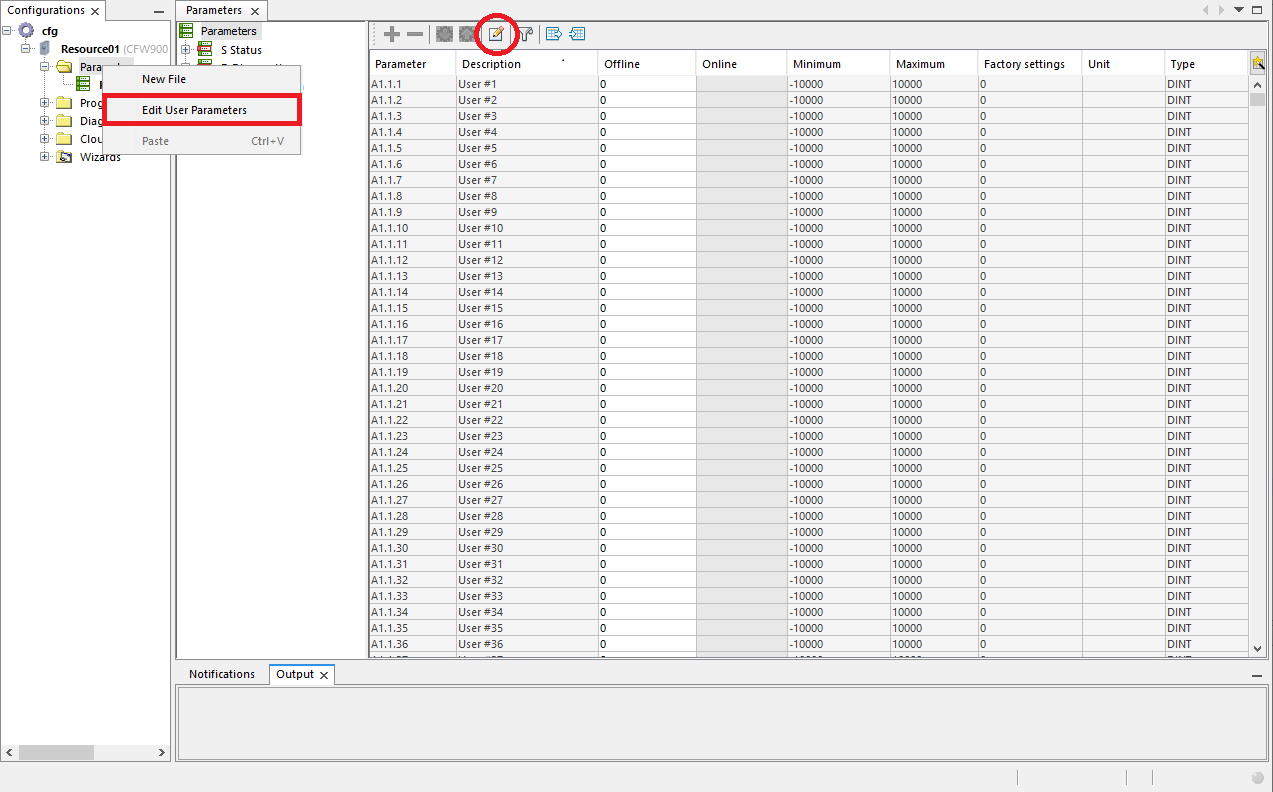
Configuration Table.
On the user parameter configuration table, it is possible to define several attributes to the parameters, such as description, minimum and maximum values, unit, digits, data type, etc.
|
NOTE! These settings will be automatically displayed in the parameter table. However, to be sent to the device, you need to download the resource. |

Table fields:
| • | Parameter: User parameter identification. |
| • | Description: Description of the user parameter in the parameter table. On devices that have text-based HMIs, the description is sent to the machine and displayed on the HMI. |
| • | Minimum: Minimum input value for parameter. |
| • | Maximum: Maximum input value for parameter. |
| • | Unit: Unit displayed on the device's HMI. |
| • | Default: Value loaded when restore factory default is selected. |
| • | Retentive: Retain value after rebooting devices. |
| • | Hexadecimal: Displays the value in hexadecimal. |
| • | Digits: Number of decimal digits for displaying value. |
| • | Datatype: Parameter datatype used by the ladder application. |
| • | Password: Enables password request by changing parameter value. |
| • | Read only: It does not allow the writing of values in the parameter by the communication network or the HMI. Writing is done only by the ladder application. |
| • | Display HMI: Displays the parameter in the HMI. |
| • | Performs modification: Confirmation options when changing the parameter: |
| o | No confirmation: Does not prompt for confirmation when changing parameter. |
| o | With confirmation and engine stopped: Request confirmation and allow change only with engine stopped. |
| o | With confirmation: Prompt for confirmation when changing parameter. |
| • | Stopped motor: Perform change only with motor stopped. |
| • | Help: On devices that have text-based HMI, you can edit a help text for the parameter. |
View the user parameter
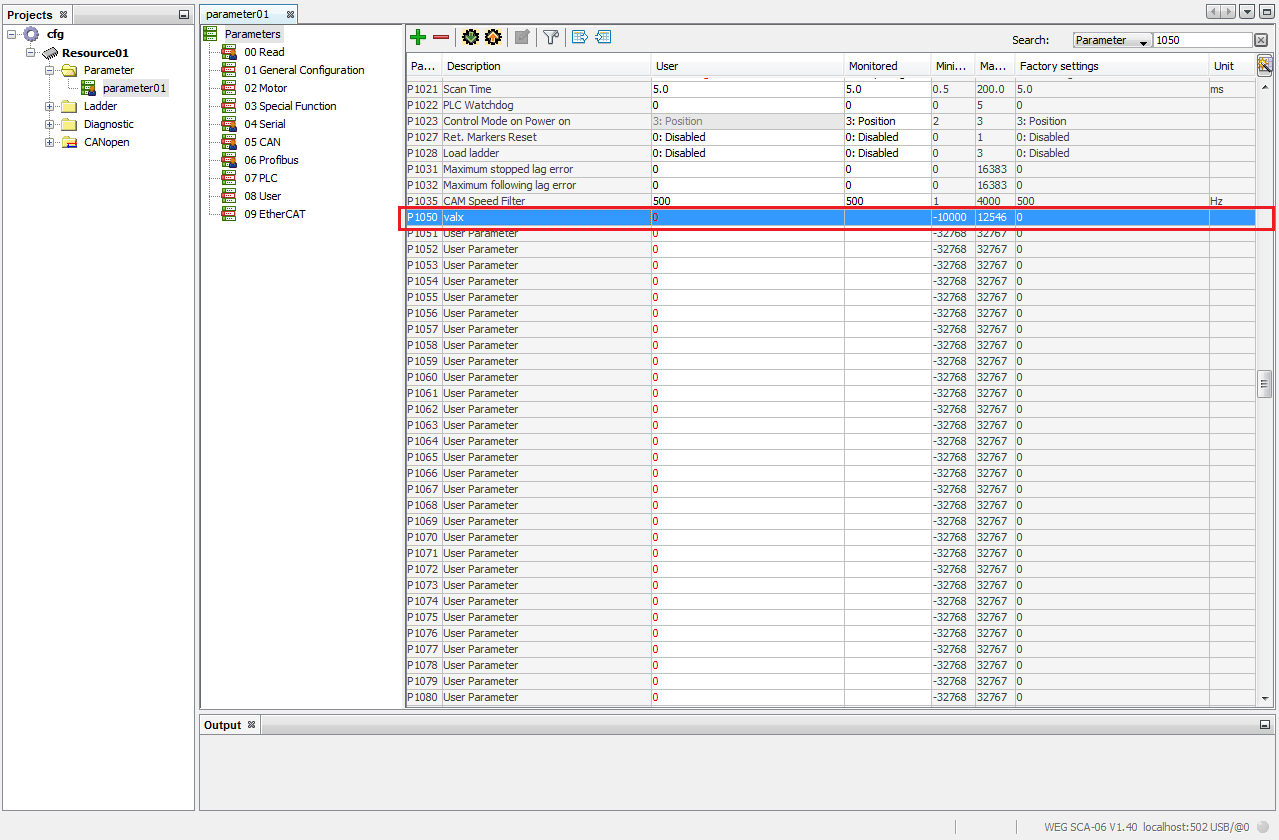
In the parameter table, the user parameters will be shown as they are configured on the configuration screen.