|
Hide/Unhide Parameters and Group of Parameters |
  
|
|
Hide/Unhide Parameters and Group of Parameters |
|
The parameter can be hidden/unhidden in two ways: individually or in group.
1. Hide parameters. In order to hide a parameter individually, just right click on the desired parameters and select the Hide Parameter option. You can also press the Delete key.

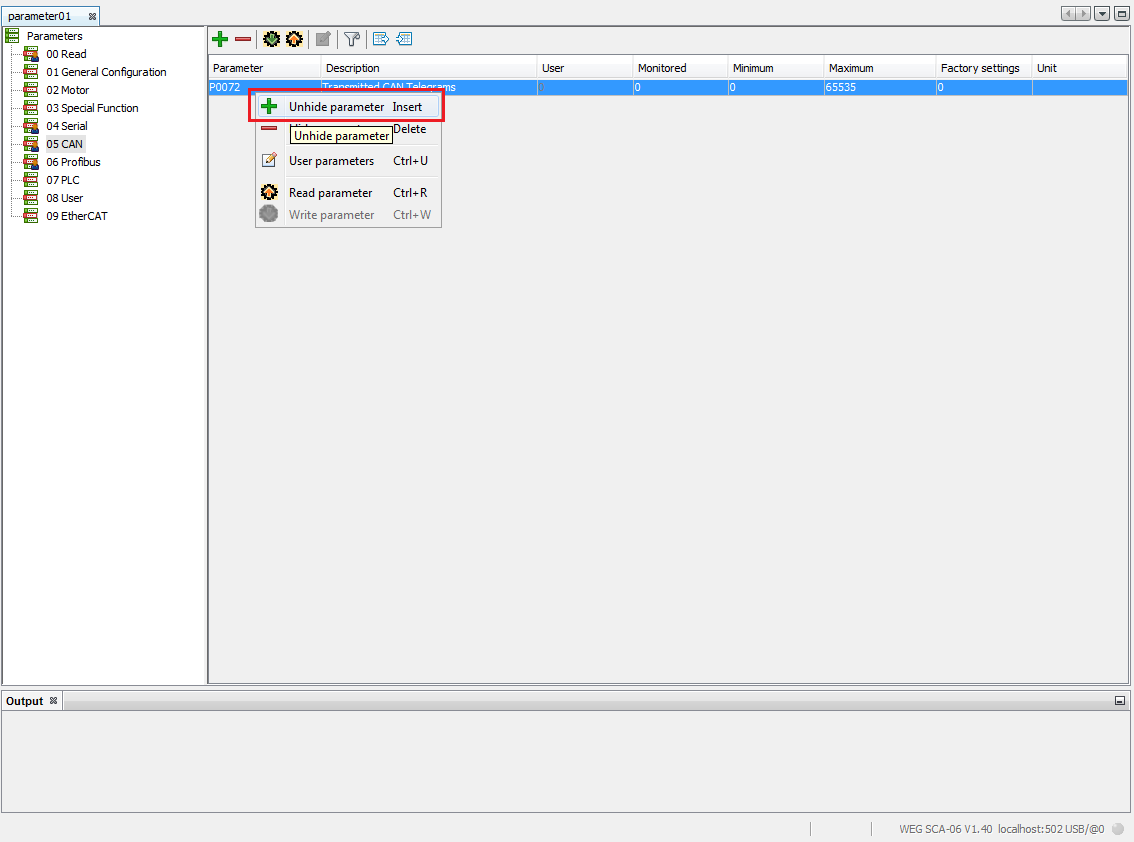
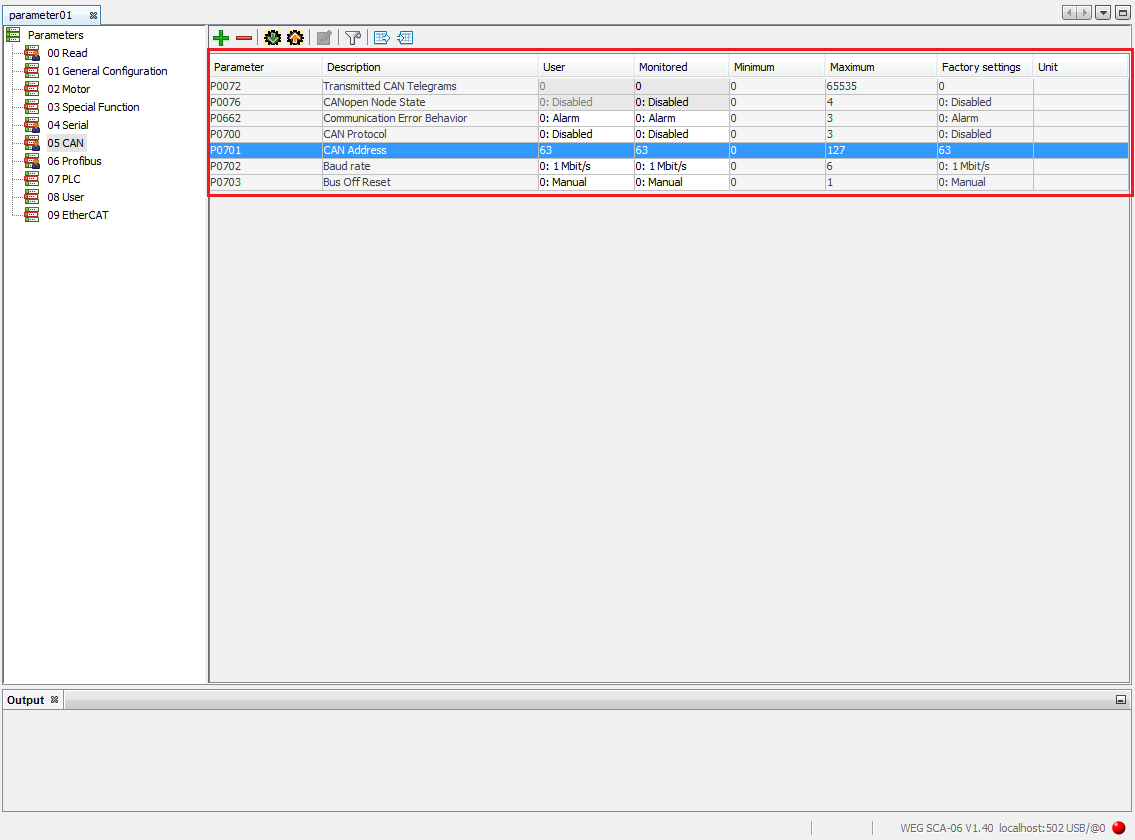
2. Unhide Parameters. In order to show hidden parameters, right click and choose the Unhide Parameters or press the Insert key. Then, a window will open and show the hidden parameters. Now, you just have to select the desired parameters and confirm.
Note: The parameters shown on this new window are only those which belong to the current filter according to the selection on the parameter group tree. In the figures below, the CAN group is selected; that means that only the hidden parameters of this group will be shown.

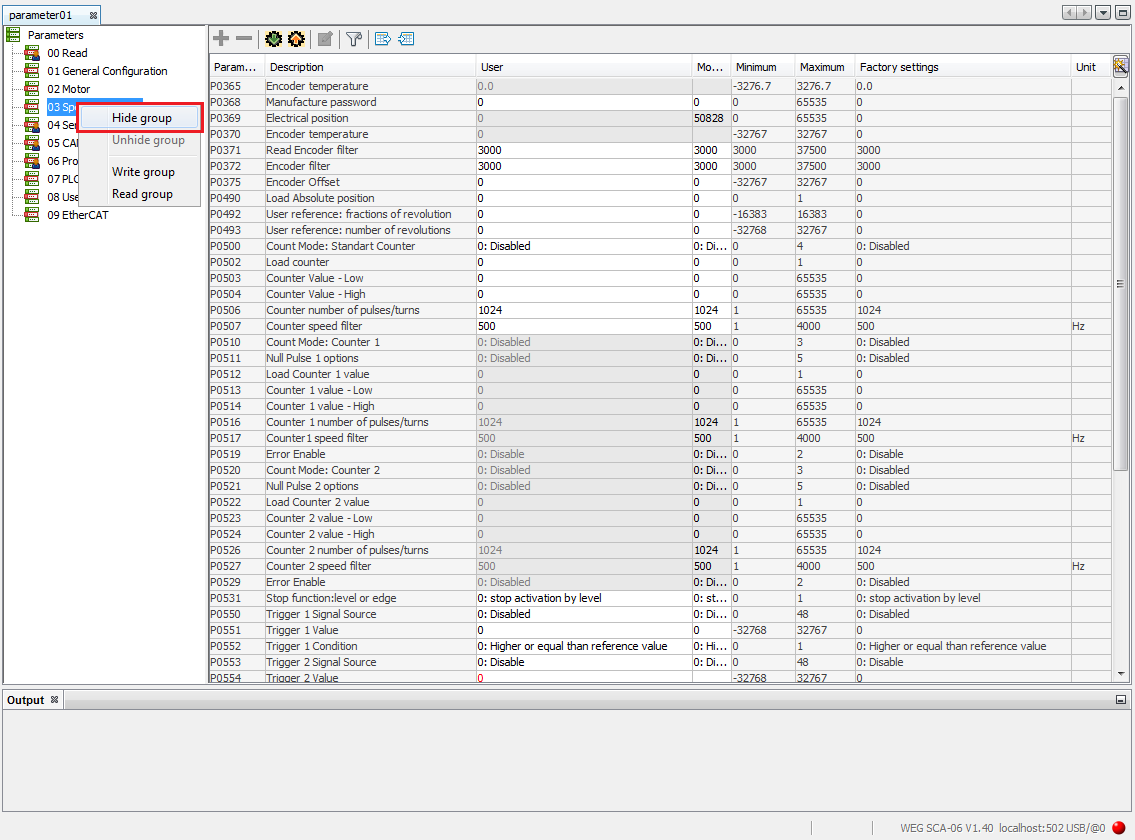
3. Hide Group of Parameters. In order to hide a group of parameters, just select the group on the tree and use the Hide Group option.

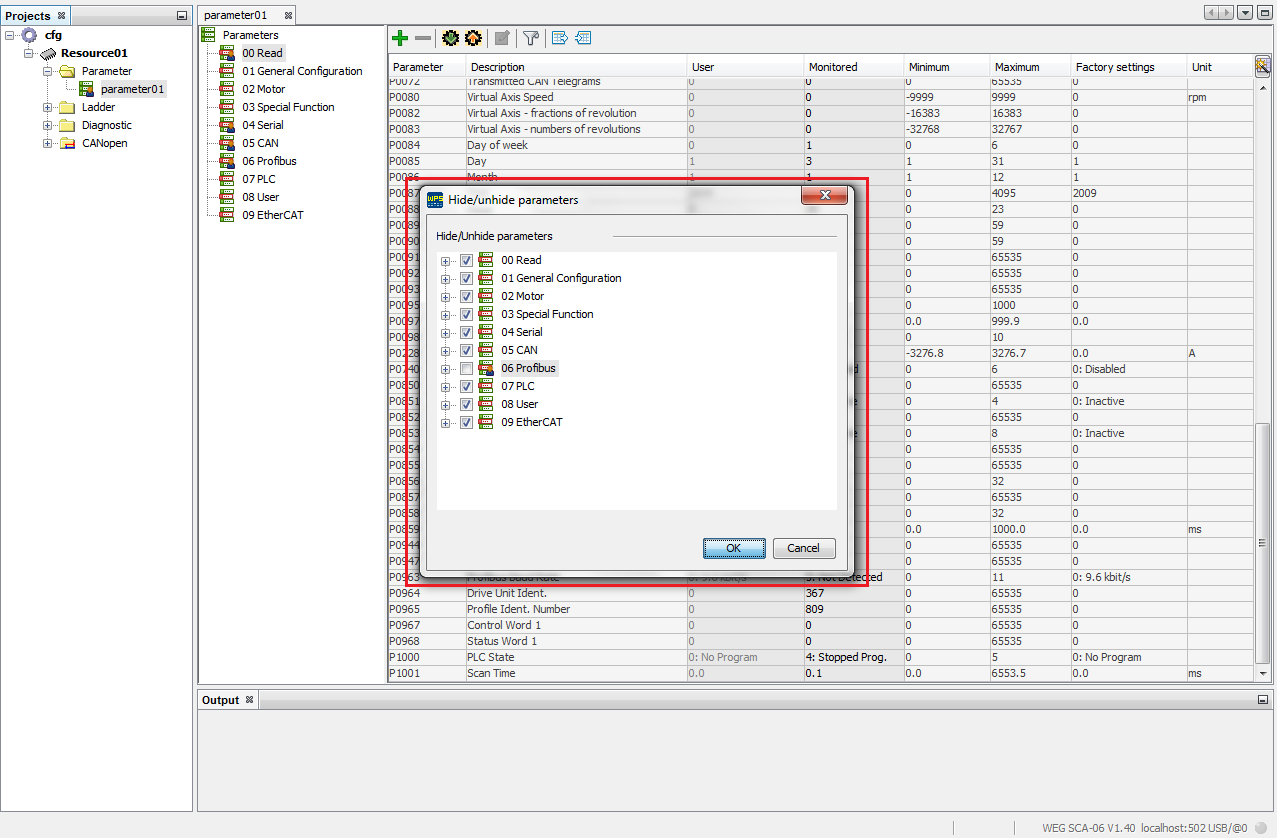
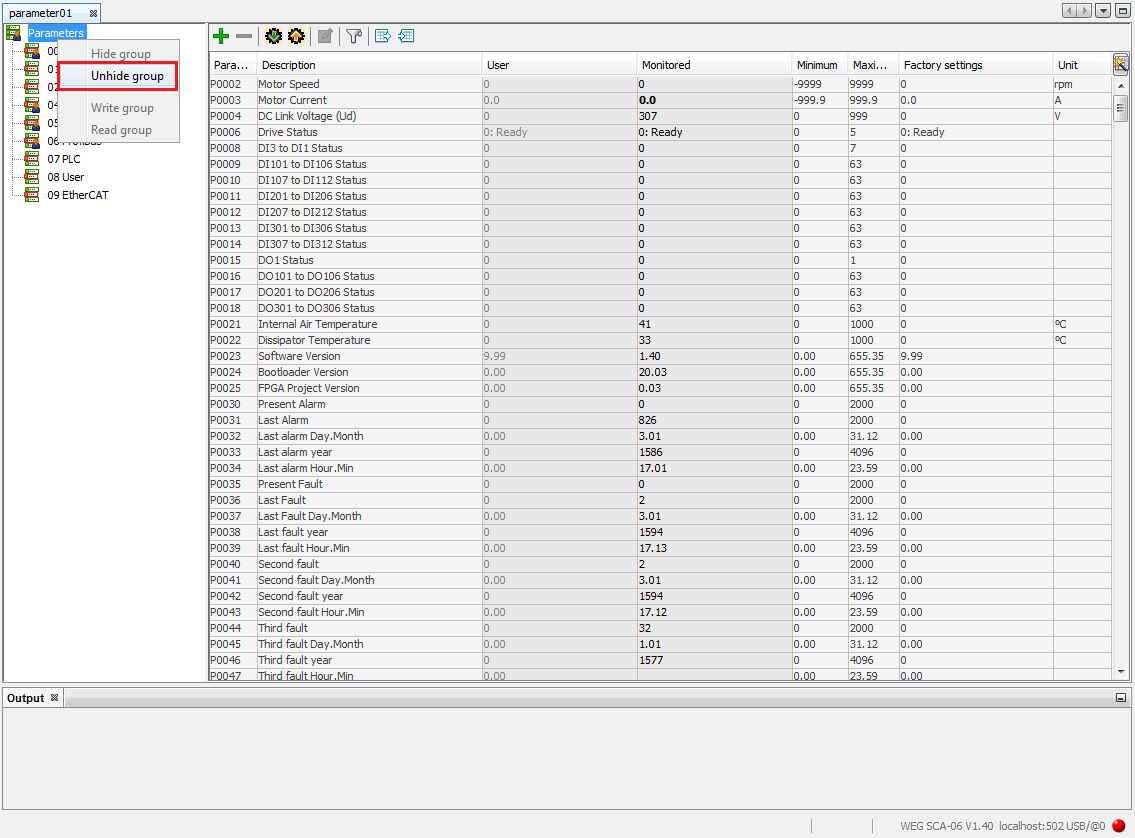
4. Unhide Group of Parameters. In order to show a hidden group of parameters, just select the root of the group tree and select the Unhide Group option. A window will open showing the groups that are hidden; then just select the group you wish to unhide.

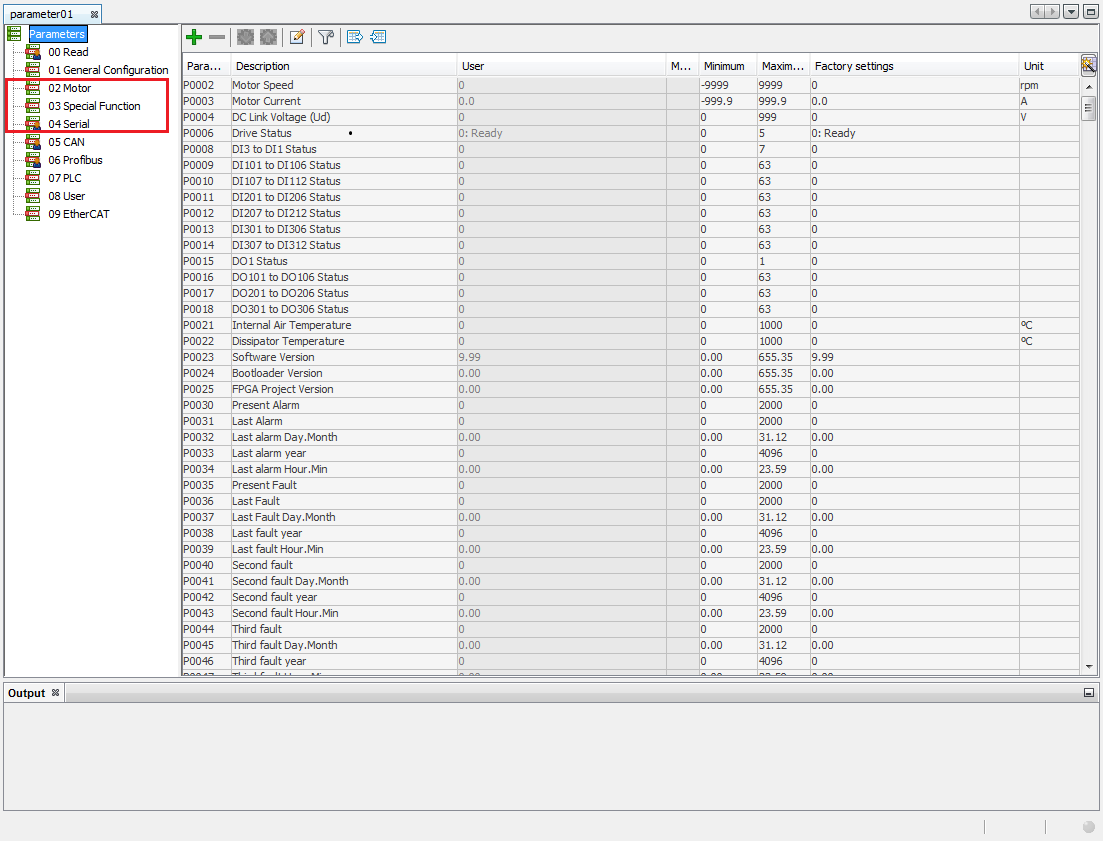
5. Hide and Show Parameters and Groups of Parameters. By means of this option, you have full control of the parameters and groups of parameters. It is possible to hide and unhide individual parameters, multiple parameters, individual groups and multiple groups in the same action.