The parameter configuration screen is used to configure and monitor all the parameters of the equipment, including the user parameters.

|
NOTE!
The reading and writing of such parameters is done on this screen; only the user parameter configuration must be sent the first time or whenever modified by means of the resource download routine.
|
Below is an overview of the parameter configuration screen.
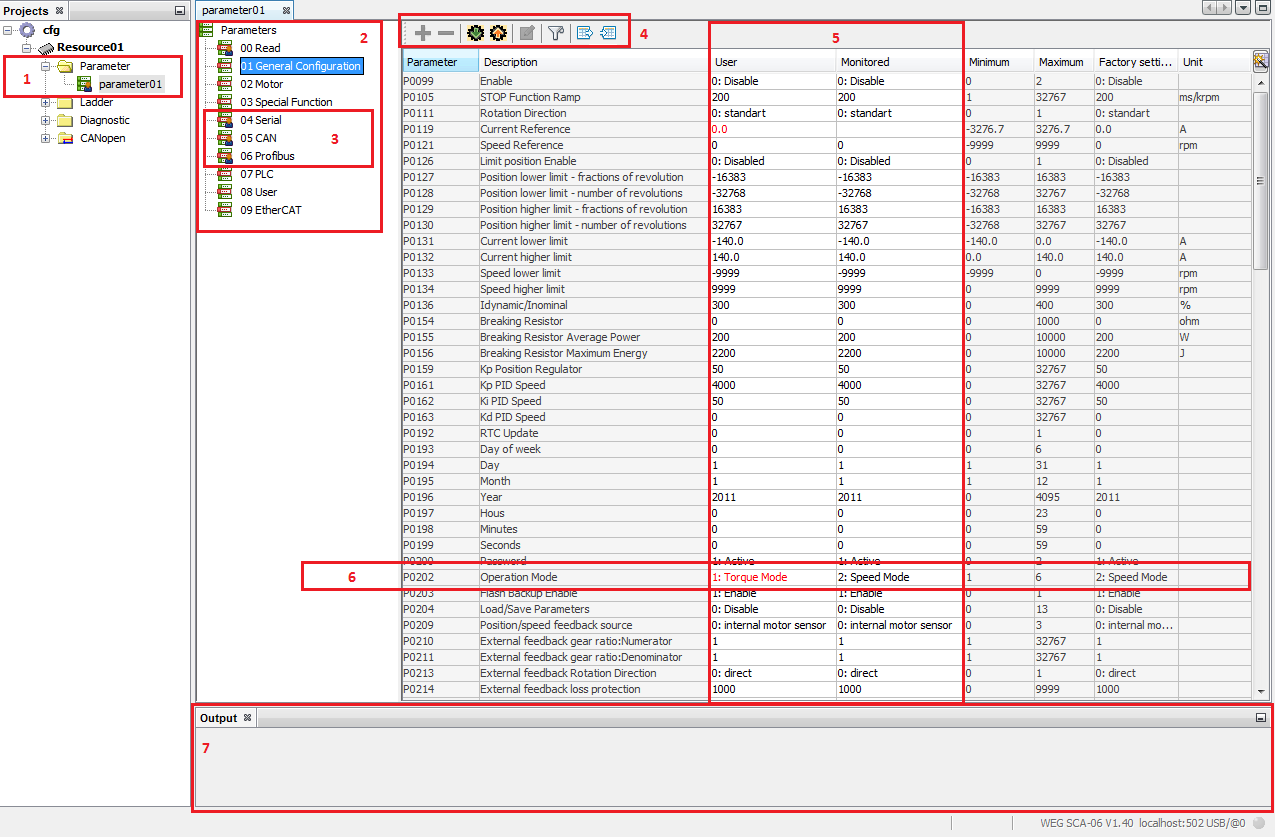
| 1. | Parameter files. In this part are all the parameter configuration files created by the user. Notice that when the file features a person figure on the table, it means this parameter table contains hidden parameters/group of parameters. |
| 1.1. | By selecting two parameter configuration files you can compare them through the context menu (by right clicking and selecting parameter comparison). |
| 2. | Group of parameters. This tree shows all the group of parameters. Notice that the same parameter can be in more than one group, and when its value is modified, it will be modified in all the groups to which it belongs. |
| 3. | Modified group of parameters. Group of parameters which contain the figure of a person on the table means they have hidden parameters. |
| 4. | Commands. The commands are described below in the order they appear: |
| 4.1. | Unhide parameter: In case some parameter has been hidden, this button allows making it visible again. |
| 4.2. | Hide parameter: Just select one or more parameters on the table and trigger this command to hide them. |
| 4.3. | Save table: It saves the values of the parameters shown on the equipment screen; the sent values are the ones in the User column. The flow is User -> Monitored (equipment) |
| 4.4. | Read table: It reads the parameters of the equipment shown in the Monitored column and saves them in the parameter file in the User column. The flow is Monitored (equipment) -> User |
| 4.5. | User parameters: It opens a screen to edit the user parameters. |
| 4.6. | Filter: It opens a parameter filter option, and it can filter by parameter number or description. It is also possible to switch to modified data view, showing only the modified parameters. |
| 4.7. | User Parameters and Monitored Parameters. These two columns show the off-line and on-line parameters, so to speak. The User column shows the values contained in the file located on the computer and the Monitored column shows the values that are effectively saved on the equipment. Whenever you use the Save Parameter option, the sent values will be from the User column to the Monitored column, that is, File -> Equipment. In case of reading, the flow is the opposite, from the Monitored column to the User column, that is, Equipment -> File. In case you wish to change the values directly on the equipment without changing it in the file, just click on the monitored column, change the values and the modification will occur on-line. |
| 4.8. | Export Parameters: It opens a screen to export parameters (previously read) into a text file with extension ".CSV". |
| 5. | Modified parameters: Whenever a parameter value in the User column is different from the Monitored column, it will be shown in red. |
| 6. | Output. This screen shows error information in case they occur during the writing or reading of the parameters. |


