|
MQTT |
  
|
|
MQTT |
|
This guide will help you set up the device as an MQTT Client to connect with an MQTT Broker.
|
IMPORTANT! Before using this service please be aware of the Important notice about cybersecurity and communications. |
The MQTT client is configured through a communication wizard.
|
NOTE! For detailed information about how the client reads and writes data using MQTT, see the specific device manual for MQTT communication. |
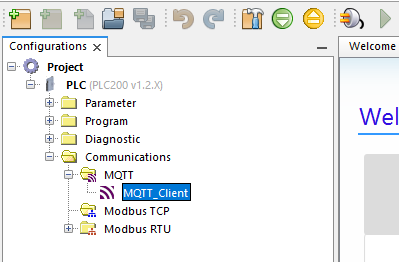
1) Expand the Communications directory
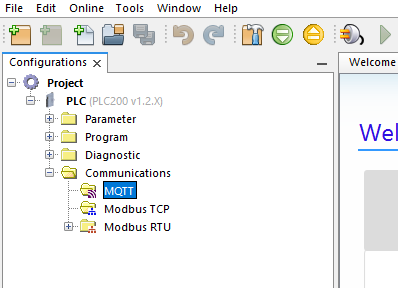
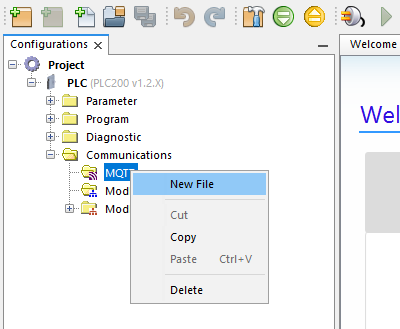
2) Right-click in MQTT and click to create a new file.
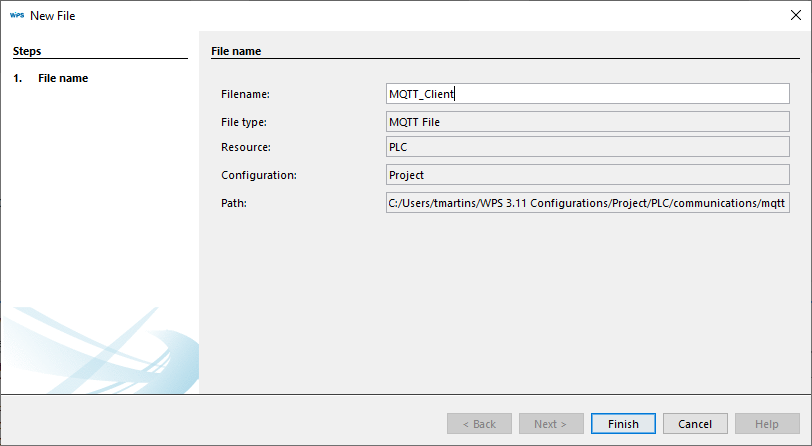
3) Enter a name to the new MQTT configuration and click on Finish.
4) Double-click on the new MQTT configuration file to open the configuration panel.
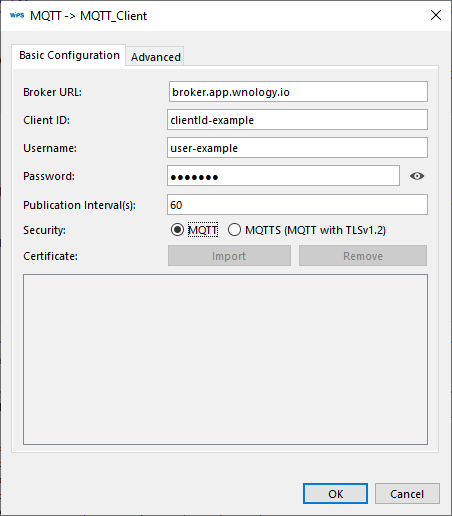
5) In the configuration panel set up the basic configurations.
| • | Broker URL: The MQTT Broker URL or IP address the client should connect. |
| • | Client ID: Unique identifier for the client registered at the broker. |
| • | Username: Client username registered at the broker. |
| • | Password: Client password registered at the broker. |
| • | Publication Interval: The time in seconds between publications of user parameters. |
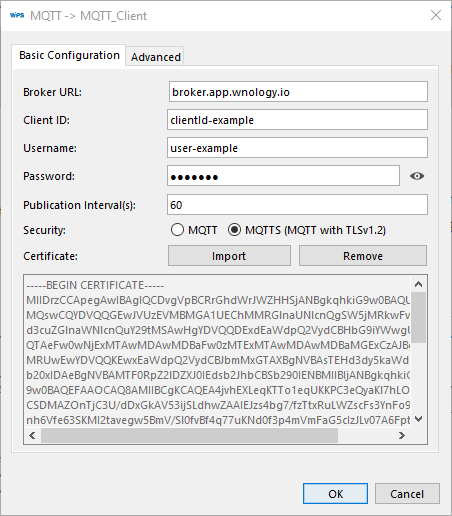
| • | Security: Whether the connection will encrypted (MQTTS) or non-encrypted (MQTT). |
5.1) Case use MQTTS (MQTT over TLS), click on the Import button, and select a certificate.
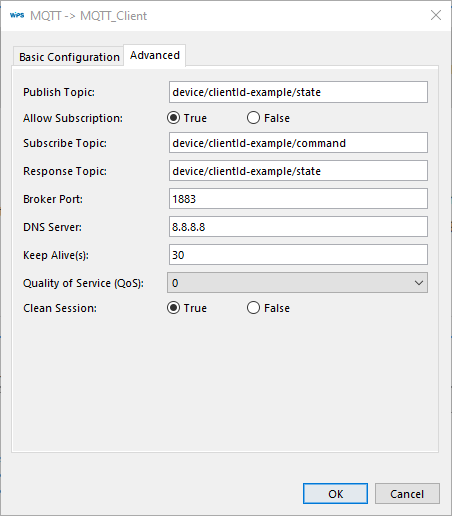
6) Click in the tab Advanced if you need to customize Topics, Ports and specifics configurations and when conclude click on OK button.
|
NOTE! To know the default values for each device verify the device manual. |
| • | Publish Topic: Topic to publish the cyclic payload, if not defined will be configured the device's default value. |
| • | Allow Subscriptions: Whether the client should subscribe to a topic or not. |
| • | Subscribe Topic: if “Allow Subscriptions” is true, the user must provide a subscription topic. If not defined the default values is the same as the “Publish Topic”. |
| • | Response Topic: Client password registered at the broker. |
| • | Broker Port: port in the broker that the client will connect to usually 1883 (MQTT) and 8883 (MQTT over TLS). |
| • | DNS server: DNS server for name resolving. |
| • | Keep Alive: Interval between Keep Alive messages. |
| • | Quality of Service: |
0 - At most once;
1 - At least once;
2 - Exactly once;
| • | Clean Session: Set to false for a persistent session. In a persistent connection, the broker will send previously queued messages upon a reconnection. |
8) The configuration must be compiled before downloading to the device.
|
NOTE! Any doubt about this process access the COMPILE session. |
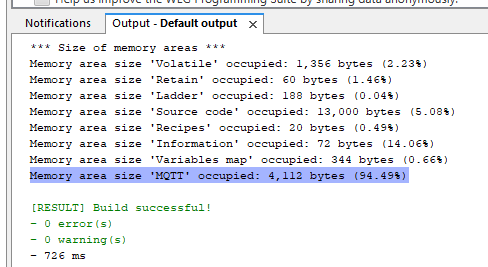
|
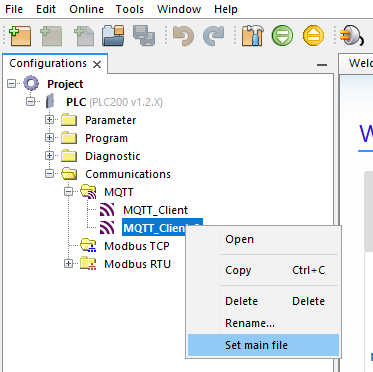
NOTE! Is possible to create more than one MQTT configuration but just one can be selected per device. |
8.1) In cases where there is more then one MQTT configuration, click the right button and select the main file.
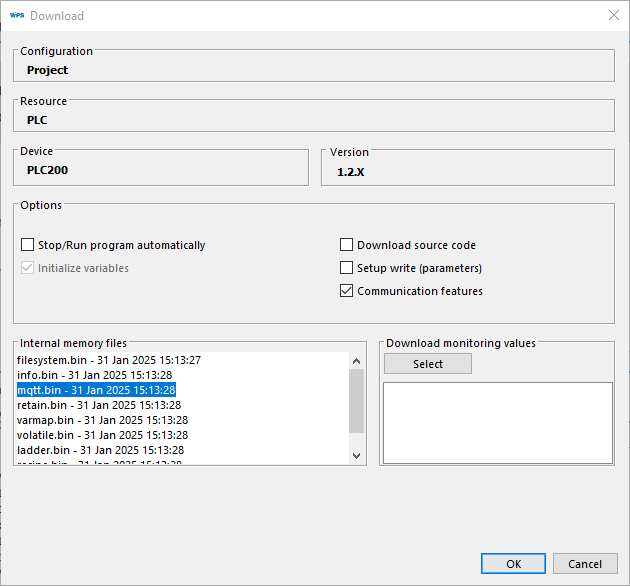
9) After compile the project, click on download button, check the option Communication features and observe if mqtt.bin is on Internal memory files list.If yes, click in OK button to start the download.