|
Using USERFBs |
  
|
|
Using USERFBs |
|
Lastly we'll cover how to make use of the USERFB, inserting it in other Ladder diagrams.
1. In the Projects window, double click the USERFB file in order to open its Ladder editor.

2. In the Pallete window, select the USERFB block from the Module category and drag it to the position where you want to use it in the Ladder diagram.

3. Double click the question marks (???) above the block in order to insert a instance variable for the USERFB. Type in the variable name and click Edit. In the confirmation dialog, click Yes to create the new variable.

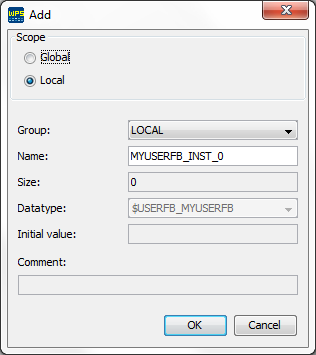
4. In the Add dialog, type in a name for the variable and select its parameters. In the Datatype field, choose the name of the desired USERFB (if there is only one, the field will not be enabled).
For example, if your USERFB name is MYUSERFB, the correct datatype to be selected is $USERFB_MYUSERFB.
That's it! Your very own USERFB is inserted in the diagram and ready to work!
