|
Adding input/output |
  
|
|
Adding input/output |
|
Now we'll cover how to create inputs and outputs for the USERFB.
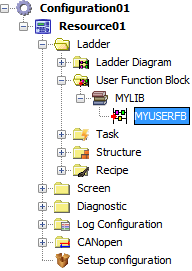
1. In the Projects window, double click the USERFB file in order to open its Ladder editor.
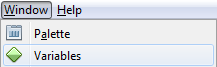
2. In the Window menu, click Variables.
Analysing the following figure, we see that the USERFB Variables window is different from other Ladder files. It has only volatile and retain variables in LOCAL scope, which are the internal variables of the block, used in its subroutine. Besides these, it has three more groups: VAR_IN, VAR_OUT and VAR_IN_OUT.
| • | VAR_IN: internal variables that repersent the input arguments for that block. |
| • | VAR_OUT: internal variables that repersent the output arguments for that block. |
| • | VAR_IN_OUT: internal variables that repersent the input/output arguments for that block. |

3. In order to create an input, click in the VAR_IN tab and click in the  symbol. In the window, set a name and a datatype to this variable and click OK.
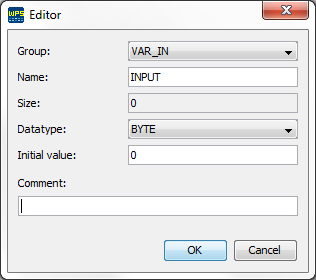
4. In order to create an output, click in the VAR_OUT tab and click in the symbol. In the window, set a name and a datatype to this variable and click OK.
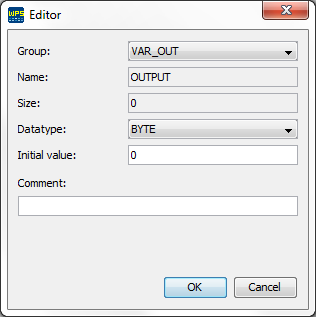
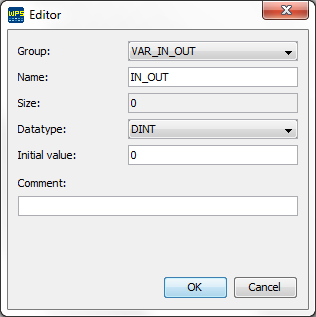
5. In order to create an input/output, click in the VAR_IN_OUT tab and click in the symbol. In the window, set a name and a datatype to this variable and click OK.