WPS 3.20 Release

WPS 3.20 brings practical improvements to the software, starting with a more polished visual experience and a completely renewed documentation platform.
The WPS interface remains familiar, but it now looks more modern, cleaner, and more comfortable to use. The manual has taken a larger step forward: WPS Help is now WPS Docs, with better navigation, improved search, clearer content organization, and a reading experience designed for current devices and workflows.
This release also introduces guided assistants for SCA700, a new WEG product, and includes important updates such as integrated CANopen configuration, device installation by category, performance improvements, and general corrections.
A More Polished Visual Experience
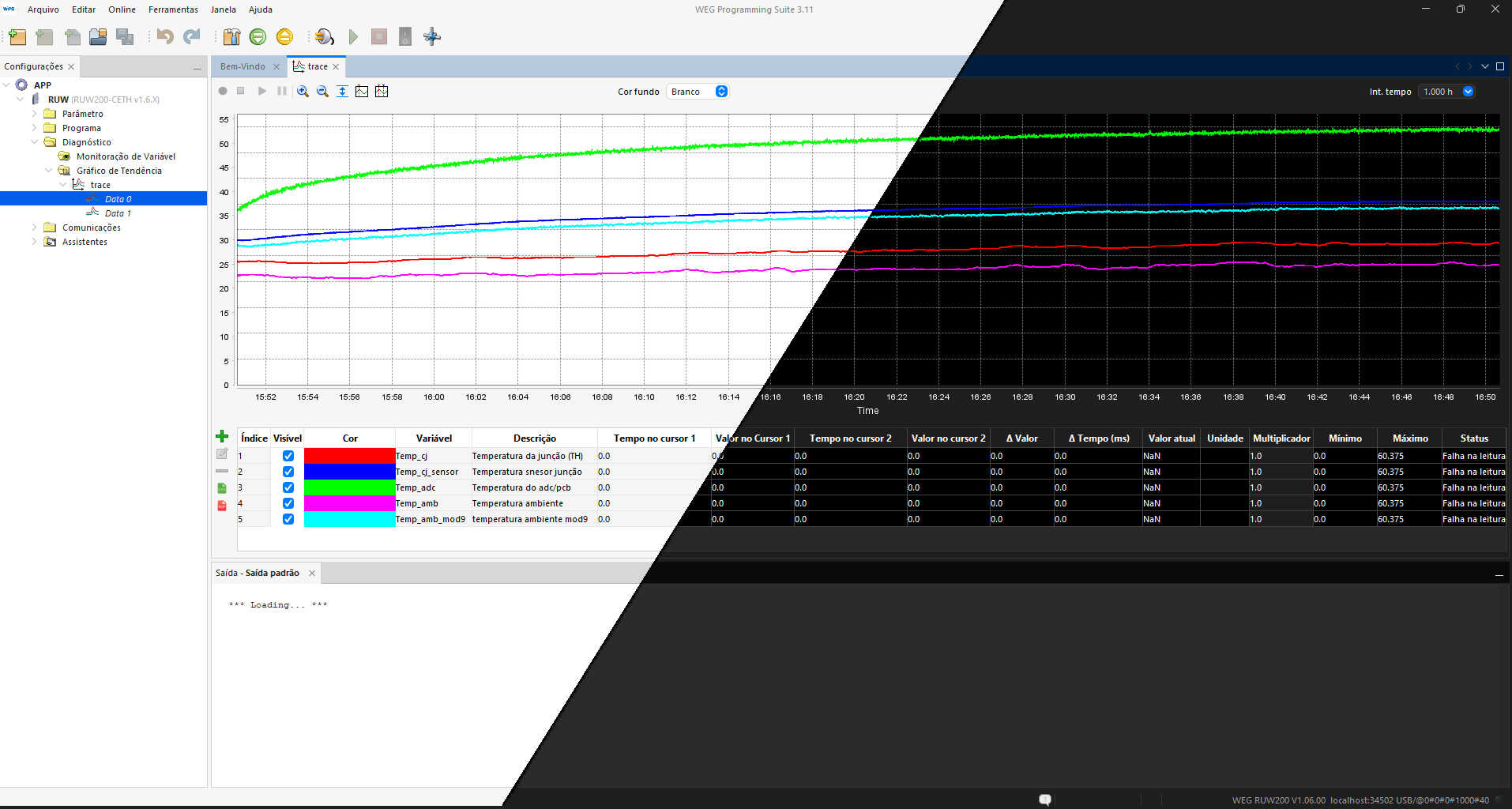
WPS 3.20 brings a visual update that makes the software feel more current without changing the way the application is used.
The interface structure remains familiar, but the visual presentation has been improved with the updated Flat Light and Flat Dark themes. The result is a cleaner, more modern, and more balanced appearance, especially when compared with the previous theme, which could feel dated in current work environments.
This update improves the overall look of WPS while preserving the workflows that users already know. Screens feel lighter, visual elements are more consistent, and the application becomes more comfortable for long configuration and monitoring sessions.
WPS keeps the familiar workflow, but the interface now feels cleaner, more readable, and better suited for extended use.
- Flat Light Theme
- Flat Dark Theme
Flat Light Theme
The new Flat Light theme gives WPS a brighter, cleaner, and more minimalist appearance.
It reduces visual noise and improves the perception of organization across the application. For users who prefer a light interface, this theme provides a more polished experience while keeping good readability for parameters, menus, and configuration areas.
Flat Dark Theme
WPS now also includes the Flat Dark theme.
The darker visual style is useful in low-light environments and during long work sessions, where a bright interface may be less comfortable. It also gives the application a more modern appearance while keeping the focus on readability and usability.
Together, the Flat Light and Flat Dark themes make WPS more adaptable to different environments and user preferences.
A New WPS Docs Experience
The WPS manual has been renewed.
What was previously known as WPS Help is now WPS Docs: a more modern documentation experience with better navigation, better search, improved readability, and a structure that can evolve more easily over time.
This is one of the most important improvements in WPS 3.20. The manual is no longer just a place to store reference information. It is now a more practical support environment, designed to help users find answers, understand features, and move through the documentation with less effort.
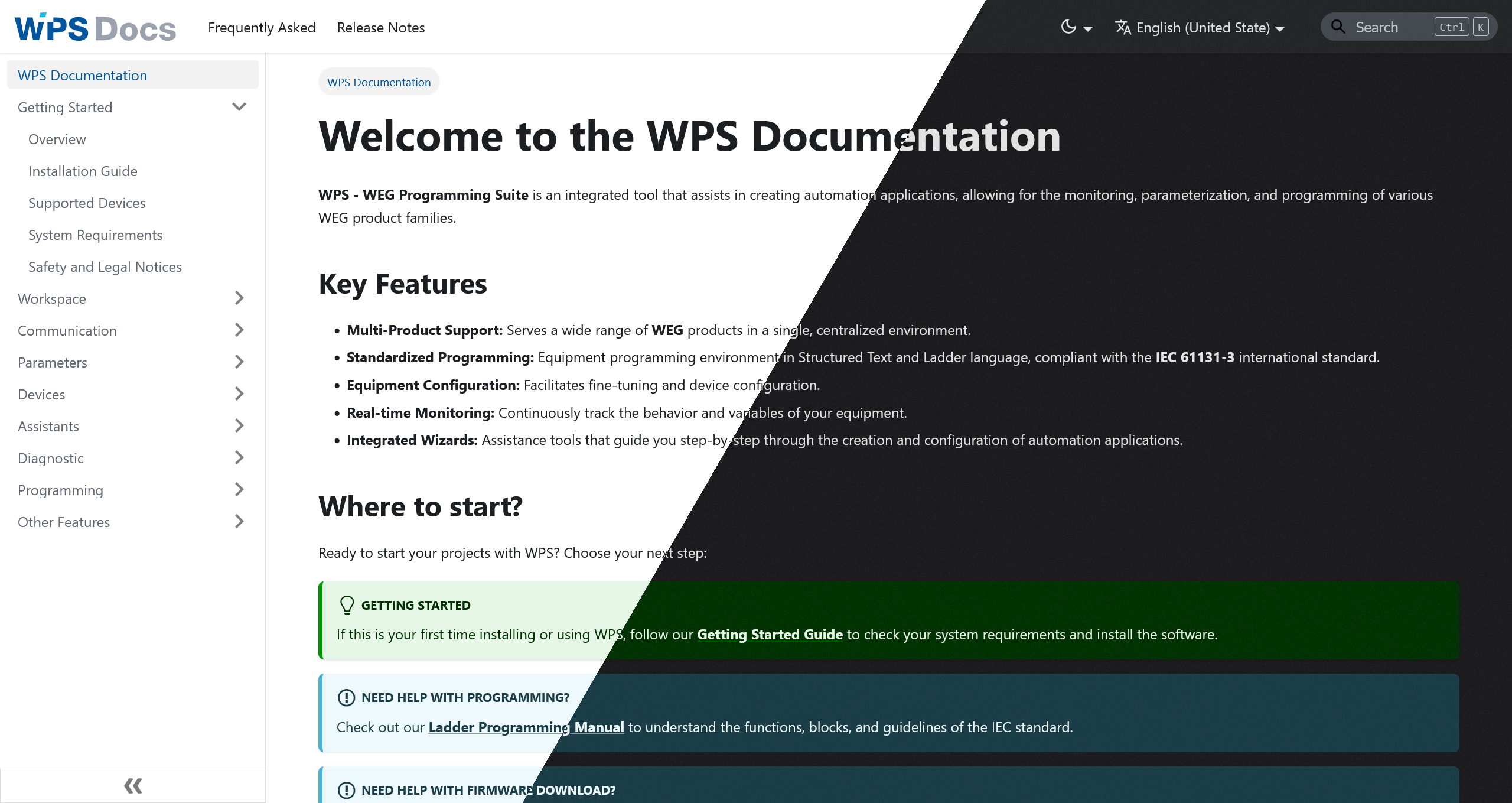
The goal of WPS Docs is not only to look better. It is to make information easier to find, easier to read, and easier to keep updated.
Better Search
Search is one of the biggest improvements in WPS Docs.
The new documentation structure allows content to be indexed more effectively, making it easier to find pages by device name, feature, function, procedure, or keyword. This is especially useful when looking for specific configuration information or when the exact location of a topic is not known.
For a manual used during real work, search quality matters. A good search experience reduces the time spent browsing through sections and helps to reach the right information faster.
Clearer Navigation And Better Content Organization
WPS Docs also improves how information is organized.
The side menu is cleaner, categories are easier to understand, and related content is grouped in a more logical way. Many texts were also rewritten or reorganized to improve clarity, making procedures and explanations easier to follow.
The new layout improves the reading experience on different screen sizes, making the manual more comfortable to use on desktops, notebooks, and other devices.
Light And Dark Reading Modes
WPS Docs supports both light and dark reading modes.
This gives more flexibility when reading the manual in different environments. The light mode works well for general use, while the dark mode can be more comfortable in low-light conditions or during longer reading sessions.
Richer Device Overview Pages
Device overview pages are now much more useful.
Instead of presenting only basic information, these pages now work as a practical entry point for each device. They can include a short description, product image, supported features, number of supported Function Blocks, supported firmware versions, the latest available firmware version, and additional device-specific information.
They also include quick navigation cards that take users directly to important documentation areas for that product.
Open an example device overview
Searchable Function Block Sections
Function Block information is also easier to explore.
Device pages can now include a dedicated Function Blocks section with an index and search bar, making it easier to find the Function Blocks supported by that specific device.
And also includes a general Function Blocks overview page, where all Function Blocks supported by the system can be searched from a single place.
Open the Function Blocks overview
Why this is useful?
When working with devices that support many Function Blocks, a searchable index makes the manual much more practical. Instead of browsing long lists manually, users can search directly for the Function Block they need and access the related documentation faster.
Frequently Asked Questions
WPS Docs also introduces a Frequently Asked Questions section.
This area collects recurring questions, practical explanations, and direct answers to common situations found during WPS usage. It is intended to grow over time as new questions appear and as more support topics are identified.
Open the Frequently Asked Questions
Easier Access To The Manual
The new documentation can also be installed from the browser as a dedicated manual shortcut, making the manual easier to access during daily work.
This is especially useful when the documentation needs to be consulted frequently or when internet access is limited, unstable, or unavailable. Once installed and prepared for offline use, WPS Docs can stay available directly from the computer, reducing the need to search for the manual every time support information is needed.
This brings the documentation closer to the way WPS is used in practice: available when configuring devices, checking procedures, reviewing supported features, or looking for answers during commissioning and maintenance activities.
WPS Docs can be installed as a dedicated shortcut and accessed offline, helping keep important information available even when an internet connection is not reliable.
Learn how to install and access WPS Docs offline
Device Installation By Category
WPS 3.20 introduces a more focused installation experience.
In previous versions, installing WPS also meant installing all supported devices, even when only a specific product family was needed. This could make the installation larger than necessary and add content that would not be used in daily work.
Now, the installer allows you to choose which device categories should be included.
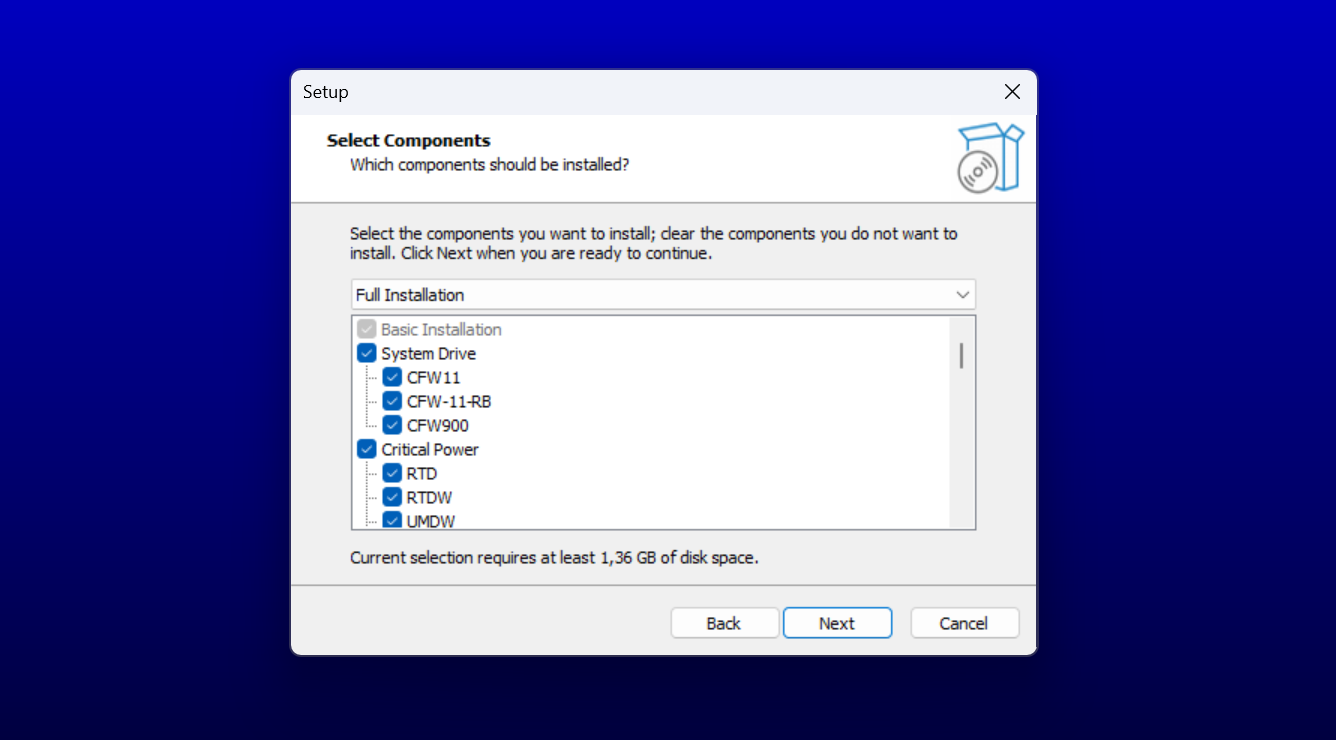
This makes the installation lighter, more focused, and better aligned with the products you actually use. Instead of installing everything by default, WPS can be prepared with only the device groups required for your work environment.
If you work with a specific product line or application type, WPS can now be installed with only the related device categories, reducing unnecessary content on the computer.
This is especially useful in environments where WPS is used for a defined set of devices, helping keep the installation more practical and easier to maintain.
Native Windows File Explorer
WPS now uses the native Windows File Explorer for file selection.
This change makes opening, saving, and locating files feel more familiar, because the file window now follows the same experience already used across Windows.
It also allows WPS to take advantage of operating system features such as pinned folders, recent locations, shortcuts, and favorite directories. For users who organize projects through Windows folders, this makes file access more direct and more natural.
File selection in WPS now works closer to the standard Windows experience, making it easier to access frequently used folders and locations.
The benefit is: fewer surprises when working with files and a smoother experience when navigating through project folders, backups, parameter files, and other resources.
Unified Global Variables With MultiView
WPS 3.20 introduces a new way to work with Global Variables through MultiView.
Global Variables are now managed with two synchronized views: a structured table view and a text view integrated with the Structured Text editor. Both views represent the same data, so changes made in one view are reflected in the other.
This makes the workflow more flexible. The table view is useful for browsing, creating, editing, and removing variables in a more organized format. The text view is useful when working closer to the Structured Text representation.
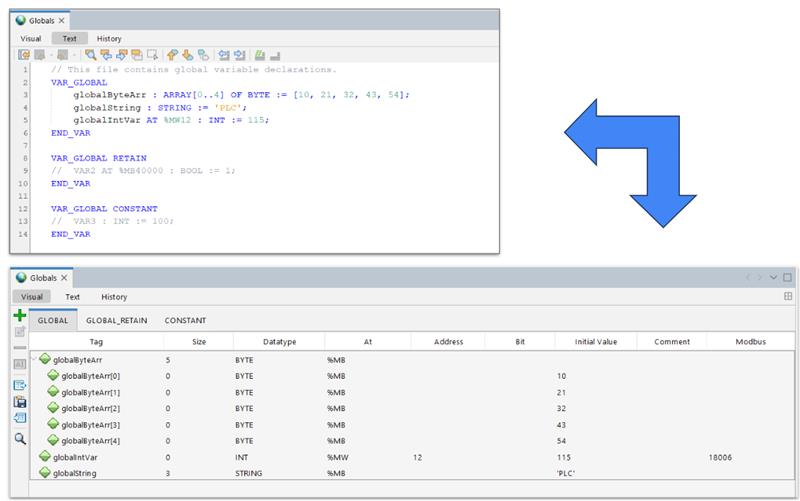
Global Variables can now be managed through synchronized table and text views, making it easier to choose the format that best fits the task.
MultiView also improves how Global Variable files are organized in the project. WPS now allows you to create new Global Variable files, organize them into folders, and assign custom names.
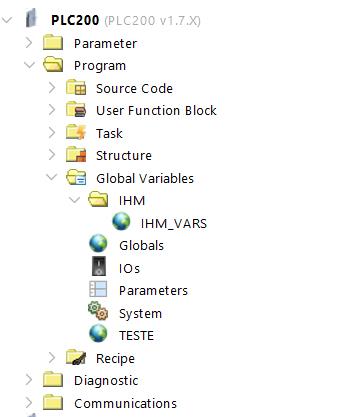
This gives more control over the project structure, especially when working with larger applications or when variables need to be separated by function, device, area, or application context.
The result is a more organized and consistent experience for managing Global Variables, while keeping the flexibility to work in the format that makes the most sense for each situation.
New Elementary Data Types
WPS 3.20 expands programming capabilities with new elementary data types based on IEC 61131-3.
This update adds support for data types used to represent duration, date, time of day, and combined date and time values. These types make it easier to work with temporal information in a more standardized and expressive way.
The new supported data types are:
| Data Type | Description | Representation |
|---|---|---|
TIME | Represents time intervals or durations. | Unsigned 32-bit type, stored in milliseconds. |
DATE | Represents an absolute date. | Unsigned 32-bit type, stored internally in seconds from 1970-01-01. |
TIME_OF_DAY (TOD) | Represents a specific time within a day. | Unsigned 32-bit type, stored in milliseconds from 00:00:00. |
DATE_AND_TIME (DT) | Represents a combined date and time value. | Temporal absolute storage, represented in seconds from 1970-01-01 00:00:00. |
These additions make the programming environment more complete for applications that need to handle time-based information, such as delays, schedules, timestamps, event records, and date-based logic.
With these new data types, WPS can represent time, dates, daily time values, and combined date-time information in a more standardized way.
CANopen Configuration Is Now Part Of WPS
The CANopen configurator is now integrated directly into WPS.
Previously, CANopen configuration was handled through a separate tool. Starting with WPS 3.20, this workflow becomes part of the main WPS environment, making the configuration process more connected and easier to access.
This is an important step for users who work with CANopen networks. You can create a network, add devices, configure communication objects, connect process data, and monitor the network without leaving WPS.
CANopen configuration is no longer separated from the main WPS environment. Network configuration and device work can now happen in a more unified workflow.
With the integrated CANopen configurator, WPS supports key configuration steps such as:
- Creating a new CANopen network configuration;
- Adding devices to the network;
- Configuring Manager and Server devices;
- Importing EDS files for compatible devices;
- Configuring communication objects;
- Configuring and connecting PDOs;
- Monitoring the network online;
- Checking communication states and diagnostics.
The main improvement is not only that the configurator is now available inside WPS. The real gain is having a more complete workflow in one place, reducing the need to switch between tools during CANopen setup and analysis.
Open the new CANopen Configurator Guide
Faster Resource Creation
Resource creation has been optimized in WPS 3.20.
This improvement addresses a recurring point of attention in previous versions: in some situations, creating a resource could take longer than expected, especially when there was no active connection with the device.
In this release, the process has been improved to reduce waiting time and make resource creation more responsive.
This is particularly important in repetitive workflows, where small delays can interrupt the rhythm of work. With faster resource creation, WPS becomes more fluid when preparing projects, organizing devices, or creating resources before a connection is established.
Improved Communication Performance
WPS 3.20 also includes important improvements to communication with device.
The communication flow was reviewed to improve performance and make data exchange more efficient during use. This helps provide a more stable and responsive experience when working with operations that depend on communication with devices.
This improvement can make interaction with the device feel more fluid, especially during monitoring, configuration, and communication-dependent tasks.
The result is not a new workflow, but a better foundation for daily use: more efficient communication and a smoother experience when WPS needs to exchange information with devices.
Enhanced Parameter File Comparison
WPS 3.20 makes parameter file comparison more readable and more useful during real analysis work.
When comparing two parameter files, WPS now presents the information in a clearer and more focused format. Instead of showing unnecessary technical details, the comparison highlights the parameter information that matters most during analysis: the parameter identification and its value.
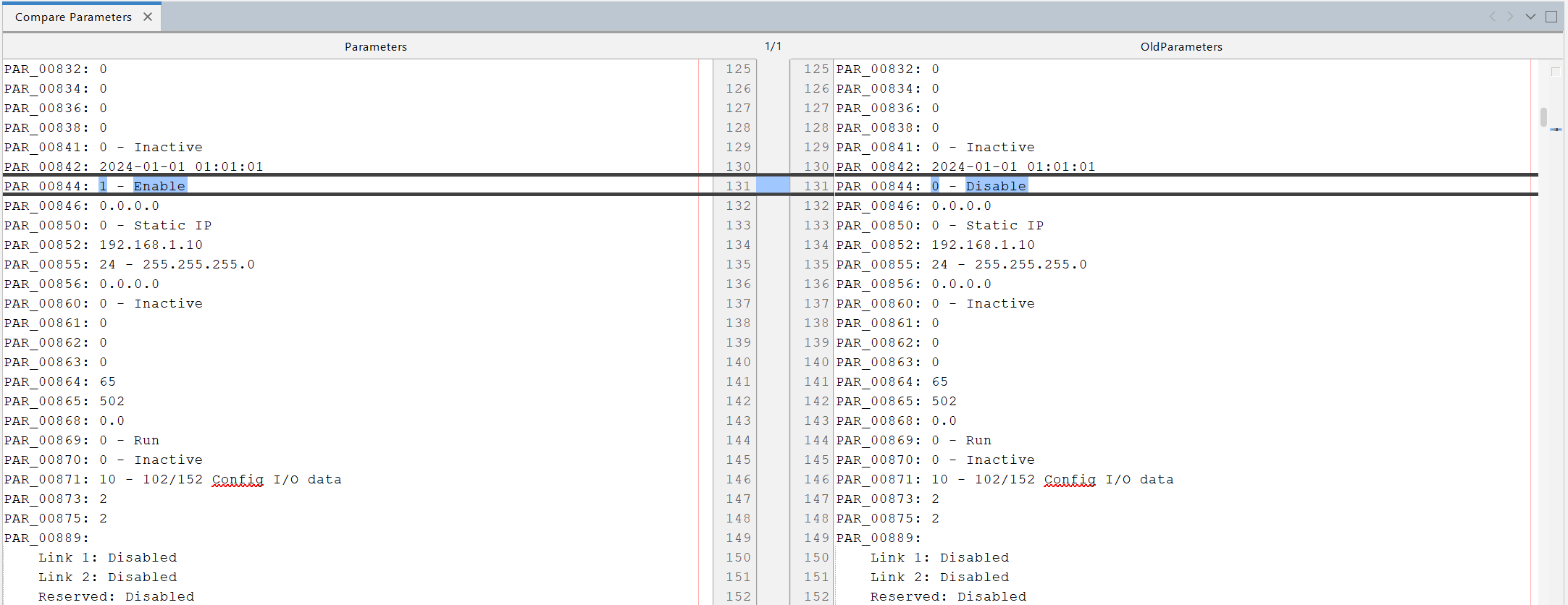
This makes it easier to review differences between files, understand what changed, and analyze parameter sets with less visual noise.
For maintenance, commissioning, troubleshooting, or project review activities, this improvement helps make parameter comparison more practical and easier to interpret.
Parameter comparison now focuses on the values that are relevant for analysis, helping reduce visual noise and making differences easier to understand.
SCA700 Support and Assistants
WPS 3.20 adds support for SCA700, a new WEG product, and introduces dedicated assistants designed specifically for its configuration.
This is one of the key highlights of this release. The SCA700 assistants were created to make configuration faster, clearer, and safer. Instead of manually searching for each parameter involved in common configuration scenarios, WPS now provides guided flows that help organize the configuration step by step.
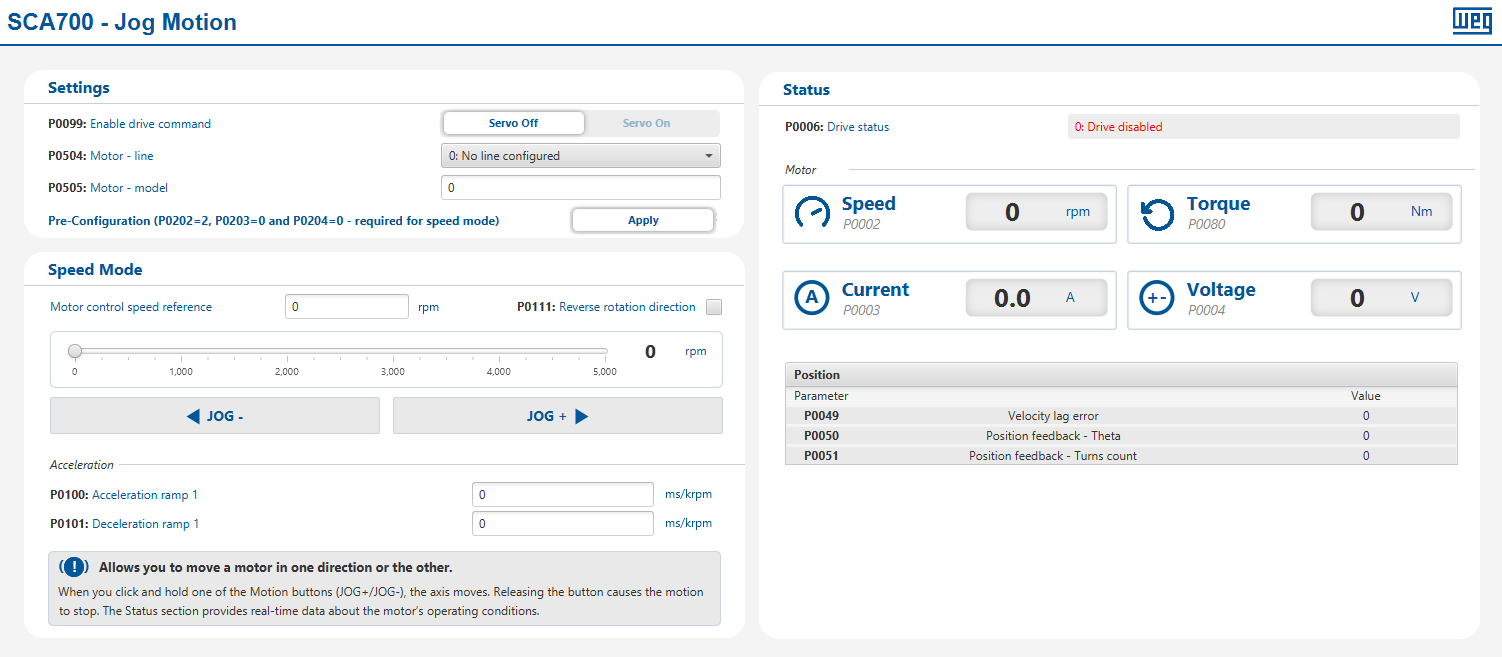
The SCA700 assistants help with important configuration tasks, including:
- Initial basic configuration;
- Jog Motion configuration;
- Positioner application configuration;
- Gain adjustment;
- Guided parameter setup.
This makes the first configuration of the SCA700 more approachable and helps reduce uncertainty during setup. The assistants are especially useful when preparing the equipment for common applications, because they bring the most relevant steps into a clearer and more structured flow.
The assistants do not replace technical knowledge, but they make the configuration path clearer and help accelerate the initial setup process.
Additional Improvements
WPS 3.20 also includes several refinements across the application.
Some improvements are immediately visible, while others work in the background to make WPS more stable, responsive, and consistent during daily use.
In addition to the main features described in this release, WPS 3.20 includes:
- General bug fixes;
- Stability improvements;
- Performance adjustments;
- Interface refinements;
- Communication improvements;
- Internal updates to support the new version.
Why these smaller updates matter?
Not every improvement appears as a new screen or a new feature. Some updates are focused on reducing interruptions, improving consistency, and making the software behave better in common usage scenarios.
Together, these refinements help make WPS more reliable and more comfortable to use over time.
Why This Release Matters
WPS 3.20 is a release focused on practical progress.
It does not change everything users already know about WPS. Instead, it improves important parts of the experience: the application looks more modern, the documentation is easier to search and read, SCA700 configuration becomes more guided, CANopen configuration is now integrated into WPS, installation can be more selective, and several daily operations received performance and stability improvements.
The result is a version that feels more current while keeping WPS familiar.
WPS 3.20 improves key areas of the software without forcing a new way of working: better visual presentation, better documentation, more guided configuration, more integrated tools, and performance improvements where they matter.
Together, these changes make WPS better prepared for current products and real usage scenarios, while preserving the familiarity that existing users already rely on.