|
WEG MFM |
  
|
|
WEG MFM |
|
WEG Motion Fleet Management is the ideal solution to monitor and increase the availability of the industrial drive fleet. With it, it is possible to know the operational status of low and medium voltage inverters and soft-starters, starter systems with smart relay (SRW), among other assets, which are applied in any type of industry or installation, through periodic collection data from these devices.
The WEG MFM Drive Scan function, available in the WPS, makes it possible to configure the inverter directly in the WEG Motion Fleet Management solution, prepare and download it to the device.
To use it, it will be necessary to previously obtain the credentials to access the WEG Motion Fleet Management solution.
For questions and more information, contact WEG Technical Assistance.
|
NOTE!
Detailed information on the architecture and cybersecurity measures implemented in the solution are available in Cybersecurity.
|
To perform the configuration:
|
NOTE!
It is recommended to perform the configuration with the device connected and communicating with the WPS software.
|
1) Expand the cloud services directory and double-click in WEG MFM.
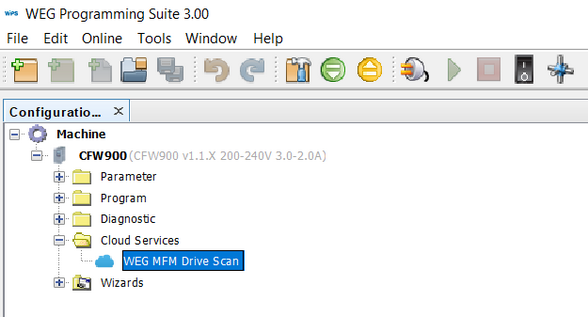
Figure 1 - WPS main window cutout
2) In the authentication window, enter the credentials that give access to the WEG Motion Fleet Management solution, the same ones used to access the service via browser at https://mfm.wnology.io/login.
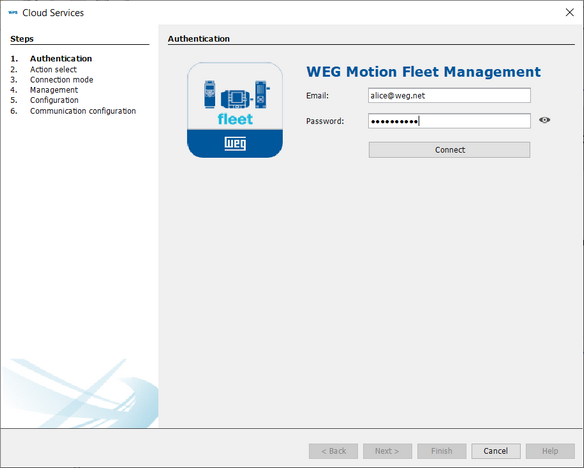
Figure 2 - Authentication window
3) Choose the operation to be performed and click Next:
| • | Create: Register a new device on the WEG Motion Fleet Management platform and generates the configuration for download on the device. |
| • | Replace: Replaces a new equipment with another one already registered in the WEG Motion Fleet Management platform without losing the data history and generating the configuration for download in the equipment. |
| • | Delete: Remove the registered device, deleting all its data stored in the WEG Motion Fleet Management platform and generates the factory configuration of the Drive Scan resource for downloading on the device. |
| • | Update: Gets the updated Drive Scan configuration of a device registered in the WEG Motion Fleet Management platform. Recommended when the device needs to be reconfigured or updated with new attributes. |
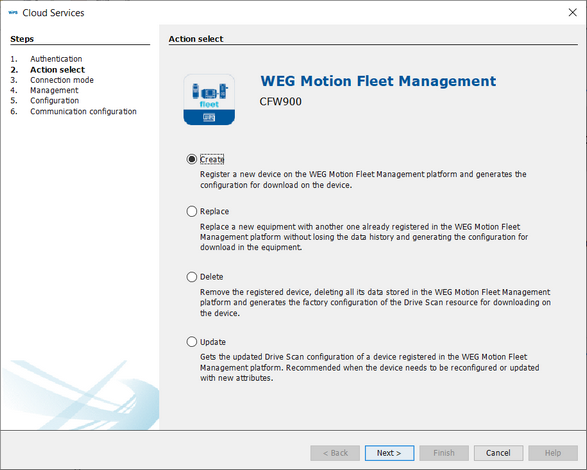
Figure 3 - Operation selection window
4) This step depends on the selected operation:
4.1) Create - Register a new device on the WEG Motion Fleet Management platform and generates the configuration for download on the device.
4.1.1) Select the connection mode between the device and the WEG Motion Fleet Management platform.
| • | Standalone: The device connects directly to the WEG Motion Fleet Management platform to report its measurements and status. The device must have an Internet connection. |
Note: In this mode, it is more common to configure the drive's Ethernet communication as DHCP, allowing the network it is connected to automatically assign its IP address.
| • | Bridge: The device connects to the platform through an Edge Drive Scan with Internet access and connected to the WEG Motion Fleet Management platform to report its measurements and status. |
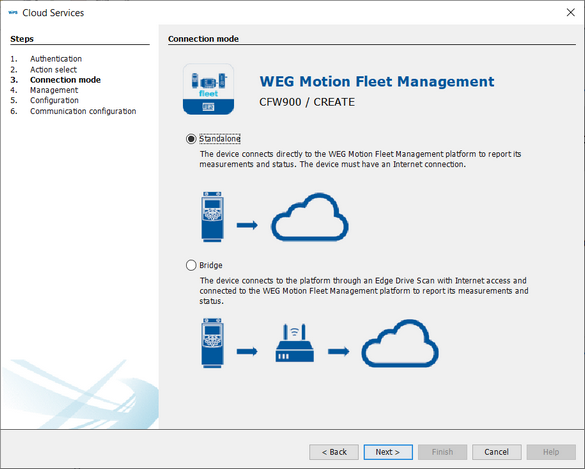
Figure 4 - Connection mode selection window
4.1.2) This step depends on the connection mode:
4.1.2.1) Standalone mode - device connects directly to the WEG Motion Fleet Management platform.
In the management window, in order to proceed, you will need:
| • | Select the WEG Motion Fleet Management plant for which the device will be configured. |
| • | Enter a name for the device, this name will be used to identify it in the WEG Motion Fleet Management plant. |
| • | Enter or read the serial number of the device to be configured. |
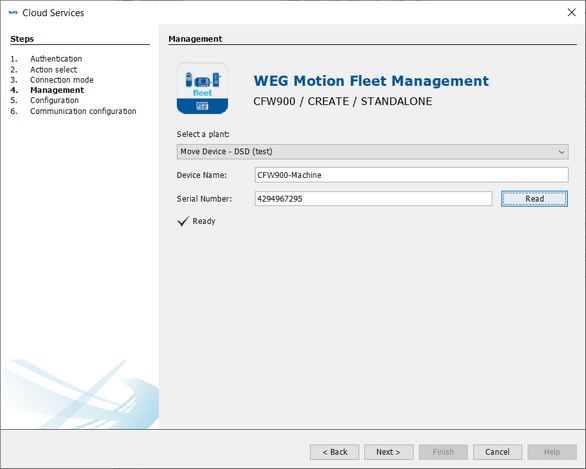
Figure 5 - Management window to create in standalone mode
4.1.2.2) Bridge Mode - device connects to the platform through an Edge Device.
In the management window, in order to proceed, you will need:
| • | Select the WEG Motion Fleet Management plant for which the device will be configured. |
| • | Select the Edge Device that will be responsible for the bridge connection. |
| • | Enter a name for the device, this name will be used to identify it within the plant in WEG Motion Fleet Management. |
| • | Enter or read the serial number of the device to be configured. |
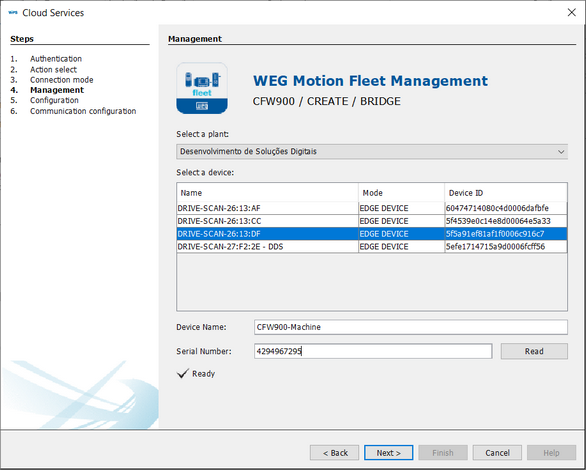
Figure 6 - Management window to create in bridge mode
4.2) Replace - Replaces a new equipment with another one already registered in the WEG Motion Fleet Management platform without losing the data history and generating the configuration for download in the equipment.
In the management window, in order to proceed, you will need:
| • | Select the WEG Motion Fleet Management plant in which the current device is configured. |
| • | Enter or read the serial number of the new device to be configured |
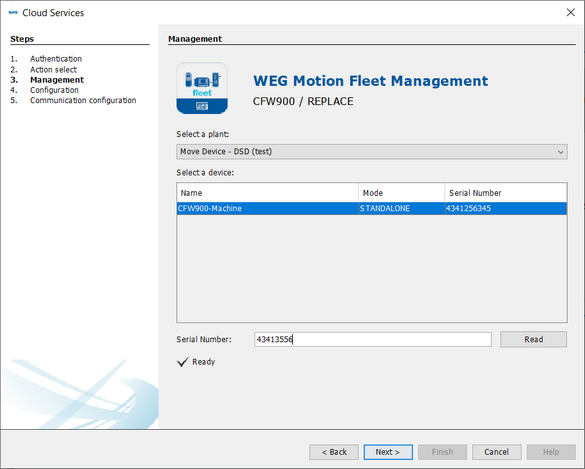
Figure 7 - Management window to replace
4.3) Delete - Remove the registered device, deleting all its data stored in the WEG Motion Fleet Management platform and generates the factory configuration of the Drive Scan resource for downloading on the device.
In the management window, in order to proceed, you will need:
| • | Select the WEG Motion Fleet Management plant in which the device is configured. |
| • | Select the device to be removed. |
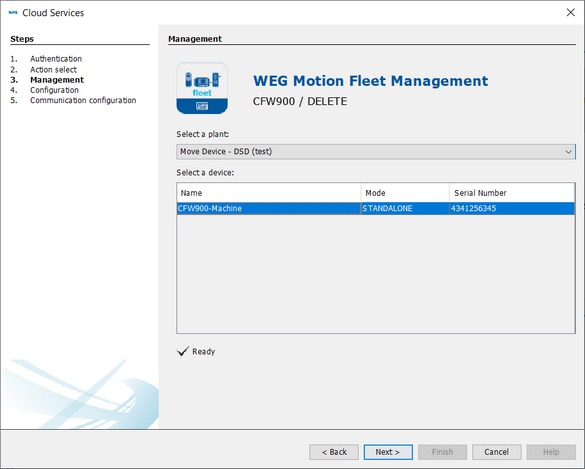
Figure 8 - Management window to delete
4.4) Update - Gets the updated Drive Scan configuration of a device registered in the WEG Motion Fleet Management platform. Recommended when the device needs to be reconfigured or updated with new attributes..
In the management window, in order to proceed, you will need:
| • | Select the WEG Motion Fleet Management plant in which the device is configured. |
| • | Select the device for which you want your updated configuration. |
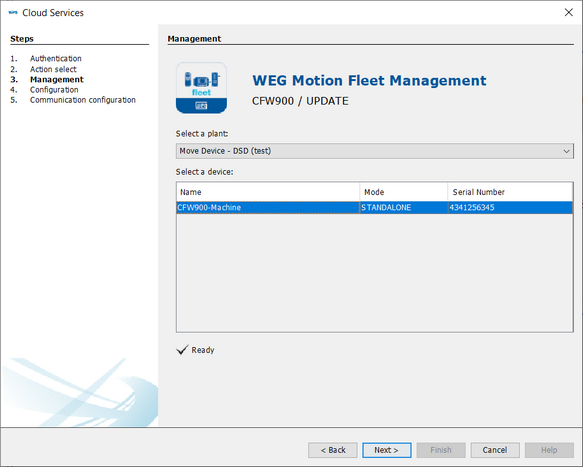
Figure 9 - Management window to update
5) For any procedure, confirm that you want to make changes directly to the WEG Motion Fleet Management solution through its API's via WPS.
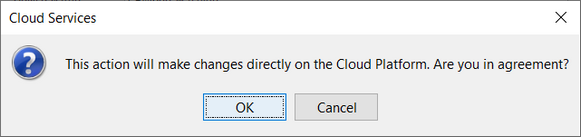
Figure 10 - Platform change confirmation message
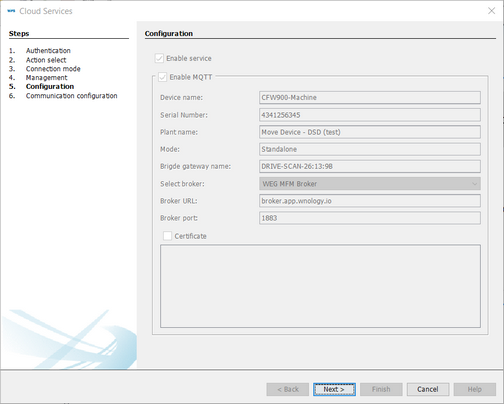
6) The next window shows details of the configuration performed.
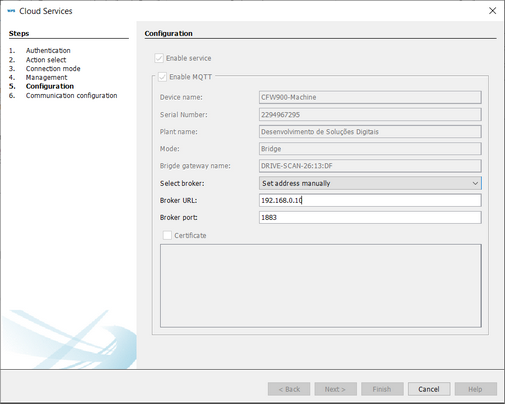
If the operation is CREATE and the connection mode is BRIDGE (Figure 11b), it will be necessary to enter or select the Edge Device broker address and port (Usually its local network interface) before clicking Next.
|
NOTE!
When reaching this configuration step, the device has already made the necessary configurations in WEG Motion Fleet Management through API's, in another words, even not completing the configuration, remember that the operation selected in step 3 was performed on the platform.
|
(a) |
(b) |
Figure 11 - Configuration details window |
|
7) The configuration was concluded, at this point you can choose to download the configuration to the device or leave it for later.
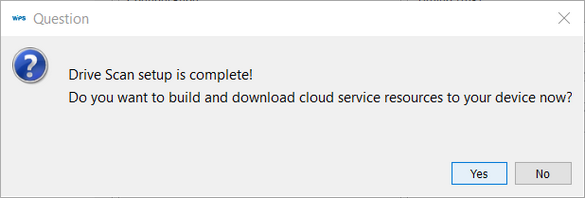
Figure 12 - Download now message
8) MFM Drive Scan configuration download routine:
|
NOTE!
When selecting the Delete procedure, it is important to finish the configuration and download it to the device, so that it stops sending data to the cloud platform, thus preventing this data from being discarded in the future by the platform due to the device being no longer registered in it.
|
8.1) Case download now
8.1.1) Case WPS does not find the device, the communication configuration window will be displayed and it will be possible to proceed only when it is communicating with the WPS.
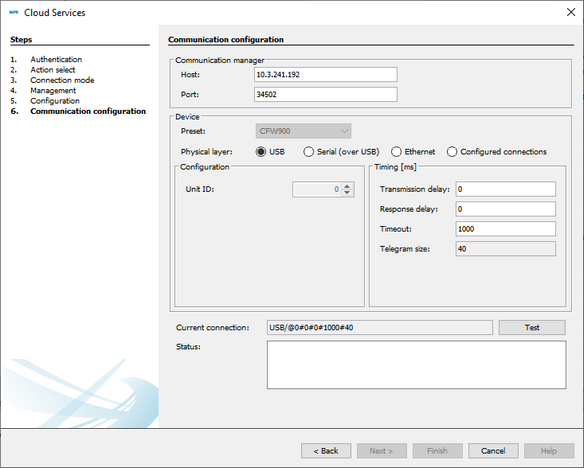
Figure 13 - Communication configuration window
8.1.2) Once the communication with the device has been validated by WPS , it will compile the configuration and present the download window with the Cloud services configuration option enabled.
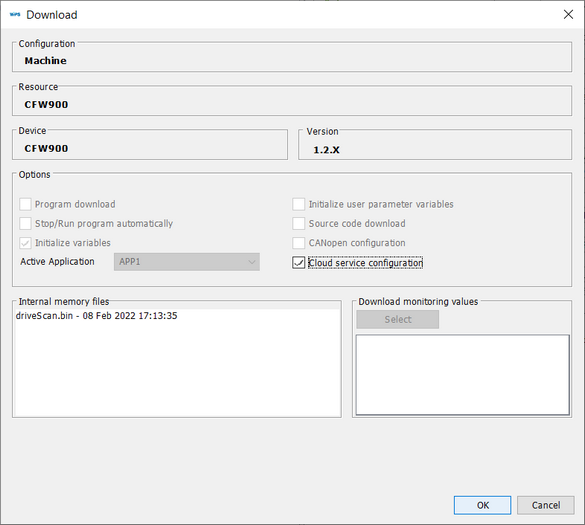
Figure 14 - Cloud services configuration download window
8.2) Download later
8.2.1) Once the option of not performing the download has been selected in step 7, it will be possible to download the MFM Drive Scan configuration together with the program download routine, selecting the option Cloud services configuration
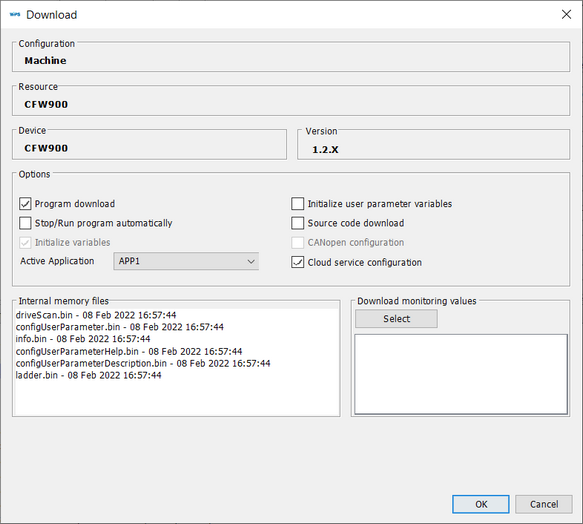
Figure 15 - Download window
9) Once completed, when downloading successfully, the option to execute the program will be presented, if the SoftPLC function is being used by the device.
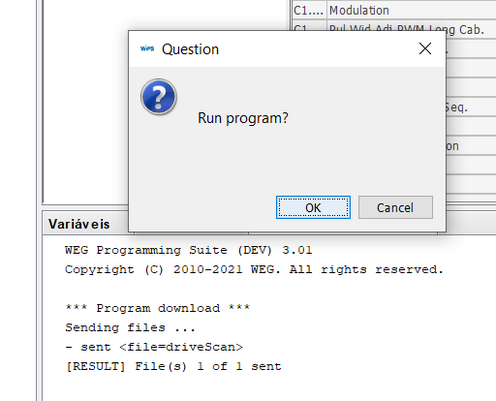
Figure 16 - WPS output information window cutout
|
NOTE!
Important: To avoid monitoring issues, it is essential that the time zone and date/time settings of your drive are correct, as the MFM uses these parameters as a time reference to synchronize data transmission.
|