|
Enable/Disable Hot Download |
  
|
|
Enable/Disable Hot Download |
|
The Hot Download feature comes disabled on the resource by default, to enable it just follow the steps below:
| 1. | Open the context menu of the resource and select the option Resource Options. |
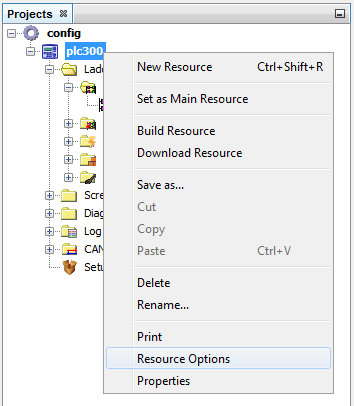
| 2. | Select the option Hot Download on the sidebar menu, it will open a window with the Hot Download configurations. |
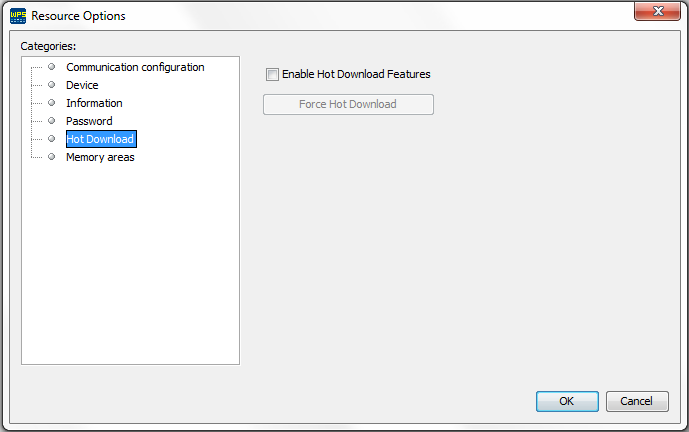
| 3. | On the Hot Download configuration window just select the option Enable Hot Download Features and confirm. |
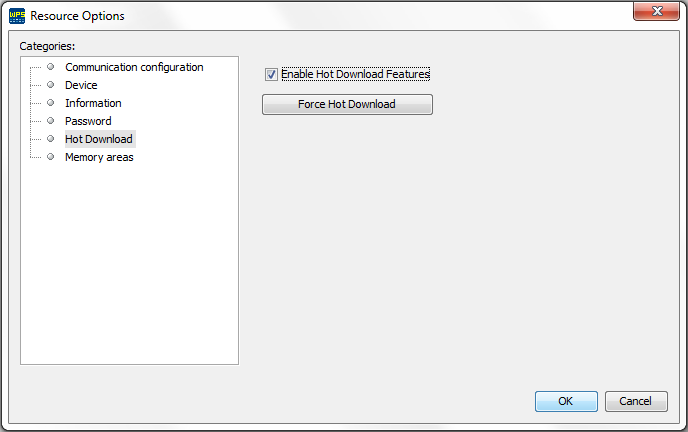
| 4. | The option Force Hot Download is used when it's wished that the system re-enables the Hot Download to the resource, after the user having realized one operation that disables it. |
Example: The user create a local variable after the system having informed him that the creation of the same will disable Hot Download, in case the user regrets and excludes this variable he can then use the option Force Hot Download so the system will keep allowing Hot Download in the same way it was allowing before the creation of this variable.