Tasks
Tasks define how programs are executed within a resource. A task can execute programs periodically, cyclically, once after a trigger, or when an external event or counting condition occurs.
Task files are added to the Task folder of the resource. Each task file defines the execution behavior for the programs associated with it. A watchdog can also be configured to monitor task execution time. Each task has an associated system marker that can be used by the application to enable or disable task execution.
Each resource contains one predefined task named Main. This task cannot be deleted. The Main Ladder program runs in this task.
The screenshots in this page are examples captured from a specific device configuration. The general task configuration workflow is reusable across supported devices, but available task types, event sources, digital input options, counters, and timing behavior may depend on the product.
Use the options available for the selected device and consult the product manual or the corresponding device section in the documentation when device-specific limits or resources are required.
Task Folder Actions
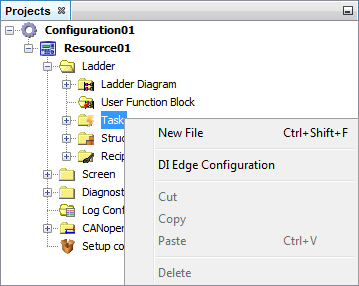
The Task folder menu provides actions for creating task files and configuring digital input transition behavior.
| Action | Description |
|---|---|
| New File | Creates a new task file inside the Task folder. |
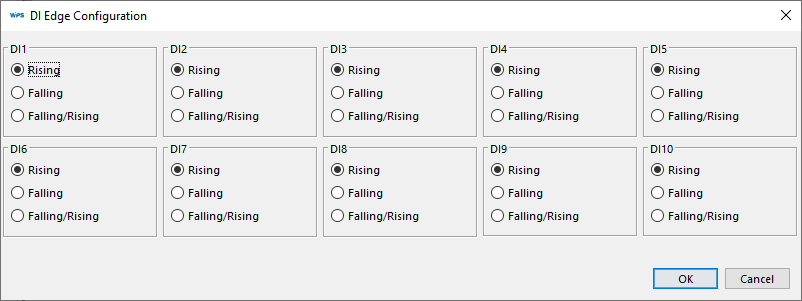
| Configure DI Transition | Opens the digital input transition configuration window. Digital inputs can trigger events on a rising edge, falling edge, or both rising and falling edges. |
Digital input transition settings are used by External Event and Count task types.
Task File Actions
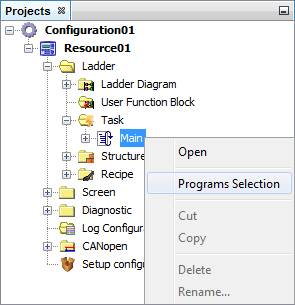
Each task file has an options menu for opening the task configuration and managing the program list associated with the task.
| Action | Description |
|---|---|
| Open | Opens the task configuration window. |
| Programs Selection | Opens the program selection window, where programs can be added, removed, or reordered for the selected task. |
Task Configuration
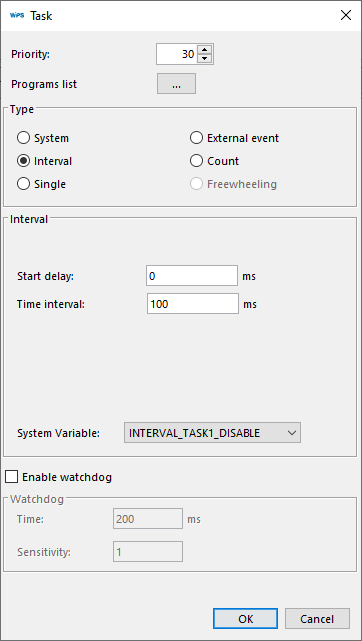
The task configuration window defines the execution behavior of the selected task.
| Area | Purpose |
|---|---|
| Priority | Defines the execution priority of the task. |
| Program List | Defines which programs are associated with the task and the order in which they execute. |
| Type of Task | Defines the condition that activates the task. |
| Watchdog | Defines execution-time monitoring for the task. |
Priority
Task priority is configured with a value from 0 to 30.
| Priority Value | Meaning |
|---|---|
0 | Highest priority |
30 | Lowest priority |
When a task with higher priority becomes active while a lower-priority task is running, the higher-priority task starts executing immediately. When a lower-priority task becomes active while a higher-priority task is running, the lower-priority task waits until the current task finishes.
Program List
The program list defines the programs executed by the task and their execution order.

The left side of the selection window lists all programs available in the resource. The right side lists the programs selected for the task. Programs execute in the same order shown in the selected program list.
Task Types
The task type defines the activation condition for the task.

- System
- Interval
- Single
- External Event
- Count
- Freewheeling
A System task runs on application lifecycle events. It can be configured as Initialization or Stop.

| System Task Option | Execution Behavior |
|---|---|
| Initialization | Executes when the user program starts for the first time. |
| Stop | Executes immediately after the user program stops. |
An Interval task executes repeatedly according to the configured timing parameters.

| Field | Description |
|---|---|
| Time Interval | Defines the time between repeated executions. |
| Initial Delay | Defines the delay before the first execution. |
A system variable is associated with the task and can disable the task through the application.
A Single task executes once when the selected variable changes from zero to a nonzero value.

A system variable is associated with the task and can disable the task through the application.
An External Event task executes once when the selected event becomes active.

Digital input events use the transition edge configured in the digital input transition settings. A system variable is associated with the task and can disable the task through the application.
A Count task executes when the pulse count at the selected input is greater than the value of the variable configured in the Preset field.

| Field | Description |
|---|---|
| Input | Defines the digital input or fast counter used for the count condition. |
| Preset | Defines the count threshold that activates the task. |
| Count | Stores the current pulse count value. |
| Restart | Defines the value that resets the pulse count. |
The variables configured in the Preset, Count, and Restart fields can use DWORD or UDINT data types.
The maximum counting frequency for digital inputs depends on the system load. When a fast counter is available, it can be used for high-frequency counting independently of the digital input scan load.
A Freewheeling task runs cyclically. When the execution of the program list finishes, the same program list starts again and continues running until the user program stops.
The Main Ladder program is associated with this task. It cannot be removed from the task or associated with another task.
Digital Input And Counter Assignment
Digital input and counter functions cannot be used simultaneously for the same set of digital inputs. A digital input operates either as a standard digital input or as a fast counter.
- When an input or input set is configured as a fast counter, it cannot be selected to generate counting events.
- When an input or input set is configured as a digital input, the associated fast counter cannot be selected.
Supported digital input configurations depend on the available device resources. Use the device manual to verify the supported digital input modes.
Watchdog
The watchdog monitors the execution time of a task.

When the watchdog is enabled, the user program stops with an error alarm if the task execution time exceeds the configured Time for more occurrences than the configured Sensitivity.
| Field | Description |
|---|---|
| Time | Maximum task execution time allowed before a watchdog occurrence is registered. |
| Sensitivity | Number of watchdog occurrences allowed before the error alarm is generated and the user program is stopped. |
Some devices has a hardware Watchdog that will be triggered if any task takes more than two seconds to complete, even if the Watchdog option is disabled.
In this case, the device will restart in a safe state, with the application in STOP.